Free Text Expander for Mac: No Subscription, No Limits
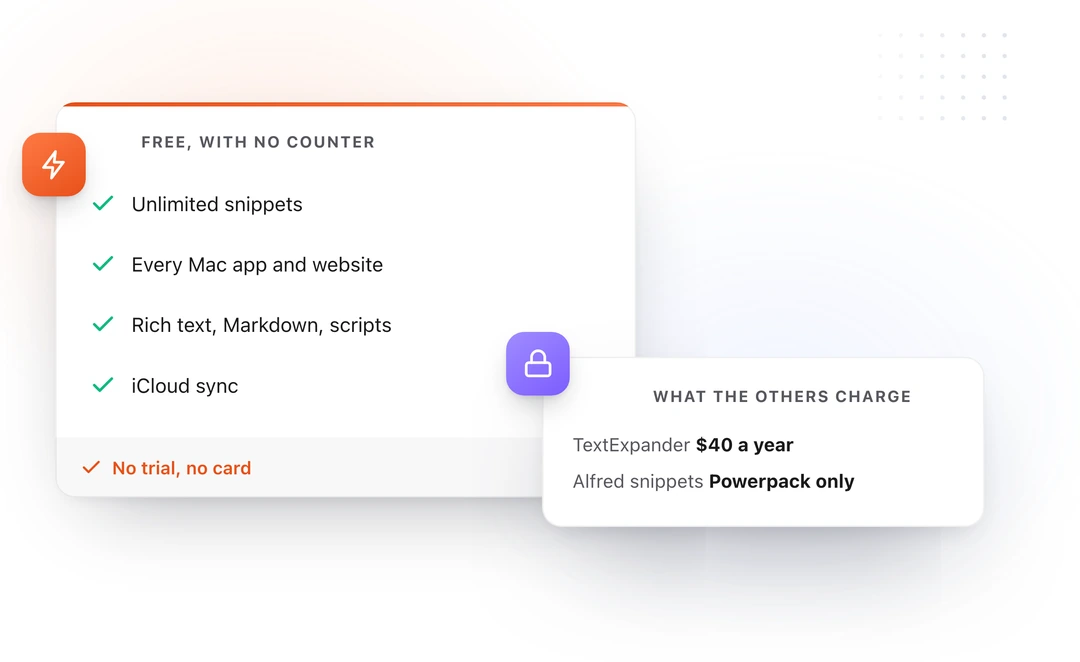
If you type the same emails, addresses, code snippets, or responses more than once a day, a text expander will save you hours every week. But most of the popular options cost money. TextExpander stops at five free snippets and charges $60 a year for more. Typinator is $49.99. aText is $4.99 a year.
You don't need to pay for text expansion. There are genuinely good free options for Mac in 2026. This guide covers all of them, what they do well, where they fall short, and which one fits your workflow.
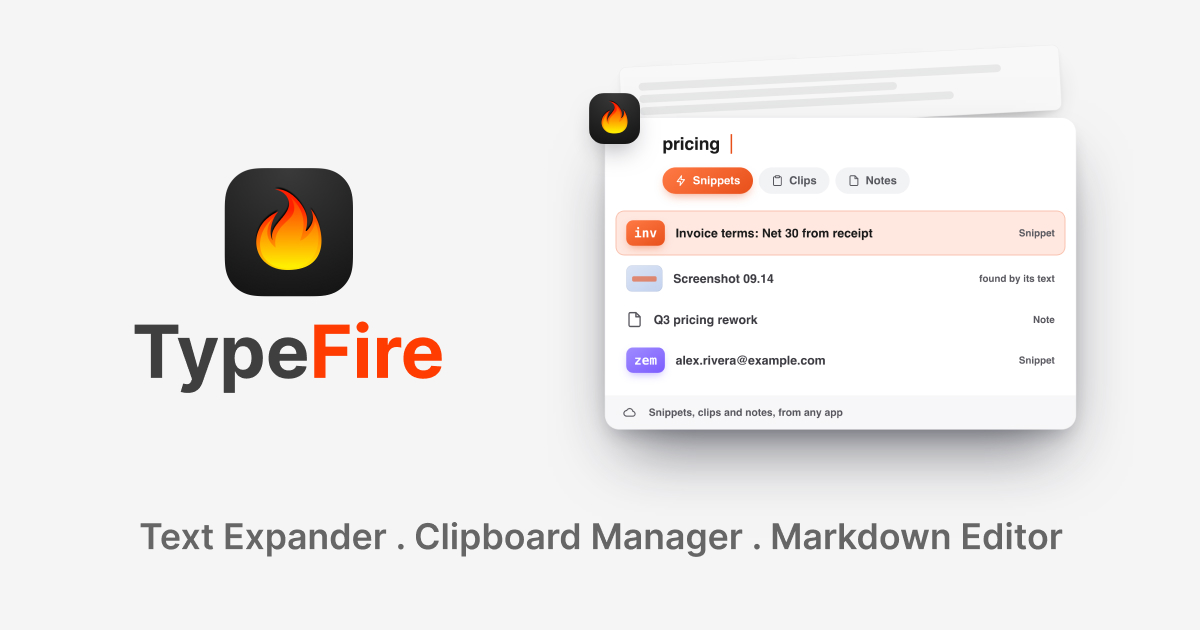
What is a text expander?
A text expander lets you type a short abbreviation and have it automatically replaced with a longer piece of text. For example, you type "zem" and it instantly expands to your full email address. You type "zsig" and your complete email signature appears.
Text expanders work across all your apps. They save you from retyping the same things over and over: email signatures, addresses, phone numbers, code snippets, meeting templates, canned responses, and anything else you type more than once.
What to look for in a free text expander
Not all text expanders are equal. Here's what matters:
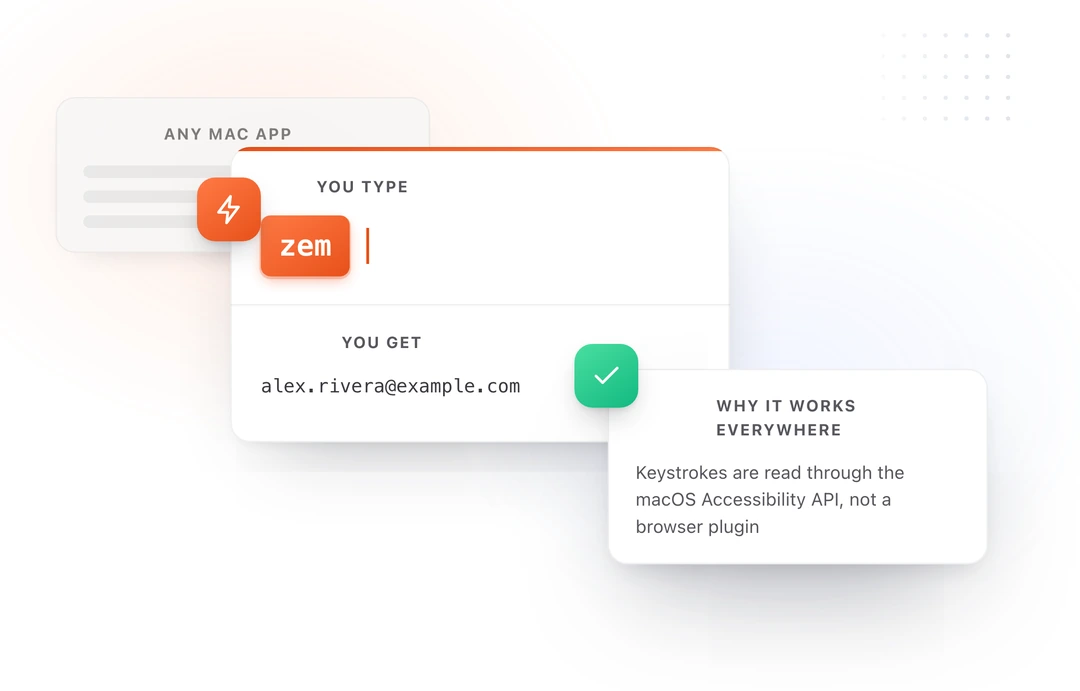
- Works in every app: Some tools only work in browsers or specific apps. A good text expander works system wide across Mail, Slack, Chrome, VS Code, Terminal, and everything else.
- Dynamic content: Static text replacement is table stakes. Look for tokens like dates, clipboard content, and cursor positioning that make your snippets reusable templates.
- Organization: Once you have more than 10 snippets, you need collections, tags, or folders to keep things manageable.
- Rich text support: Plain text covers the basics, but formatted snippets with bold, links, and styling are essential for emails and documents.
- Sync: If you use more than one Mac, your snippets should follow you.
- No artificial limits: Some "free" tools cap you at 5 or 10 snippets. That's not free, that's a trial.
- AI inside snippets (newer feature): A handful of expanders now support running an AI model on your selection or clipboard at expansion time. The free ones with this capability are rare. TypeFire supports Claude, OpenAI, and Gemini via bring-your-own-API-key, with Gemini's free tier covering most personal use at zero cost. See Free AI Text Expander for Mac for the setup.
Free text expanders for Mac, and what each one costs you
These five are the ones worth knowing if price is your deciding factor. For the full field, paid apps included, see our comparison of the best text expanders for Mac.
1. TypeFire
TypeFire is a native macOS text expander that is free with no limits on text expansion. Every expansion feature is available to every user. TypeFire v3.0 later added an optional $18 one-time Pro tier covering three new features (unlimited clipboard clips, Selection Prompts, and Prompt Chains), and 4.0 added two more to the same one-time price: notes sync between your Macs, and note version history. Everything since, including universal search in 4.5 and the graph and search by meaning in 5.0, is free. Nothing that was already free has ever moved behind the paywall.
What it does well:
- Abbreviation expansion that works in every Mac app including Terminal
- Dynamic tokens: {{date}}, {{time}}, {{clipboard}}, {{cursor}}, and nested snippets via {{snippet:abbr}}
- Rich text editor with font size, color, highlights, and font families
- Markdown snippets that expand as formatted HTML
- Global keyboard shortcuts for any snippet
- Spotlight style fuzzy search launcher (Cmd+Ctrl+1)
- Collections, tags, and favorites for organization
- JavaScript and AppleScript script snippets
- iCloud Sync across Macs
- Plain Markdown file storage with no vendor lock in
- Fill in form fields before expansion: placeholders prompt you for values as the snippet expands
- Universal search across snippets, notes and clips on one hotkey, added in 4.5
- A graph view of how everything you write connects, added in 5.0, free and always available
- Search by meaning as well as by word, added in 5.0, running on your own Mac
Limitations:
- macOS only, though the free Chrome extension covers Windows, Linux and ChromeOS
- Built for individuals rather than around a team admin console, so sharing is a shared folder rather than seats
Best for: Anyone who wants a full featured text expander on Mac without paying anything. Developers, writers, support teams, and anyone who types repetitive text.
2. Espanso
Espanso is an open source, cross platform text expander that runs on Mac, Windows, and Linux. It is free and actively maintained.
What it does well:
- Cross platform support (Mac, Windows, Linux)
- Regex based matching for advanced triggers
- Open source with community extensions
- Shell command integration
- Date and clipboard tokens
Limitations:
- No GUI. All configuration is done through YAML files in the terminal.
- No rich text or Markdown expansion
- No visual snippet editor
- Steep learning curve for non developers
- No iCloud Sync (manual file sync required)
Best for: Developers and power users who are comfortable with terminal tools and want cross platform support.
3. macOS text replacement
macOS has a built in text replacement feature in System Settings under Keyboard. It is the simplest option and requires no additional software.
What it does well:
- Built into macOS with zero setup
- Syncs across Apple devices via iCloud
- Works in native Apple apps (Safari, Mail, Notes, TextEdit)
Limitations:
- Does not work in Terminal, VS Code, Chrome, Slack, or most third party apps
- Static text only. No dynamic tokens, no dates, no clipboard content.
- No multi line snippets
- No rich text or formatting
- No collections, tags, or organization
- Very limited snippet management interface
Best for: People who only need a few short replacements in Apple's own apps and don't want to install anything.
4. Raycast snippets
Raycast is a popular Mac launcher that includes a snippets feature. The snippet functionality is free.
What it does well:
- Clean interface integrated into a launcher you may already use
- Basic abbreviation expansion
- Search and paste from the Raycast window
- Supports date and clipboard tokens
Limitations:
- No rich text or Markdown expansion
- No script snippets
- Limited organization (no nested collections)
- No dedicated snippet editor
- Expansion can be less reliable in some apps compared to dedicated text expanders
Best for: People who already use Raycast and want basic snippet functionality without installing another app.
5. Alfred snippets
Alfred is another Mac launcher with a snippets feature. Snippets require the Alfred Powerpack (paid), but Alfred's free tier includes clipboard history which some users combine with manual pasting.
What it does well:
- Rich workflow automation (with Powerpack)
- Good snippet organization
- Clipboard history in the free tier
Limitations:
- Full snippet expansion requires the Powerpack ($34 one time)
- No rich text expansion
- No Markdown support
- No dynamic tokens beyond date/time
- No iCloud Sync for snippets
Best for: Alfred Powerpack users who want snippets integrated into their existing Alfred workflow.
Feature comparison table
| Feature | TypeFire | Espanso | macOS Built in | Raycast | Alfred |
|---|---|---|---|---|---|
| Price | Free | Free | Free | Free | $34 (Powerpack) |
| Works in all apps | Yes | Yes | No | Mostly | Yes |
| Rich text | Yes | No | No | No | No |
| Markdown expansion | Yes | No | No | No | No |
| Dynamic tokens | Yes | Partial | No | Partial | Partial |
| Clipboard token | Yes | Yes | No | Yes | No |
| Cursor positioning | Yes | No | No | No | No |
| Script snippets | Yes | Yes (shell) | No | No | Yes (Powerpack) |
| iCloud Sync | Yes | No | Yes (limited) | No | No |
| GUI editor | Yes | No (YAML) | Basic | Basic | Basic |
| Collections/tags | Yes | Via files | No | Basic | Basic |
| AI tokens | Yes (BYOK) | No | No | Paid (Raycast AI) | No |
| Unlimited snippets | Yes | Yes | Yes | Yes | Yes |
Which free text expander should you use?
If you want the most features for free: TypeFire gives you everything, unlimited snippets, rich text, Markdown, dynamic tokens, scripts, iCloud Sync, and a native Mac app with a visual editor. No other free option matches this feature set.
If you need cross platform: Espanso is the only free option that works on Mac, Windows, and Linux. You'll need to be comfortable with YAML configuration.
If you only need basics in Apple apps: macOS built in text replacement works for short, static replacements in Safari and Mail. No install needed.
If you already use Raycast or Alfred: Their built in snippet features may be enough for simple use cases without adding another app.
For most Mac users who type repetitive text across multiple apps, TypeFire offers the best combination of features, ease of use, and zero cost. It handles everything from simple email shortcuts to complex templates with dynamic dates, clipboard content, and cursor positioning.
Also in Chrome: TypeFire for Chrome brings snippets, Markdown notes and clips to every browser app: Gmail, Slack, Linear, ChatGPT, GitHub, anywhere with a text field. Same sign-in and snippet format as the Mac app. Install it from the Chrome Web Store or read about TypeFire for Chrome.
Get started
Download TypeFire free at typefire.app. Set up your first snippet in under a minute. Your snippets are stored as plain Markdown files on your Mac with no vendor lock in.
Templates you might want
- Email Signatures: Personal Productivity
- Quick Reply Templates: Personal Productivity
- Rewrite & Polish: AI Workflows
- Failed Payment Response: Customer Support
Loved by people who type all day.
Unprompted reactions from users, in their own words.
Used by people at
Company names are places where our users work. They do not imply endorsement or affiliation.