Chromebook Text Expander: Snippets on ChromeOS
Chromebooks are great. Long battery life, fast boot, low maintenance, ChromeOS keeps getting better every year. The catch: if you want a text expander, you are mostly out of luck. There is no native ChromeOS app. The Mac and Windows text expanders are not available. Android apps run in a sandbox that does not reach Chrome.
TypeFire's free Chrome extension is the answer. Because almost everything you do on a Chromebook happens in Chrome, a Chrome text expander is effectively a system-wide text expander.

This guide walks through setup, what works, and what to do about cross-device sync.
Why ChromeOS users struggle with text expansion
A short list of why every search for "Chromebook text expander" lands on workarounds:
- No native ChromeOS text expander exists
- Mac and Windows expanders (TextExpander, aText, Typinator) do not run on ChromeOS
- Android apps run in a separate sandbox; they cannot inject text into Chrome tabs
- ChromeOS's built-in text replacement is limited to short autocorrect-style swaps
A Chrome extension is the only path that actually works inside the browser, which is where almost all Chromebook work lives.
What TypeFire covers on ChromeOS
Once installed in Chrome on your Chromebook, TypeFire works everywhere you type in the browser:
- Gmail, Google Calendar, Google Sheets, Google Slides
- Chat apps (Slack web, Discord, Microsoft Teams web)
- Project management (Linear, Asana, Trello, Notion)
- AI chat tools (ChatGPT, Claude.ai, Gemini, Perplexity)
- Dev tools (GitHub, GitLab, Jira, CodePen)
- CRMs (Salesforce, HubSpot, Pipedrive)
- Anywhere else with a text field
The one gap: Google Docs. Docs renders text on a canvas element that no Chrome extension can reliably reach. TypeFire shows a "not supported" notice when you open the popup on Docs. Gmail, Sheets, Slides, and the rest of Google Workspace work fine.
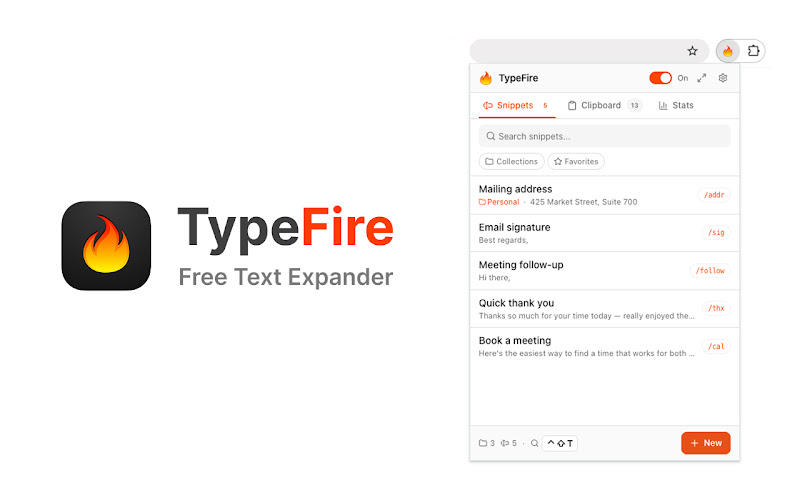
Setup on a Chromebook
About three minutes start to finish.
- Open the Chrome Web Store and add TypeFire to Chrome.
- Click the TypeFire icon in your toolbar to open the popup.
- Sign in with your email. You will receive a one-time code; paste it in.
- Create your first snippet. A signature is a good place to start.
- Set an abbreviation like
;sigand save. - Open a new tab, go to Gmail compose, type
;sig, and watch it expand.
That is the whole setup. No account creation flow, no payment, no per-seat licensing.
Pin the side panel for a real workspace
Chromebooks often run with smaller screens than desktops. The Chrome side panel is a real win on smaller displays.
To pin the TypeFire side panel:
- Click the TypeFire icon
- Click the "Open in side panel" button in the popup header
- The side panel locks open next to your tab
You can now browse your library, edit snippets, and tag favorites without leaving whatever page you are working on. Close the side panel any time with the X in its corner.
Spotlight launcher on Chromebook
The Spotlight launcher (Ctrl+Shift+E on Chromebook) opens a fuzzy search over your entire snippet library from any page. Type a few characters of any snippet's title, content, or tag and you find it. Hit Enter and it expands into wherever your cursor was.
This single feature is the reason your library can grow past 50 snippets without becoming unusable.
Cross-device sync on ChromeOS
TypeFire moves your library between Chromebooks as a JSON file you own: export on one, import on the next, nothing held on a server in between.
For Chromebook users on a single device, this is invisible: install, build the library, done. For people moving between a Chromebook and another device (a phone, a work laptop, a desktop), the workflow is:
- Open the side panel
- Settings, Export library, save the JSON file
- On the other device, Settings, Import library, pick the file
It is not real-time sync. It is a clean transfer point you can run on demand.
What about the Mac app
If you also use a Mac, TypeFire has a free Mac app that covers every native macOS app the browser cannot reach: Slack desktop, Apple Mail, Notes, Xcode, Terminal. The same JSON export and import moves your library between Chrome on Chromebook and the Mac app. See the Mac landing page for the full feature list.
Starter snippets for Chromebook users
If you want fast wins, install TypeFire and load these five first.
;sig for your email signature.
;date for the current date with {{date}}.
;cal for your scheduling link.
;ack for "Got this, thanks. Will reply by {{date}}."
;polish with {{ai:rewrite}} to clean up rough drafts (requires a free Gemini API key or any other supported provider).
These five alone are good for a couple of hours saved per week.
The bottom line
ChromeOS users have had a thin time of it for text expansion. TypeFire's free Chrome extension closes the gap with rich text, AI tokens, a side panel, a Spotlight launcher, and no subscription.
Install it from the Chrome Web Store and try it out. The Chrome extension overview walks through the rest of the feature set.
Loved by people who type all day.
Unprompted reactions from users, in their own words.
Used by people at
Company names are places where our users work. They do not imply endorsement or affiliation.