How to Set Up TypeFire: A Complete Getting Started Guide
Getting started with a text expander can feel overwhelming if you have never used one before. But TypeFire is designed to get you up and running in under five minutes. This guide walks you through every step - from installation to your first expanding snippet.
What Is TypeFire?
TypeFire is a free macOS text expander and snippet manager. It lets you type a short abbreviation and instantly expand it into a full block of text, formatted content, or even a script output. If you find yourself typing the same emails, code snippets, addresses, or responses over and over, TypeFire eliminates that repetition entirely.
Step 1: Download and Install
Head to typefire.dev and download the latest version. The app ships as a standard .dmg file.
- Open the downloaded
.dmgfile - Drag TypeFire into your Applications folder
- Launch TypeFire from Applications or Spotlight
On first launch, macOS will ask you to grant Accessibility permissions. This is required for TypeFire to detect your abbreviations and expand text in any app. Go to System Settings > Privacy & Security > Accessibility and toggle TypeFire on.
Step 2: Create Your First Snippet
Once TypeFire is running, you will see the main window with your snippet library. Here is how to create your first one:
- Click the + button or use the keyboard shortcut to add a new snippet
- Give it a name like "Email Signature"
- In the content area, type your full email signature
- Save the snippet
That is it. Your snippet now lives in your library and is ready to be triggered.
Step 3: Set Up an Abbreviation
Abbreviations are the fastest way to trigger snippets. An abbreviation is a short string you type that automatically expands into your full snippet content.
- Open the snippet you just created
- Find the abbreviation field
- Type a short trigger like
;sig
Now whenever you type ;sig followed by a space in any app - your email, a document, Slack - TypeFire will replace it with your full email signature.
Tips for good abbreviations:
- Use a prefix like
;orzto avoid accidental triggers (see our abbreviation naming conventions guide for more) - Keep them short but memorable
- Avoid common words or letter combinations
Step 4: Assign a Keyboard Shortcut
Some snippets work better with a keyboard shortcut instead of an abbreviation. For example, you might want to press Cmd+Shift+E to insert your email signature.
- Open your snippet
- Click the keyboard shortcut field
- Press the key combination you want to use
- Save
TypeFire will now listen for that shortcut globally. No matter what app you are in, pressing that combination will insert your snippet.
Be careful to avoid conflicts with existing macOS or app shortcuts. Our keyboard shortcuts guide covers this in detail.
Step 5: Organize with Collections
Once you have more than a handful of snippets, collections help you stay organized. Think of them as folders for your snippets.
Common collection structures include:
- Email - signatures, templates, follow-ups
- Code - common functions, boilerplate, debug snippets
- Support - canned responses, troubleshooting steps
- Personal - addresses, phone numbers, bios
To create a collection:
- Look for the collections panel in the sidebar
- Click to add a new collection
- Name it something descriptive
- Drag existing snippets into it, or create new ones directly inside
You can nest collections inside each other for deeper organization. A developer might have a "Code" collection with sub-collections for "Python," "JavaScript," and "SQL."
Step 6: Try the Spotlight Launcher
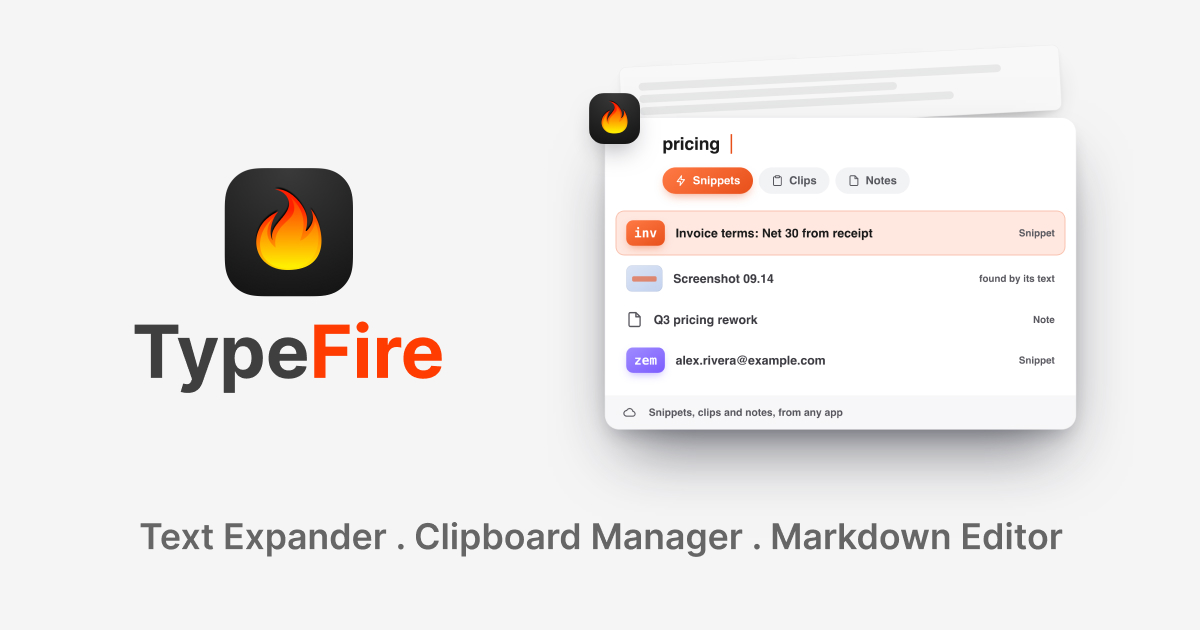
TypeFire includes a Spotlight-style launcher that lets you search and insert any snippet without remembering its abbreviation.
Press the global launcher shortcut and start typing. TypeFire will fuzzy-match against your snippet names and content. Select the one you want and it gets inserted right where your cursor is.
This is especially useful for snippets you use occasionally - frequent enough to save, but not frequent enough to memorize an abbreviation for.
Step 7: Explore Dynamic Tokens
TypeFire supports dynamic tokens that insert live data into your snippets. For example:
{date}inserts today's date{time}inserts the current time{clipboard}inserts whatever is on your clipboard
A practical example: create a snippet for meeting notes with this content:
Meeting Notes - {date}
Attendees:
Action Items:
Every time you trigger it, the date updates automatically. Check out our complete text expansion guide for more token examples.
Step 8: Enable iCloud Sync
If you use multiple Macs, TypeFire syncs your entire snippet library through iCloud. There is nothing to configure - just sign into the same Apple ID on both machines and your snippets stay in sync.
This also serves as a backup. Your snippets live safely in iCloud even if something happens to your Mac.
Common First-Time Setup Questions
Do I need to keep TypeFire running? Yes. TypeFire runs as a menu bar app. It uses minimal resources and needs to be active to detect your abbreviations and shortcuts.
Will it slow down my Mac? No. TypeFire is built as a native macOS app and uses very little CPU or memory. You will not notice it running.
Can I import snippets from another tool? Yes. If you are coming from TextExpander or another tool, check our migration guide for step-by-step instructions.
Is it really free? Yes. Everything described in this guide is free for every user. Pro ($18 once, for the Mac app and the Chrome extension together) adds clips beyond the last ten, Selection Prompts, Prompt Chains and note version history.
What to Set Up Next
Now that you have the basics down, here are some next steps to get more out of TypeFire:
- Build an email snippet collection - Start with the templates from our email templates guide
- Develop a naming convention - Read our abbreviation naming guide before your library grows
- Explore creative use cases - Our 10 unexpected uses post has ideas you probably have not considered
The key to getting value from any text expander is actually using it. Start with three to five snippets for text you type every single day. Once you see how much time those save, you will naturally start adding more. Most TypeFire users end up with 50 to 100 snippets within their first month.
Templates you might want
- Email Signatures: Personal Productivity
- Quick Reply Templates: Personal Productivity
- Rewrite & Polish: AI Workflows
- Failed Payment Response: Customer Support
Loved by people who type all day.
Unprompted reactions from users, in their own words.
Used by people at
Company names are places where our users work. They do not imply endorsement or affiliation.