The Complete Guide to Text Expansion on Mac
Text expansion is one of the most underused productivity techniques on macOS. The concept is simple - you type a short trigger and it expands into a longer piece of text. But the impact compounds dramatically. A user who saves 30 seconds per expansion across 50 expansions per day recovers over 25 minutes daily. That adds up to more than two hours per week and over 100 hours per year.
This is the definitive guide to text expansion on Mac. Whether you are brand new to the concept or looking to optimize an existing setup, this guide covers everything.
What Is Text Expansion?
Text expansion replaces short typed triggers with longer text. The trigger can be an abbreviation (like ;sig becoming your full email signature) or a keyboard shortcut (like Cmd+Shift+S inserting a snippet).
The expanded text can be:
- Plain text (addresses, names, URLs)
- Rich text with formatting (bold, italic, links)
- Markdown content
- Dynamic content with dates, times, or clipboard data
- Script output
Text expansion works globally across macOS. Whatever app has focus - Mail, Slack, VS Code, Chrome, Notes - your snippets expand right where you are typing.
Who Benefits from Text Expansion?
Nearly everyone who types regularly, but some roles see outsized returns:
Customer support agents type similar responses dozens of times per day. A library of canned responses with slight variations cuts response time dramatically.
Developers write the same boilerplate code, import statements, function signatures, and debug logging constantly. Expansion eliminates the tedious parts of coding.
Salespeople send repetitive outreach emails, follow-ups, and proposals. Templates that expand with a keystroke keep the pipeline moving.
Writers and editors insert common phrases, formatting, source citations, and editorial marks repeatedly.
Anyone who emails benefits from greeting templates, signatures, common responses, and scheduling messages.
Text Expansion Tools on macOS
macOS offers several text expansion options ranging from built-in to full-featured apps.
macOS Built-In Text Replacement
Apple includes a basic text replacement feature in System Settings > Keyboard > Text Replacements. It works but has significant limitations - no rich text, no dynamic tokens, no organization, and syncing is unreliable. For a detailed comparison, see our macOS text replacement vs TypeFire breakdown.
TypeFire
TypeFire is a free, full-featured text expander for macOS. It supports abbreviation expansion, keyboard shortcuts, a Spotlight-style launcher, rich text, Markdown, dynamic tokens, collections, iCloud Sync, and scripts. Text expansion is completely free; Pro ($18 once) covers clips, AI prompts and note history. Read the setup guide to get started.
Other Options
Tools like TextExpander, aText, Typinator, Espanso, and snippet features in Alfred and Raycast also provide text expansion. Each has tradeoffs around price, features, and approach. Our TextExpander alternatives roundup covers the landscape in detail.
Core Concepts
Abbreviations
An abbreviation is a short string you type to trigger expansion. Common patterns include prefix-based triggers like ;sig or zsig. The key requirements are:
- It must not conflict with words you type normally
- It should be easy to remember
- It should be fast to type
Our abbreviation naming conventions guide covers this in depth.
Keyboard Shortcuts
Some snippets work better as keyboard shortcuts. Press a combination like Cmd+Shift+E and the snippet inserts at your cursor. Shortcuts work well for snippets you use frequently but where an abbreviation might conflict or feel unnatural.
The Spotlight Launcher
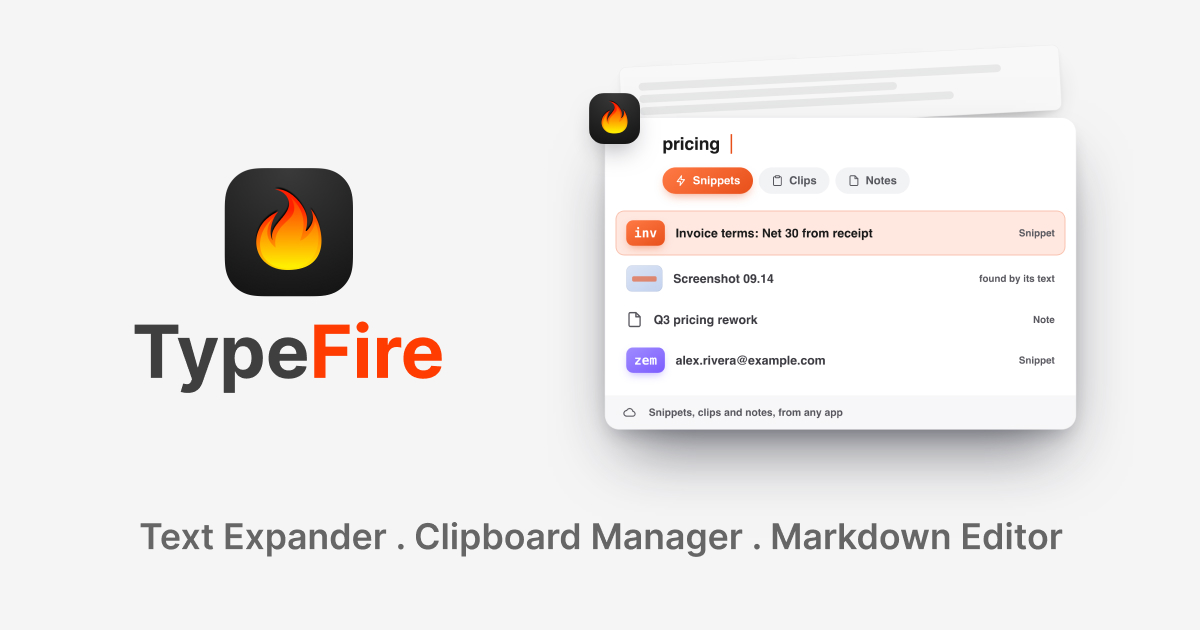
TypeFire includes a launcher you can summon with a global shortcut. Type a few characters to fuzzy-search your snippet library and insert the result. This bridges the gap between abbreviations you have memorized and the full library you have built.
Collections
Collections organize snippets into groups - by topic, by workflow, by project. They serve two purposes: keeping your library browsable and allowing you to enable or disable groups of snippets as needed.
Dynamic Tokens
Tokens insert variable content at expansion time:
{date}- current date{time}- current time{clipboard}- clipboard content
These turn static snippets into dynamic templates.
Building Your Snippet Library
Phase 1: The Essentials (Day 1)
Start with text you type every single day:
- Email signature
- Home and work addresses
- Phone number
- Common greetings ("Hi [name], thanks for reaching out!")
- Your standard sign-off
Five to ten snippets. Assign abbreviations to each. Use them for a week.
Phase 2: Work-Specific Snippets (Week 2)
Add snippets for your job:
- Canned responses for common questions
- Code boilerplate or templates
- Meeting agenda templates
- Project status update formats
- Common URLs or links you share
You should have 20 to 30 snippets at this point.
Phase 3: Workflows (Month 2)
Build connected snippet sequences:
- A complete customer support flow (greeting through closing)
- An email outreach sequence (intro, follow-up 1, follow-up 2)
- A code review checklist that you insert as comments
- A weekly report template with dynamic date tokens
Phase 4: Optimization (Ongoing)
Review what you use and what you do not:
- Remove snippets you never trigger
- Refine abbreviations that are hard to remember
- Split large snippets into focused components
- Add dynamic tokens where you keep editing the same part manually
Advanced Techniques
Clipboard Integration
The {clipboard} token is powerful. Create a snippet like:
Thanks for your interest in [Product]. Here is the resource you requested: {clipboard}
Copy a URL, trigger the snippet, and the URL is woven into your response automatically.
Date-Stamped Templates
For any recurring document - meeting notes, journal entries, daily standups - use the {date} token:
## Daily Standup - {date}

**Yesterday:**

**Today:**

**Blockers:**
One abbreviation gives you a fresh template every day.
Markdown Snippets
TypeFire supports Markdown, which is perfect for tools that render it - GitHub, Notion, Slack, and many others. Create snippets for:
- Table templates
- Common Markdown structures
- Formatted checklists
- Link patterns
Script-Powered Snippets
For advanced use cases, TypeFire can run scripts and insert the output. This opens up possibilities like inserting calculated values, pulling data from files, or generating formatted content on the fly.
Measuring Your Impact
After a few weeks of using text expansion, try to estimate your savings:
- Count your daily expansions - How many times do your snippets fire per day?
- Estimate time per expansion - How long would the manual typing take? (Usually 10-60 seconds depending on snippet length)
- Multiply - 40 expansions x 20 seconds average = 13 minutes per day
Over a year, those 13 minutes per day become more than 50 hours. That is more than a full work week recovered from repetitive typing.
Common Pitfalls
Creating snippets you never use. Only create snippets for text you actually type repeatedly. Quality over quantity.
Abbreviations you cannot remember. If you have to look up an abbreviation, the snippet is not saving you time. Use the launcher for less frequent snippets instead.
Stale content. Review your library regularly. Outdated snippets that insert wrong information are worse than typing from scratch.
Over-engineering. A snippet does not need to handle every possible variation. Keep it simple and edit slightly after expansion when needed.
Also in Chrome: Beyond the Mac app, TypeFire for Chrome brings snippets, Markdown notes and clips to every browser app: Gmail, Slack, Linear, ChatGPT, GitHub and any other site with a text field. Same sign-in as the Mac app. Install it from the Chrome Web Store or read about TypeFire for Chrome.
Getting Started
TypeFire is free and takes less than five minutes to set up. Download it from typefire.dev and follow our getting started guide.
Start with five snippets for text you typed today. Use them for a week. Then add five more. Within a month, text expansion will feel as natural as copy-paste - and you will wonder how you ever worked without it.
Templates you might want
- Email Signatures: Personal Productivity
- Quick Reply Templates: Personal Productivity
- Rewrite & Polish: AI Workflows
- Failed Payment Response: Customer Support
Loved by people who type all day.
Unprompted reactions from users, in their own words.
Used by people at
Company names are places where our users work. They do not imply endorsement or affiliation.