Spotlight-Style Launcher for Text Snippets: Faster Than Any Shortcut
You have built a library of 50 snippets. You remember the abbreviations for maybe 15 of them. The rest? You know they exist somewhere, but finding them means opening the app, scrolling through your collection, and manually copying the content. That defeats the entire point of text expansion.
TypeFire's spotlight-style launcher solves this. Press Cmd+Ctrl+1 from anywhere on your Mac, type a few characters, and your snippet appears - ready to expand. No memorization. No context switching. No friction.
How the Launcher Works
The launcher is a floating search bar that appears over whatever application you are working in. Here is the workflow:
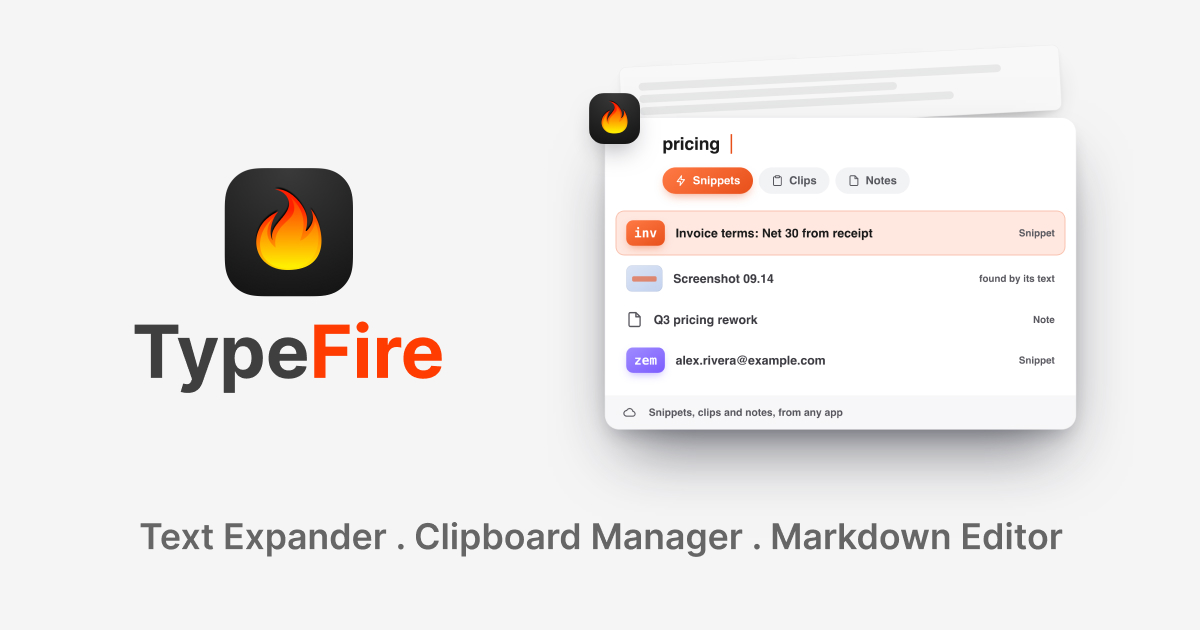
- Press Cmd+Ctrl+1 - The launcher appears as an overlay
- Type a few characters - Search by snippet name, content, or tag
- Select your snippet - Use arrow keys or click
- Press Enter - The snippet expands into your active application
- The launcher disappears - You are back to working, with the expanded text in place
The entire interaction takes one to two seconds, even for snippets you have not used in weeks.
Why a Launcher Beats Abbreviations for Some Workflows
Abbreviation expansion is TypeFire's fastest trigger method. Type ;sig and your signature appears. For snippets you use multiple times daily, abbreviations are unbeatable.
But abbreviations have a scaling problem. Once your library grows past 20 or 30 snippets, you start running into issues:
- Memory limits - You simply cannot remember 50+ abbreviations
- Collision risk - Short abbreviations start overlapping with normal typing
- Infrequent snippets - You might have a perfect snippet for quarterly reports, but you only use it four times a year - not enough to remember the abbreviation
The launcher complements abbreviations. Use abbreviations for your daily drivers. Use the launcher for everything else.
Search Is Surprisingly Powerful
The launcher does not just match snippet titles. It searches across:
- Snippet names - The title you gave the snippet
- Snippet content - The actual text inside the snippet
- Tags - Any tags you have assigned
- Collection names - The collection the snippet belongs to
This means if you vaguely remember that you have a snippet about "quarterly revenue," typing "revenue" or "quarterly" will find it even if the snippet is named "Q4 Finance Report Template."
Fuzzy matching helps too. You do not need to type exact phrases. A few relevant characters are usually enough to surface what you need.
Real-World Launcher Workflows
The "I Know I Have Something for This" Moment
You are writing an email and realize you need your standard NDA language. You know you saved it months ago, but the abbreviation is long forgotten.
Without the launcher: Open TypeFire, browse collections, find the snippet, copy it, switch back to email, paste it.
With the launcher: Cmd+Ctrl+1, type "nda", Enter. Done.
Browsing Before Choosing
Sometimes you are not sure which snippet to use. Maybe you have three different follow-up email templates and want to pick the right one for this situation.
The launcher shows previews as you navigate through results. Arrow through the options, read the previews, and select the best fit. This browsing experience is impossible with abbreviation expansion, where you need to commit to a specific trigger before seeing what you get.
Quick Access for Shared Libraries
If your team shares a snippet library via iCloud Sync, the launcher is essential. You might not have created all the snippets yourself, so you may not know every abbreviation. The launcher lets you discover and use snippets that teammates have added.
Template Selection for Similar Contexts
When you have multiple templates for similar situations - different client email tones, various report formats, or several code patterns - the launcher lets you search by context rather than remembering which abbreviation maps to which variation.
Launcher vs Keyboard Shortcuts
TypeFire also supports keyboard shortcuts as snippet triggers. Here is when each approach works best:
Keyboard Shortcuts
- Best for: 5 to 10 critical, frequently-used snippets
- Advantage: Zero search time, instant expansion
- Limitation: Limited by available key combinations
Abbreviation Expansion
- Best for: 15 to 30 regularly-used snippets
- Advantage: No key combination conflicts, works while typing
- Limitation: Requires memorization, potential collisions
Launcher (Cmd+Ctrl+1)
- Best for: Your entire library, especially 30+ snippets
- Advantage: Searchable, previewable, no memorization needed
- Limitation: Slightly slower than abbreviations (1-2 seconds vs instant)
The most effective setup uses all three:
- Keyboard shortcuts for your top 5 (the snippets you use 10+ times daily)
- Abbreviations for your top 30 (snippets you use daily or weekly)
- Launcher for everything else (and as a backup when you forget an abbreviation)
Optimizing Your Snippets for Launcher Search
A few habits make the launcher even more effective:
Use Descriptive Names
Name your snippets by what they do, not by their abbreviation. "Client Follow-up Email" is searchable. "CFE Template" is not.
Tag Generously
Tags are searchable in the launcher. Tagging a snippet with "email," "client," and "follow-up" means any of those terms will surface it.
Organize into Collections
Collections appear in search results. A snippet in the "Finance" collection will appear when you search "finance" even if the snippet name does not contain that word.
Write Clear First Lines
Since the launcher shows content previews, a clear first line helps you identify the right snippet without expanding it. Start templates with a descriptive line rather than a placeholder.
Comparing to Other Launchers
If you use Raycast or Alfred, you might wonder how TypeFire's launcher compares. The key difference is specialization:
- Raycast/Alfred - General-purpose launchers that can do many things (launch apps, run scripts, search files). Snippet support exists but is one feature among many.
- TypeFire's launcher - Purpose-built for text snippets. Deeper search, content preview, direct expansion into the active app, and integration with TypeFire's dynamic tokens, formatting, and collections.
You can use both. Raycast for launching apps and running workflows. TypeFire's launcher for text snippets. They do not conflict.
Speed Tips
Muscle Memory the Shortcut
Cmd+Ctrl+1 should become automatic. Practice using it for a week and it will feel as natural as Cmd+C for copy.
Type Less, Select Faster
You rarely need more than 3 to 4 characters to find a snippet. Type "inv" for invoice, "sig" for signature, "mtg" for meeting. The launcher finds what you need quickly.
Use Arrow Keys
Navigate results with the up and down arrow keys rather than clicking. Keeping your hands on the keyboard is faster.
Preview Before Expanding
Glance at the preview to confirm you have the right snippet before pressing Enter. This is faster than expanding the wrong snippet and undoing it.
Getting Started
If you are new to TypeFire, the launcher is the best way to start. You do not need to think about abbreviations or keyboard shortcuts upfront. Just create your snippets with descriptive names and use Cmd+Ctrl+1 to find them when needed. As you notice which snippets you reach for most often, add abbreviations for those specific ones.
TypeFire is free and the launcher is available on every installation - no premium features, no limits on how many snippets you can search. Press Cmd+Ctrl+1 right now and see how fast you can find what you need.
Templates you might want
- Email Signatures: Personal Productivity
- Quick Reply Templates: Personal Productivity
- Rewrite & Polish: AI Workflows
- Failed Payment Response: Customer Support
Loved by people who type all day.
Unprompted reactions from users, in their own words.
Used by people at
Company names are places where our users work. They do not imply endorsement or affiliation.