Auto Text Expander Alternative: TypeFire Is Free and Faster
Auto Text Expander is one of the oldest free Chrome text expanders, often the first install for anyone Googling "free text expander Chrome." It does the basic job: type an abbreviation, get a longer string. That is most of what it does.
TypeFire is the modern free alternative. Same price (zero), with rich text and Markdown, AI tokens via bring-your-own-key, a native Chrome side panel, a Spotlight launcher, and a free Mac app companion.

This is the honest comparison.
What Auto Text Expander does well
Two things, fairly.
It is small. Auto Text Expander is a tiny extension that does one thing. Lightweight footprint, no telemetry surprises, no account required. For people who want the simplest possible tool and nothing more, that is a feature.
It is mature. It has been around for years, the behavior is predictable, and it works in most input fields without drama. There is something to be said for boring software.
If your only need is plain-text abbreviation expansion in a few fields, Auto Text Expander gets the job done.
Where TypeFire pulls ahead
Almost everywhere else.
Rich text and Markdown
Auto Text Expander handles plain text only. If you paste a snippet into Gmail compose with headers, bold, or lists, it expands as raw characters, not formatted output.
TypeFire's TipTap-based editor handles both rich text and Markdown. Headers, bold, italics, lists, and code blocks render cleanly on insertion in any contenteditable field.
Dynamic tokens
Auto Text Expander supports a small set of tokens (date, time, clipboard) and that is roughly it. No nested snippets, no cursor placement, no AI.
TypeFire supports:
{{date}},{{time}}with configurable formats{{clipboard}}for clipboard contents{{cursor}}for cursor placement after expansion{{snippet:abbr}}for nesting one snippet inside another{{ai:rewrite}},{{ai:summarize}},{{ai:translate}}, and custom AI prompts
If you are using your text expander for more than basic boilerplate, this gap matters.
AI tokens
Auto Text Expander has no AI features.
TypeFire ships AI tokens for free via bring-your-own-key. Drop {{ai:rewrite}} in a snippet, highlight a draft, and the selection gets rewritten in place using Claude, OpenAI, or Gemini. Gemini's free tier covers most personal use at zero cost.
Editor surfaces
Auto Text Expander uses a basic options page for managing snippets.
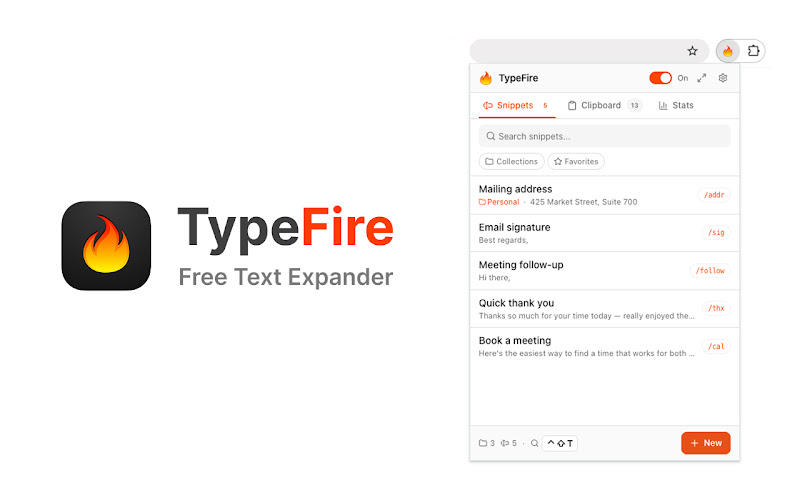
TypeFire has two surfaces in Chrome: a popup for quick edits and a native Chrome side panel that pins your full workspace next to whatever tab you are on. The side panel matters more than it sounds, especially when your library grows past 20 snippets.
Spotlight launcher
Auto Text Expander relies entirely on you remembering abbreviations. Once your library grows, you forget.
TypeFire's Spotlight launcher (Ctrl+Shift+E on Windows and Linux, Cmd+Ctrl+T on Mac) fuzzy-searches your full library from any page. Type a few characters of any snippet's title, content, or tag and you find it. This single feature changes how big your library can grow.
Organization
Auto Text Expander has flat snippet lists. TypeFire has collections, tags, favorites, and search across the library.
Mac app
Auto Text Expander is Chrome-only. TypeFire has a free Mac app for Slack desktop, Apple Mail, Notes, Xcode, Terminal, and every other native macOS app. The snippet library round-trips between the two via JSON export and import.
Feature comparison
| Feature | TypeFire | Auto Text Expander |
|---|---|---|
| Price | Free | Free |
| Plain text expansion | Yes | Yes |
| Rich text and Markdown | Yes | No |
| Dynamic tokens | Full | Basic (date, time, clipboard) |
| Nested snippets | Yes | No |
| Cursor placement | Yes | No |
| AI tokens | Yes (BYOK) | No |
| Side panel | Yes | No |
| Spotlight launcher | Yes | No |
| Collections and tags | Yes | Flat list |
| Mac app companion | Yes (free) | No |
When to stick with Auto Text Expander
If your needs are genuinely minimal and you do not want to think about the tool, Auto Text Expander is fine. Specifically:
- You expand a handful of snippets per day and you can remember every abbreviation
- You never need rich text or Markdown
- You never want to touch AI
- You only use Chrome on a single device
For everyone else, the modern free tools do meaningfully more for the same price.
Migration path
Migration is mostly copy-paste. Auto Text Expander has an export to JSON in its options page. Open the file, take each abbreviation and content pair, and paste them into TypeFire as new snippets. A 30-snippet library is about 20 minutes.
Once you are over, take a pass through the library and:
- Add
{{date}}to anything that says "today" - Add
{{cursor}}to mark where you want to land after expansion - Nest your signature with
{{snippet:sig}}instead of duplicating it
These small upgrades are the actual reason to switch.
The bottom line
Auto Text Expander is a fine tool for the smallest possible use case. TypeFire is the better fit if you want any of: rich text, Markdown, AI, a side panel, a launcher, or a Mac app to pair with.
Install from the Chrome Web Store. The Chrome extension overview walks through every feature.
If you are still browsing options, the best Chrome text expander roundup for 2026 covers Magical, TextExpander Web, and Briskine too.
Loved by people who type all day.
Unprompted reactions from users, in their own words.
Used by people at
Company names are places where our users work. They do not imply endorsement or affiliation.