Best Chrome Text Expander Extension in 2026 (Free)
If you spend most of your day in a browser, the right text expander extension can claw back hours every week. Gmail, Slack web, Linear, Notion, ChatGPT, GitHub: every one of those takes plain typing and turns it into a productivity tax.
We compared five Chrome text expanders in 2026 across price, features, AI support, and how well they actually behave inside real web apps. Here is how they stack up.

What a Chrome text expander needs to do
The basics are easy. Type an abbreviation, get a longer string. The hard parts are:
- Working reliably in contenteditable fields (Gmail compose, Slack, Linear)
- Handling rich text and Markdown without breaking site styles
- Dynamic tokens (date, time, clipboard, cursor placement)
- AI tokens (rewrite, summarize, translate) without forcing you onto a paid plan
- Not lighting your browser memory on fire
That last one is more common than you would think.
The contenders
1. TypeFire: best free Chrome text expander
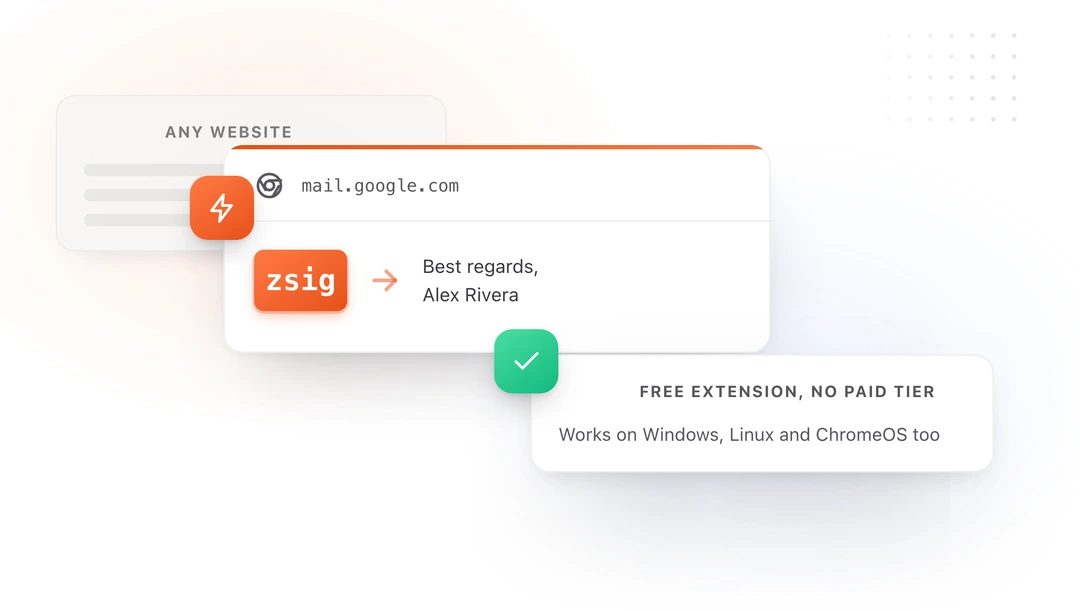
Price: Free. No paid tier.
TypeFire is a free Chrome extension that runs in Chrome, Edge, Brave, Arc, and Opera. It supports rich text and Markdown snippets through a TipTap-based editor, dynamic tokens like {{date}}, {{clipboard}}, and {{cursor}}, and AI tokens ({{ai:rewrite}}, {{ai:summarize}}, {{ai:translate}}) via bring-your-own-key. You can use Claude, OpenAI, or Gemini, and Gemini's free tier covers most personal use at zero cost.
It also ships two surfaces inside the browser: a popup for quick edits and a native Chrome side panel for a full workspace next to whatever tab you are in. The Spotlight launcher (Ctrl+Shift+E on Windows and Linux, Cmd+Ctrl+T on Mac) fuzzy-searches your full library from any page.
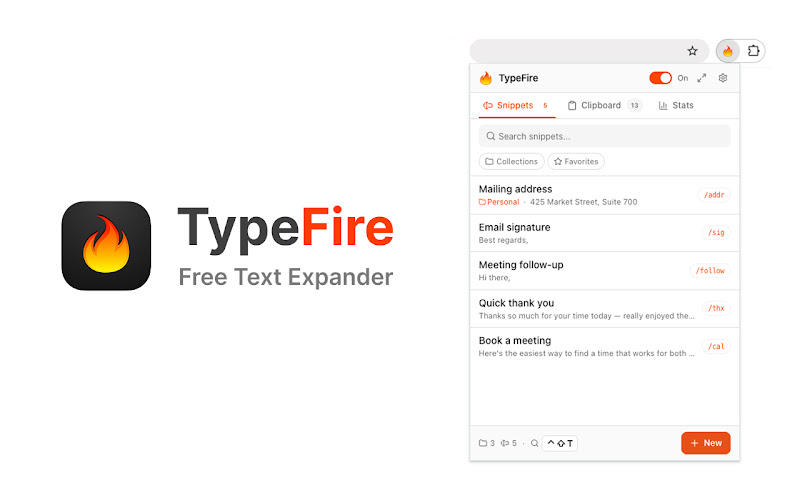
Strengths: Fully free, AI tokens with BYOK, Markdown, side panel, Spotlight launcher, eight UI languages, clipboard history, runs on every Chromium browser Weaknesses: No Google Docs (canvas-rendered, no extension can reliably reach it), no built-in cross-device sync yet (JSON export/import in the meantime)
Install it from the Chrome Web Store or read the Chrome extension guide.
2. Magical: polished freemium with AI upsell
Price: Free for basic expansion. Paid plans for higher AI usage and team features.
Magical is a well-designed extension with strong onboarding and a clean UI. The free tier handles basic expansion and a small monthly allowance of AI actions. Heavier AI use, plus team sharing, lives on the paid plans.
Where Magical genuinely wins: its onboarding flow is one of the smoothest in the category, and the data-grab automation (pulling fields from one tab and dropping them into another) is a clever extra most expanders do not bother with.
Strengths: Excellent onboarding, polished UI, data-transfer automations Weaknesses: AI is metered on free tier, paid plans add up for teams
3. TextExpander Web: legacy brand, subscription pricing
Price: Around $40 per user per year on the individual plan.
TextExpander's Chrome extension is the web companion to its long-running desktop product. It is mature, supports cross-platform sync through the TextExpander cloud, and has the best team admin features in the category.
The cost is the catch. $40 per user per year for a text expander is hard to swallow when the free options are this good. Worth it if you already use TextExpander on desktop and your company foots the bill.
Strengths: Cross-platform sync (Mac, Windows, iOS, web), strongest team admin Weaknesses: Subscription pricing, requires account, feels heavy for solo users
4. Briskine: email-focused freemium
Price: Free tier with limits. Paid plans start around $5 per user per month.
Briskine started as a Gmail templates tool and has expanded into a general-purpose Chrome text expander. The free tier is enough for casual use; team sharing and unlimited templates sit on the paid plans.
Briskine genuinely shines inside Gmail. The template UI is built around the inbox in a way generic expanders are not, and the Gmail-specific dialog for browsing templates is a real strength if email is most of your day.
Strengths: Excellent Gmail integration, clean team sharing, good template variables Weaknesses: Paid tier required for serious use, less compelling outside Gmail
For a one-to-one breakdown see our Briskine alternative guide.
5. Auto Text Expander: the free legacy option
Price: Free.
Auto Text Expander has been around for years and is the default recommendation in many "free Chrome text expander" lists. It does basic abbreviation expansion in input fields. That is most of what it does.
It does not handle rich text, has very limited dynamic tokens, no AI tokens, no side panel, no fuzzy launcher. If your needs are minimal it will get the job done.
Strengths: Free, simple, lightweight Weaknesses: Plain text only, almost no dynamic tokens, no AI, no rich UI, no sync
A direct comparison lives at our Auto Text Expander alternative post.
Feature comparison
| Feature | TypeFire | Magical | TextExpander Web | Briskine | Auto Text Expander |
|---|---|---|---|---|---|
| Price | Free | Freemium | $40+/yr | Freemium | Free |
| Rich text and Markdown | Yes | Yes | Yes | Yes | No |
| Dynamic tokens | Yes | Yes | Yes | Yes | Limited |
| AI tokens | Yes (BYOK) | Yes (metered) | Yes (paid) | Yes (paid) | No |
| Side panel | Yes | No | No | No | No |
| Spotlight launcher | Yes | No | No | No | No |
| Team sharing | No | Paid | Paid | Paid | No |
| Cross-browser | Chromium | Chromium | Chromium | Chromium | Chrome only |
Which Chrome text expander should you pick?
Choose TypeFire if you want every common feature without paying. Free AI tokens via BYOK, Markdown, side panel, and Spotlight launcher cover almost everyone.
Choose Magical if you specifically value the data-transfer automations and you do not mind a metered free tier.
Choose TextExpander Web if your team already uses TextExpander on desktop and you need the strongest admin controls.
Choose Briskine if Gmail is most of your day and you want the most Gmail-native experience.
Skip Auto Text Expander unless your needs are very basic. The free modern options do more for the same price.
What about the Mac app
If you are on macOS, TypeFire also has a free Mac app that handles every native app the browser cannot reach: Slack desktop, Apple Mail, Notes, Xcode, Terminal. The snippet library round-trips between the Mac app and the Chrome extension through JSON export and import, so you can build it once and use it everywhere. The Mac landing page has the full feature list.
The bottom line
For most browser-heavy workers in 2026, TypeFire hits the right balance: free, fast, AI-capable, and quietly powerful with the side panel and Spotlight launcher. Install it, point it at a few of your most-typed phrases, and you will feel the time savings inside a day.
Install from the Chrome Web Store or read the full Chrome extension overview.
Loved by people who type all day.
Unprompted reactions from users, in their own words.
Used by people at
Company names are places where our users work. They do not imply endorsement or affiliation.