Side Panel Text Expander: TypeFire's Full Workspace in Chrome
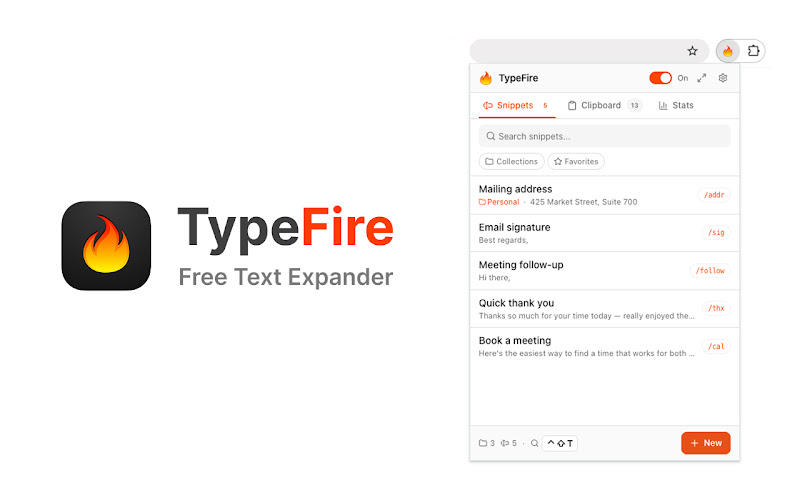
Most Chrome text expanders live in a popup. You click the toolbar icon, a small window appears, you do whatever you needed to do, the popup disappears the moment you click anywhere else. It works for quick edits. It is painful for anything else.
TypeFire is the first text expander to use Chrome's native side panel surface. Instead of a popup, you can pin a full workspace next to whatever tab you are working in. Browse the library, edit longer snippets, search, tag, organize, without ever losing your spot in the page.

Here is why the side panel matters and how to use it.
The popup problem
Popups close on focus loss. That is the contract Chrome enforces. Click anywhere outside the popup and it disappears. That makes popups great for "open, do one thing, close" and bad for everything else.
When your snippet library hits 50 or 100 entries, you start doing tasks that do not fit in a popup:
- Editing a longer snippet that needs proper screen real estate
- Browsing collections to find the right one for a new email type
- Tagging a batch of snippets you imported
- Watching the page you are writing into while you tweak a snippet
A popup forces you to context-switch every 20 seconds. The side panel does not.
How the side panel works
Chrome shipped the side panel API in 2023 to give extensions a persistent surface next to the main tab. Extensions can host arbitrary UI in that panel, and it stays open as you navigate between tabs.
TypeFire uses the side panel for the full workspace: the snippet library on the left, the editor on the right, settings and search at the top.
Open it any of these ways:
- Click the TypeFire icon, then click "Open in side panel" in the popup header
- Right-click the TypeFire icon, choose "Open side panel"
- Use the Chrome side-panel menu (the toolbar button next to your tabs) and pick TypeFire
The panel stays open until you explicitly close it. Switch tabs, the panel stays. Navigate to a new site, the panel stays. Type into the page you are looking at, the panel stays.
Side-by-side workflows it unlocks
A few real workflows that the side panel makes possible.
Editing a snippet while you write the email it goes into. Open Gmail compose in the main view. Open TypeFire in the side panel. Edit the snippet, type the abbreviation in Gmail, see the result inline. Tweak the snippet, retype the abbreviation, compare. Iteration that took five popup open-close cycles takes one continuous edit.
Organizing imports. When you import a 50-snippet library from JSON, you want to tag, sort, and rename in a single pass. The side panel gives you a real screen for it.
Power-user template wrangling. Long templates with nested tokens, AI tokens, and dynamic content benefit from a real editor surface. The side panel hosts the same TipTap-based editor as the popup, just at proper screen size.
Browsing collections. With 10 collections and 200 snippets, scrolling a 320-pixel popup is brutal. The side panel shows a real list with previews.
Side panel and Spotlight launcher: not the same thing
A natural question: if the launcher already searches everything, why use the side panel?
The two are complementary.
- Launcher is for insertion: find a snippet and drop it into the page in two seconds
- Side panel is for editing and management: building and curating the library itself
Power users use both. Spotlight launcher (Ctrl+Shift+E on Windows and Linux, Cmd+Ctrl+T on Mac) when you are typing. Side panel when you are organizing.
Side panel and popup: still both useful
You can also use both the popup and the side panel. The popup is faster for one-off "quick edit, close" interactions. The side panel is the place you live when you are in a "build my library" session.
A common pattern: popup for daily use, side panel when you sit down for 10 minutes to add new snippets after a busy week.
Browser compatibility
The Chrome side panel API is available in:
- Chrome 114+
- Edge 114+
- Brave (recent versions)
- Arc (recent versions)
- Opera (recent versions)
Older Chromium browsers without the side panel API will still work with the popup. The extension falls back gracefully and the popup hosts a slightly different layout.
What about the Mac app
The TypeFire Mac app uses a native menu-bar window and a full standalone Mac app window for the same use case. The "side panel" concept does not apply on Mac, but the same workflows (browsing, editing, tagging) are available in the main window. See the Mac landing page for the full feature list.
Get started
Install TypeFire from the Chrome Web Store. Once installed, click the toolbar icon, then click "Open in side panel" to pin the workspace next to your tab.
The Chrome extension overview walks through every other feature. If you want to see how the side panel pairs with the Spotlight launcher, the Chrome Spotlight launcher post covers the launcher in depth.
Loved by people who type all day.
Unprompted reactions from users, in their own words.
Used by people at
Company names are places where our users work. They do not imply endorsement or affiliation.