Spotlight Launcher in Chrome: Find Any Snippet with Ctrl+Shift+E
The problem with abbreviation-based text expanders is that they assume you can remember every abbreviation. The first 10 snippets are easy. The next 20 take a week of muscle memory. After 50, you start forgetting the abbreviations for snippets you wrote yourself.
TypeFire's Chrome extension solves this with a Spotlight launcher. Press Ctrl+Shift+E (or Cmd+Ctrl+T on Mac) from any tab, type a few characters of any snippet's title, content, or tag, and the snippet appears. Hit Enter and it expands into whatever field your cursor was in.

This is the feature that lets your library actually scale.
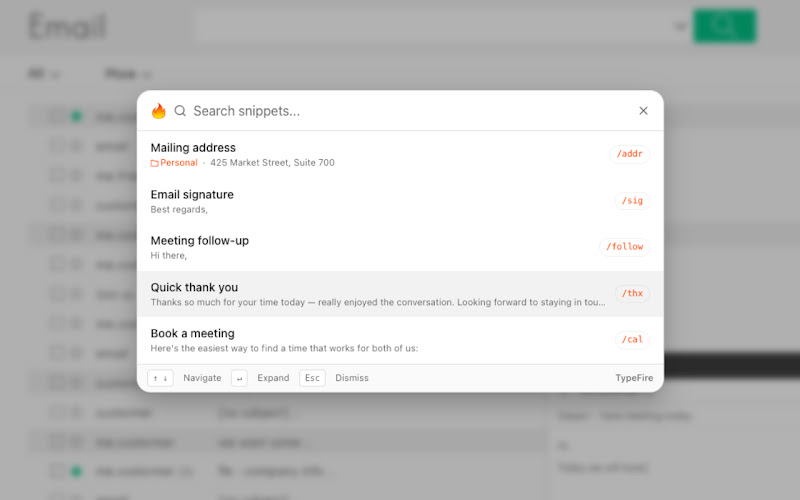
How the launcher works
- Press Ctrl+Shift+E on Windows, Linux, or Chromebook. (Cmd+Ctrl+T on Mac.) A floating search bar appears over the current tab.
- Type a few characters. The launcher fuzzy-matches across snippet titles, content, and tags. Results update with every keystroke.
- Arrow to the result you want. A preview of the snippet content appears next to the result list.
- Press Enter. The launcher disappears and the snippet expands into the field your cursor was last in.
End to end, this is under two seconds even for a snippet you have not touched in months.
Why this beats remembering abbreviations
Abbreviations are the fastest path for snippets you use multiple times a day. ;sig for your signature. ;cal for your calendar link. Type them without thinking.
But abbreviations have a scaling problem. There are only so many short, memorable, collision-free abbreviations in your head before they start blurring together. And many snippets are inherently low-frequency: a quarterly report template, an annual NDA reply, a seasonal out-of-office. Worth saving, not worth memorizing.
The launcher is for everything that is not a daily driver. Together with abbreviations, the workflow is:
- Top 20 snippets: abbreviations
- The other 200 snippets: launcher
You stop trying to remember and start searching.
Fuzzy matching in practice
The launcher does not require exact string matches. A few examples to show the matching behavior:
- Typing "quart" finds "Quarterly Report Template"
- Typing "ndae" finds "NDA Reply Email"
- Typing "ooo" finds your "Out of Office" snippet
- Typing "polish" finds any snippet tagged "writing-polish"
Search runs across titles, full snippet content, and tags. If a snippet contains the phrase you are searching for, even buried mid-paragraph, it will surface.
Workflow patterns that work
A few patterns we have seen power users adopt.
Tag for context, search for content. Tag snippets with workflow tags like "support-response", "sales-outreach", "engineering-handoff". Then search by content phrase when you need it. The tag helps the fuzzy matcher narrow results when content alone is ambiguous.
Use the launcher to discover what you have. If you cannot remember whether you ever wrote a snippet for a specific situation, type a phrase from it into the launcher. You will know in two keystrokes whether it exists.
Keep abbreviations short and the launcher for the long tail. Reserve abbreviation slots for the snippets you genuinely send daily. Everything else lives in the launcher and you do not pollute your muscle memory.
When the launcher is not the right tool
The launcher requires you to pause typing, hit the shortcut, type a few characters, and confirm. For genuinely fast-typed snippets (an email signature, a date stamp, a stock greeting) abbreviations are still faster.
The launcher also requires you to remember a phrase from the snippet to search for. If you have no idea what to search, browse the side panel library instead.
Pairing the launcher with the side panel
The Chrome side panel and the launcher complement each other.
- Side panel: editing, browsing, organizing, tagging
- Launcher: insertion at the speed of typing
Pin the side panel while you build out your library. Use the launcher in the moment when you need to insert something.
What about the Mac app
TypeFire's free Mac app has the same Spotlight launcher at Cmd+Ctrl+T, system-wide across every native macOS app. Same fuzzy search across the same library if you export from one and import into the other via JSON. See the Mac landing page for the full feature list.
The bottom line
The Spotlight launcher is the single feature that takes a text expander from "20 snippets I have memorized" to "200 snippets that are actually useful." Once you have it, abbreviation-only expanders feel restrictive.
Install TypeFire from the Chrome Web Store and try Ctrl+Shift+E on day one. The Chrome extension overview walks through every shortcut and feature.
For more on the launcher pattern across surfaces, see our Spotlight launcher snippets guide for the Mac app side of the same workflow.
Loved by people who type all day.
Unprompted reactions from users, in their own words.
Used by people at
Company names are places where our users work. They do not imply endorsement or affiliation.