Free Text Expander for Linux Users via Chrome
Linux users have had two main options for text expansion. Espanso (open source, cross-platform, configured via YAML) and AutoKey (X11-based, older, GTK UI). Both work. Both come with setup friction that you would not put on a non-technical colleague.
TypeFire's free Chrome extension is the new third option. It does not replace Espanso for terminal work, but for everything that happens inside a browser on Linux (and that is most of modern work) it is a zero-config install.

Here is how to think about it.
When TypeFire is the right Linux text expander
TypeFire is a browser-only tool. That is a feature on Linux, not a limitation, if your day looks like:
- Gmail, Outlook web, ProtonMail in the browser
- Slack web, Discord web, Microsoft Teams web
- GitHub, GitLab, Jira, Linear in tabs
- ChatGPT, Claude.ai, Gemini, Perplexity
- Notion, Confluence, Obsidian Publish, Linear docs
If 80% of your typing happens in a Chromium browser, TypeFire covers 80% of your text expansion needs with one extension install. No config files, no daemon, no display-server compatibility check.
When Espanso is still the right answer
For terminal-heavy workflows, Espanso wins. It runs as a system service and expands snippets in any application: terminals, editors, native chat clients, system dialogs. If your day includes long-running terminal sessions, tmux, vim or emacs, or native Linux apps, Espanso is the tool.
Espanso also handles configuration via YAML files that version-control cleanly. For a team of engineers who want the snippet library in git, that is genuinely valuable.
Using both at once
The two tools coexist comfortably. We have seen the most-productive Linux setup look like:
- Espanso for terminal, vim, native chat clients, system dialogs
- TypeFire for everything in the browser
A shared abbreviation prefix (something like ;) keeps the muscle memory consistent across both tools. Maintain the canonical snippet library wherever you find easiest, and copy the most-used snippets across.
What TypeFire does on Linux
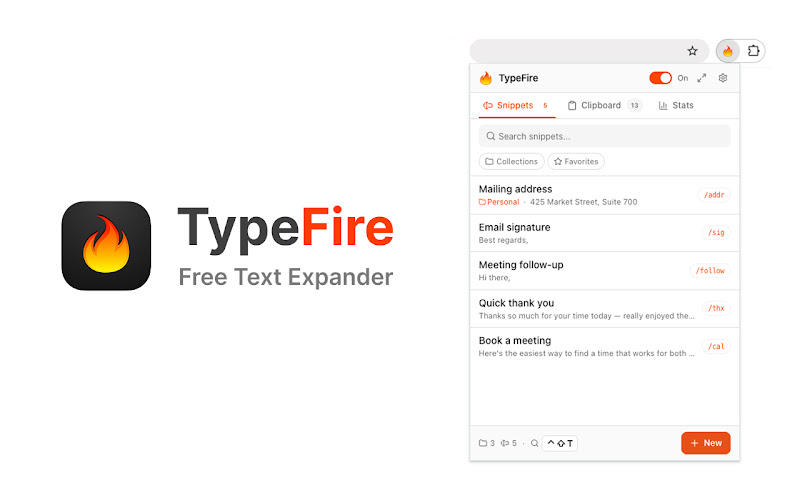
Once installed in Chrome, Chromium, Brave, Edge, Vivaldi, or Opera on any Linux distro, TypeFire works in every contenteditable field in the browser.
- Abbreviation expansion in every text field
- Rich text and Markdown via a TipTap-based editor
- Dynamic tokens:
{{date}},{{time}},{{clipboard}},{{cursor}}, nested snippets - AI tokens via bring-your-own-key:
{{ai:rewrite}},{{ai:summarize}},{{ai:translate}}and custom prompts. Works with Claude, OpenAI, Gemini, or any local model exposed over an OpenAI-compatible API (Ollama, LM Studio, vLLM) - Spotlight launcher (Ctrl+Shift+E) for fuzzy search across the full library from any page
- Native side panel for a full workspace next to your tab
- Eight UI languages
The Ollama and LM Studio compatibility is worth a callout for Linux users who already self-host models. You can point TypeFire's AI tokens at a local endpoint and never send a request to a cloud provider.
Setup on Linux
The same flow as any Chrome extension install.
- Open the Chrome Web Store in Chrome, Chromium, Brave, Edge, Vivaldi, or Opera.
- Click Add to Chrome (or your browser's equivalent).
- Click the TypeFire icon in your toolbar to open the popup.
- Sign in with your email and paste the one-time code.
- Create your first snippet and set an abbreviation.
That is the whole setup. No systemd unit, no display-server tweak, no PATH change.
What about Wayland
If you have ever wrestled Espanso on Wayland you know the pain. Many older expanders depend on X11 and only kind-of work on Wayland with various workarounds.
TypeFire avoids the question entirely by living inside the browser. The browser handles its own input, the extension hooks into contenteditable events, and the display server underneath does not matter. Works the same on X11, Wayland, and anything in between.
What about Google Docs
Same caveat as every other Chrome text expander. Google Docs renders text on a canvas element that browser extensions cannot reliably reach. TypeFire shows a "not supported" notice when you open the popup on a Docs page. Gmail, Sheets, Slides, and every other Google Workspace tool work fine.
If Docs is core to your day, you would want a native Linux text expander like Espanso. For most users who do not live in Docs, this is a small carve-out.
Sync across machines
TypeFire moves your library between machines as a JSON file you own: export on one, import on the next, with nothing held on a server in between.
For Linux users with multiple workstations, the workflow is:
- Export your library to JSON from the side panel settings
- Drop the file in a shared location (Dropbox, Syncthing, your own git repo, anywhere)
- Import on the other machine when you want to pull updates
It is manual but it is also clean and offline-capable, which Linux users tend to prefer anyway.
What about the Mac and Windows side
If you also use macOS, TypeFire has a free Mac app that handles every native macOS app. On Windows, the Chrome extension is the only TypeFire surface today, but it covers everything you do in a browser on Windows. Same email login, same snippet library via JSON round-trip.
The bottom line
Linux users finally have a clean browser-side text expander that does not ask you to read documentation first. TypeFire's free Chrome extension installs in 30 seconds, covers every web app you use, and supports local AI models if you self-host.
Pair it with Espanso for the terminal and you have a complete text expansion setup with no subscription bills.
Install from the Chrome Web Store. The Chrome extension overview walks through the rest.
If you want a wider landscape view, the best Chrome text expander roundup for 2026 covers the other Chrome-side options.
Loved by people who type all day.
Unprompted reactions from users, in their own words.
Used by people at
Company names are places where our users work. They do not imply endorsement or affiliation.