Mac Keyboard Shortcuts: The 50 Worth Learning, by Task (2026)
The Mac keyboard shortcuts worth learning, sorted by what you're doing rather than by key. Every shortcut here is from Apple's own list, checked October 27, 2026.
Apple's full list runs to nearly two hundred shortcuts. Nobody needs two hundred. You need the ten you'll press fifty times a day, then a handful for whatever you do most: files, writing, screenshots. That's how this page is organized.
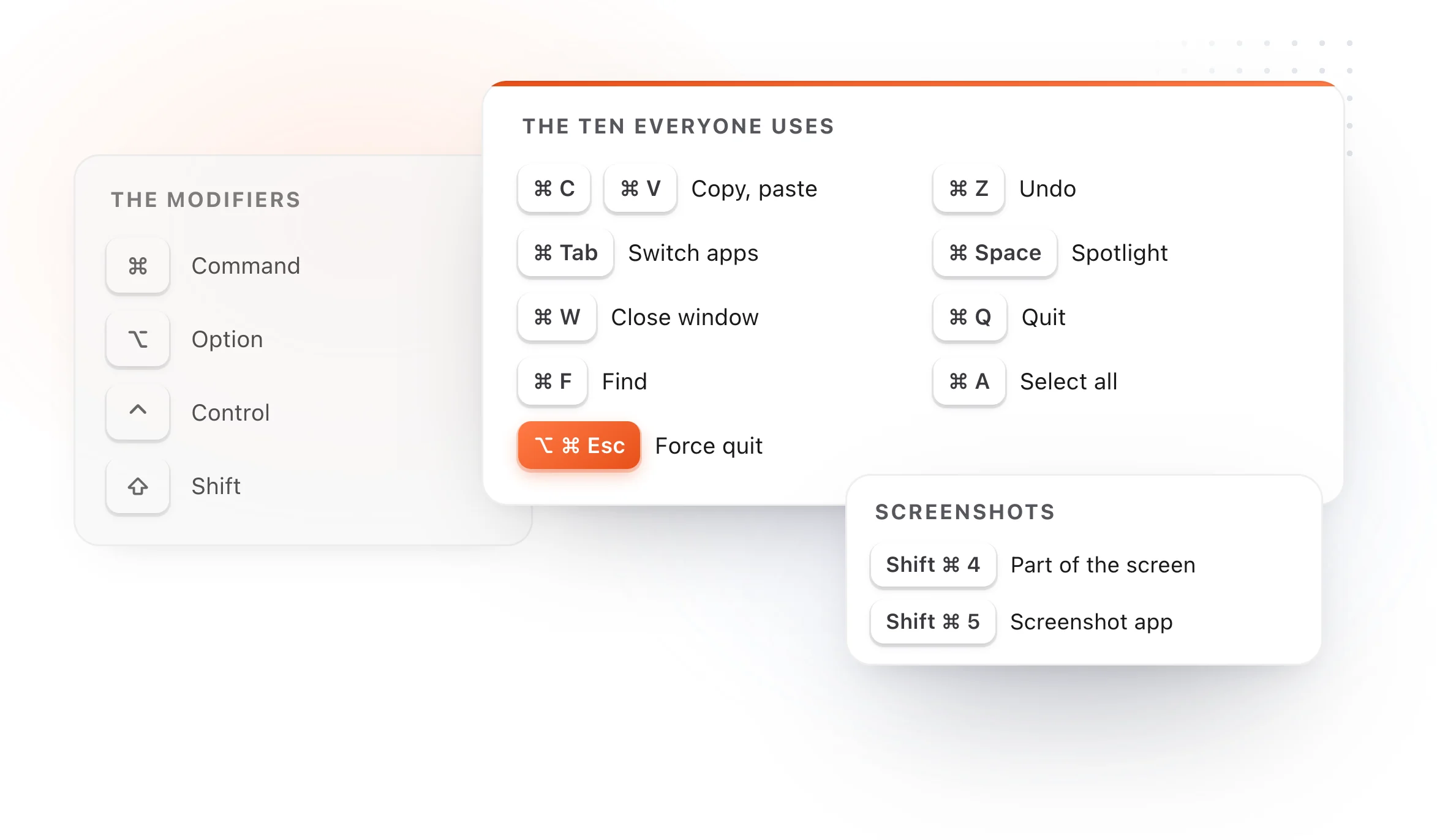
The keys
| Key | Symbol | Where |
|---|---|---|
| Command | ⌘ | Either side of the space bar |
| Option | ⌥ | Next to Command |
| Control | ⌃ | Bottom row, far left |
| Shift | ⇧ | Above Control |
| Fn, or the globe | 🌐 | Bottom left corner |
The ten everyone should know
| Shortcut | What it does |
|---|---|
| Command-C, Command-V | Copy, then paste |
| Command-X | Cut |
| Command-Z | Undo (Shift-Command-Z to redo) |
| Command-A | Select all |
| Command-F | Find |
| Command-Tab | Switch to the app you used last |
| Command-Space | Spotlight |
| Command-W | Close the window |
| Command-Q | Quit the app |
| Option-Command-Esc | Force quit an app that's stuck |
Windows and apps
| Shortcut | What it does |
|---|---|
| Command-` (the key above Tab) | Switch between windows of the same app |
| Command-H | Hide the app in front |
| Option-Command-H | Hide every other app |
| Command-M | Minimize the window |
| Command-T | New tab |
| Command-N | New window or document |
| Command-, | Open the app's settings |
| Control-Command-F | Full screen, in apps that support it |
| Control-Up Arrow | Mission Control |
| Control-Down Arrow | Every window of the app in front |
Finder
| Shortcut | What it does |
|---|---|
| Space | Quick Look the selected file |
| Shift-Command-G | Go to Folder (type a path) |
| Command-Delete | Move to Trash |
| Command-D | Duplicate |
| Command-I | Get Info |
| Shift-Command-N | New folder |
| Command-Up Arrow | Up to the enclosing folder |
| Option-Command-L | Open Downloads |
The full set, with views, the sidebar and moving files, is in Finder shortcuts.
Text
| Shortcut | What it does |
|---|---|
| Option-Left or Right Arrow | Jump a word |
| Command-Left or Right Arrow | Jump to the start or end of the line |
| Command-Up or Down Arrow | Jump to the start or end of the document |
| Add Shift to any of those | Select as you jump |
| Option-Delete | Delete the word to the left |
| Option-Shift-Command-V | Paste without the original formatting |
| Command-K | Add a link |
There's much more in text editing shortcuts, including the Control-key moves that work in almost every text field.
Screenshots
| Shortcut | What it does |
|---|---|
| Shift-Command-3 | The whole screen |
| Shift-Command-4 | Drag to capture part of the screen |
| Shift-Command-4, then Space | Click a window to capture it |
| Shift-Command-5 | The Screenshot app, with screen recording |
| Add Control | Copy it to the clipboard instead of saving |
All the options, including the timer and where files go, are in Mac screenshot shortcuts.
Lock, sleep and log out
| Shortcut | What it does |
|---|---|
| Control-Command-Q | Lock the screen |
| Shift-Command-Q | Log out |
| Option-Shift-Command-Q | Log out without the confirmation |
The Fn (globe) key
| Shortcut | What it does |
|---|---|
| Fn-E | Emoji and symbols |
| Fn-D | Start or stop dictation |
| Fn-N | Notification Center |
| Fn-C | Control Center |
| Fn-A | Show or hide the Dock |
| Fn-Q | A Quick Note |
| Fn-H | Show the desktop |
Make your own shortcuts
For a menu command. If an app has a menu item you use all the time and no shortcut for it, give it one. Open System Settings > Keyboard > Keyboard Shortcuts, choose App Shortcuts, click Add, pick the app, type the menu command exactly as it appears, and press the keys you want.
For text you type again and again. A shortcut can't type your email address, a support reply or a code block. A text expander can. In TypeFire you type a short abbreviation, say ;addr, and it becomes the whole text, in every app on your Mac. macOS has a basic version built in, Text Replacements, and TypeFire is the free upgrade when you outgrow it. It imports your existing Text Replacements in one step.
For your clipboard. Command-V pastes the last thing you copied, and only that. A clipboard manager keeps everything you copy, searchable, so the thing you copied an hour ago is a few keystrokes away.

The Mac keyboard shortcuts worth learning, sorted by what you're doing rather than by key. Every shortcut here is from Apple's own list, checked October 27, 2026.
Apple's full list runs to nearly two hundred shortcuts. Nobody needs two hundred. You need the ten you'll press fifty times a day, then a handful for whatever you do most: files, writing, screenshots. That's how this page is organized.
The keys
| Key | Symbol | Where |
|---|---|---|
| Command | ⌘ | Either side of the space bar |
| Option | ⌥ | Next to Command |
| Control | ⌃ | Bottom row, far left |
| Shift | ⇧ | Above Control |
| Fn, or the globe | 🌐 | Bottom left corner |
The ten everyone should know
| Shortcut | What it does |
|---|---|
| Command-C, Command-V | Copy, then paste |
| Command-X | Cut |
| Command-Z | Undo (Shift-Command-Z to redo) |
| Command-A | Select all |
| Command-F | Find |
| Command-Tab | Switch to the app you used last |
| Command-Space | Spotlight |
| Command-W | Close the window |
| Command-Q | Quit the app |
| Option-Command-Esc | Force quit an app that's stuck |
Windows and apps
| Shortcut | What it does |
|---|---|
| Command-` (the key above Tab) | Switch between windows of the same app |
| Command-H | Hide the app in front |
| Option-Command-H | Hide every other app |
| Command-M | Minimize the window |
| Command-T | New tab |
| Command-N | New window or document |
| Command-, | Open the app's settings |
| Control-Command-F | Full screen, in apps that support it |
| Control-Up Arrow | Mission Control |
| Control-Down Arrow | Every window of the app in front |
Finder
| Shortcut | What it does |
|---|---|
| Space | Quick Look the selected file |
| Shift-Command-G | Go to Folder (type a path) |
| Command-Delete | Move to Trash |
| Command-D | Duplicate |
| Command-I | Get Info |
| Shift-Command-N | New folder |
| Command-Up Arrow | Up to the enclosing folder |
| Option-Command-L | Open Downloads |
The full set, with views, the sidebar and moving files, is in Finder shortcuts.
Text
| Shortcut | What it does |
|---|---|
| Option-Left or Right Arrow | Jump a word |
| Command-Left or Right Arrow | Jump to the start or end of the line |
| Command-Up or Down Arrow | Jump to the start or end of the document |
| Add Shift to any of those | Select as you jump |
| Option-Delete | Delete the word to the left |
| Option-Shift-Command-V | Paste without the original formatting |
| Command-K | Add a link |
There's much more in text editing shortcuts, including the Control-key moves that work in almost every text field.
Screenshots
| Shortcut | What it does |
|---|---|
| Shift-Command-3 | The whole screen |
| Shift-Command-4 | Drag to capture part of the screen |
| Shift-Command-4, then Space | Click a window to capture it |
| Shift-Command-5 | The Screenshot app, with screen recording |
| Add Control | Copy it to the clipboard instead of saving |
All the options, including the timer and where files go, are in Mac screenshot shortcuts.
Lock, sleep and log out
| Shortcut | What it does |
|---|---|
| Control-Command-Q | Lock the screen |
| Shift-Command-Q | Log out |
| Option-Shift-Command-Q | Log out without the confirmation |
The Fn (globe) key
| Shortcut | What it does |
|---|---|
| Fn-E | Emoji and symbols |
| Fn-D | Start or stop dictation |
| Fn-N | Notification Center |
| Fn-C | Control Center |
| Fn-A | Show or hide the Dock |
| Fn-Q | A Quick Note |
| Fn-H | Show the desktop |
Make your own shortcuts
For a menu command. If an app has a menu item you use all the time and no shortcut for it, give it one. Open System Settings > Keyboard > Keyboard Shortcuts, choose App Shortcuts, click Add, pick the app, type the menu command exactly as it appears, and press the keys you want.
For text you type again and again. A shortcut can't type your email address, a support reply or a code block. A text expander can. In TypeFire you type a short abbreviation, say ;addr, and it becomes the whole text, in every app on your Mac. macOS has a basic version built in, Text Replacements, and TypeFire is the free upgrade when you outgrow it. It imports your existing Text Replacements in one step.
For your clipboard. Command-V pastes the last thing you copied, and only that. A clipboard manager keeps everything you copy, searchable, so the thing you copied an hour ago is a few keystrokes away.
Loved by people who type all day.
Unprompted reactions from users, in their own words.
Used by people at
Company names are places where our users work. They do not imply endorsement or affiliation.