Best Quick Look Plugins for Mac in 2026: 11 Extensions Compared
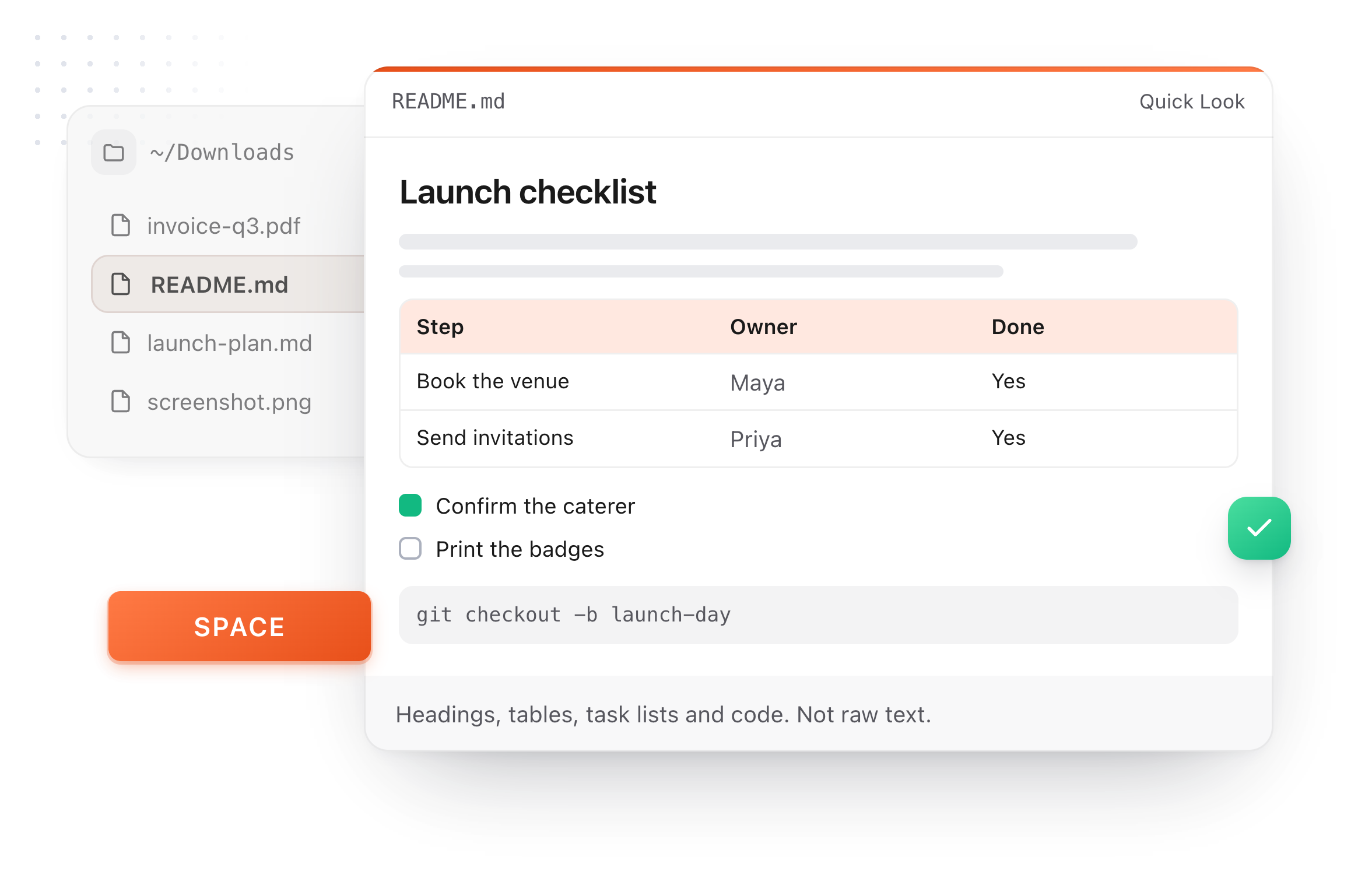
Select a file in Finder, press Space, read it. That is Quick Look, and on a fresh Mac it works for images, PDFs, video and plain text, and for almost nothing a developer actually opens all day. A README previews as hashes and pipes. A .py file previews in one color. A file with no extension does not preview at all.
Every entry below fixes one of those. They are all modern Quick Look extensions, the kind that ship inside an app and register themselves, because the old .qlgenerator plugins you copied into a Library folder stopped loading in Catalina and never came back.

The short version
- Markdown: QLMarkdown for the most rendering, free. TypeFire if you want the preview and an editor, notes, clipboard and snippets from one free install.
- Source code: Syntax Highlight, free and open source. Peek or Glance if you want to copy text out of the preview.
- Files with no extension: QLStephen, still the answer.
- Video Finder will not play: QLVideo.
- Prices checked 25 September 2026 on each project's own page.
The Markdown extensions
Markdown is the file type most people are looking for a plugin for, so it goes first.
1. QLMarkdown: the most rendering, free
Price: Free, open source. Install: Homebrew (brew install --cask qlmarkdown) or a GitHub release, then launch once.
The incumbent, and it earns it. GitHub Flavored Markdown with tables and task lists, syntax highlighting inside code blocks, Mermaid diagrams, MathJax equations, local images, and unusual flavors like R Markdown, MDX and Quarto. The build is signed and notarized, so there is no Gatekeeper dance. It is a solo project, which the maintainer says openly, and it has been reliable for years.
Pick it if: you want the most out of the preview itself and nothing else. It does not open or edit the file.
2. TypeFire: the preview, plus the app behind it
Price: Free, and not part of Pro. Install: it registers when the app is installed. Nothing to launch first, nothing to enable.
The same spacebar preview for Markdown, rendering headings, lists, tables, task lists, code blocks and pictures, and it runs no script and fetches nothing from the network while it does. What is different is what arrives with it: double click opens the same file in a Markdown editor that renders as you type, the folder it lives in can become a notes vault with backlinks and a graph, and the app is also a clipboard manager and a text expander. One universal build for Intel and Apple silicon, macOS 13 and later.
Pick it if: you write Markdown as well as read it, or you were about to install a clipboard manager and snippets anyway. It does not render Mermaid or math; QLMarkdown does.
Markdown Quick Look for Mac has the full detail, and the QLMarkdown comparison is honest about where each wins.
3. Markdown Preview by Anybox: $1.99 on the App Store
Price: $1.99 once. Install: App Store, macOS 12 and later.
A small, well kept extension. Mermaid, KaTeX math, code highlighting, TextBundle and MDX, right to left text, and a toggle between the rendered view and the source. The cheapest paid option and the easiest install for anyone who prefers the App Store.
Pick it if: you want Mermaid and math without Homebrew, and two dollars is easier than a GitHub release.
4. Imark: free, open source, macOS 14 and up
Price: Free, open source. Install: GitHub release, macOS 14 Sonoma or later.
Newer than QLMarkdown and aiming at the same job with a reading window on top: tabs, an outline, search, comments and PDF export. The preview does Mermaid, KaTeX and local images, and the project makes the same promise TypeFire does, that nothing is fetched while a document renders.
Pick it if: you are on Sonoma or later and want a reader as well as a preview, for free.
5. Markdown QuickLook: the lightest one
Price: Free, MIT licensed. Install: DMG from GitHub, macOS 12 and later.
Headings, lists, task lists, quotes, code blocks with GitHub style highlighting in light and dark, and tables rendered as native tables. No diagrams, no math, no app around it. Small on purpose.
Pick it if: you want the smallest possible thing that makes Space work on a README.
6. MacMD Viewer: the $19.99 reader
Price: $19.99 once, no free tier, 14 day money back. Install: direct download, Homebrew or Setapp, macOS 14 and later.
A reading app whose Quick Look extension ships with it. Twelve themes including GitHub, Dracula, Nord and Tokyo Night, matching typography and highlighting, Mermaid in the preview. The most designed preview on the list, and the most expensive.
Pick it if: you read a lot of Markdown, want it to look a particular way, and are already on Setapp. The MacMD Viewer comparison covers the trade against a free install.
The source code extensions
7. Syntax Highlight: free, open source, most languages
Price: Free, open source. Install: GitHub release, macOS 12 and later.
By the same developer as QLMarkdown, and the same quality. Source files preview with real syntax coloring across a long list of languages, with themes, line numbers and word wrap in its settings. If you only install one thing from this half of the list, it is this.
8. Peek: $7.99, and you can copy from the preview
Price: $7.99 once. Install: App Store.
Highlighting for code, plus the things Apple's own text preview lacks: select and copy text out of the preview, search inside it, jump to a line, and scroll position that survives closing and reopening. Covers text formats beyond code too.
9. Glance: $9.99, code and notebooks
Price: $9.99 once for the App Store app. Install: App Store.
Highlighted source, Markdown, and Jupyter notebooks rendered, in one extension. Two things share the name: the App Store app above, and an older open source plugin of the same name whose Homebrew cask was marked deprecated in September 2026. Get the App Store one.
10. QLStephen: files with no extension
Price: Free, open source. Install: GitHub release or Homebrew.
README, LICENSE, Makefile, .env, CHANGELOG. Anything with no extension previews as nothing at all until QLStephen is installed, after which it previews as text. Ten years old and still the only thing that does this job.
Media
11. QLVideo: the video Finder will not play
Price: Free, open source. Install: GitHub release.
Quick Look plays what AVFoundation plays and ignores the rest: MKV, WebM, AVI with older codecs, FLV. QLVideo adds thumbnails and previews for those, which is a bigger quality of life change than it sounds if you handle downloaded video.
Feature comparison table
| Extension | For | Price | Signed build | Mermaid, math | Edits the file |
|---|---|---|---|---|---|
| QLMarkdown | Markdown | Free | Yes | Yes | No |
| TypeFire | Markdown | Free | Yes | No | Yes |
| Markdown Preview (Anybox) | Markdown | $1.99 | App Store | Yes | No |
| Imark | Markdown | Free | GitHub release | Yes | Reads |
| Markdown QuickLook | Markdown | Free | GitHub release | No | No |
| MacMD Viewer | Markdown | $19.99 | Yes | Mermaid | Reads |
| Syntax Highlight | Code | Free | GitHub release | n/a | No |
| Peek | Code, text | $7.99 | App Store | n/a | No |
| Glance | Code, notebooks | $9.99 | App Store | n/a | No |
| QLStephen | No extension | Free | GitHub release | n/a | No |
| QLVideo | Video | Free | GitHub release | n/a | No |
If Quick Look still shows raw text after you install one
- Open the app once. macOS discovers a Quick Look extension the first time its app launches. TypeFire registers on install; most of the others need this step.
- Check it is enabled. System Settings, General, Login Items and Extensions, Quick Look. Each installed extension has a switch.
- Remove the duplicate. Two extensions for the same type means macOS picks one, and not predictably. Keep the one whose preview you want.
- Reload the generators.
qlmanage -rin Terminal, thenqlmanage -r cache. Then press Space again.
The long version, including the Tahoe specific cases, is in Quick Look shows raw Markdown on Mac: the fixes.
Which ones to actually install
A developer's Mac wants three: a Markdown extension, Syntax Highlight, and QLStephen. Add QLVideo if you handle video. For the Markdown slot, QLMarkdown if the preview is all you want, TypeFire if you write Markdown too and would rather one install cover the editor, notes, clipboard and snippets as well. Both are free, and both are signed, so try one, press Space, and keep it.
Download TypeFire for Mac or read how the Quick Look preview works.
Loved by people who type all day.
Unprompted reactions from users, in their own words.
Used by people at
Company names are places where our users work. They do not imply endorsement or affiliation.