Mac Text Editing Shortcuts: Move, Select and Delete Without the Mouse
The keys that move, select and delete text on a Mac, from Apple's own list, checked October 27, 2026. They work in Mail, Notes, Messages, Safari, Chrome and most other apps. Part of the Mac keyboard shortcuts guide.
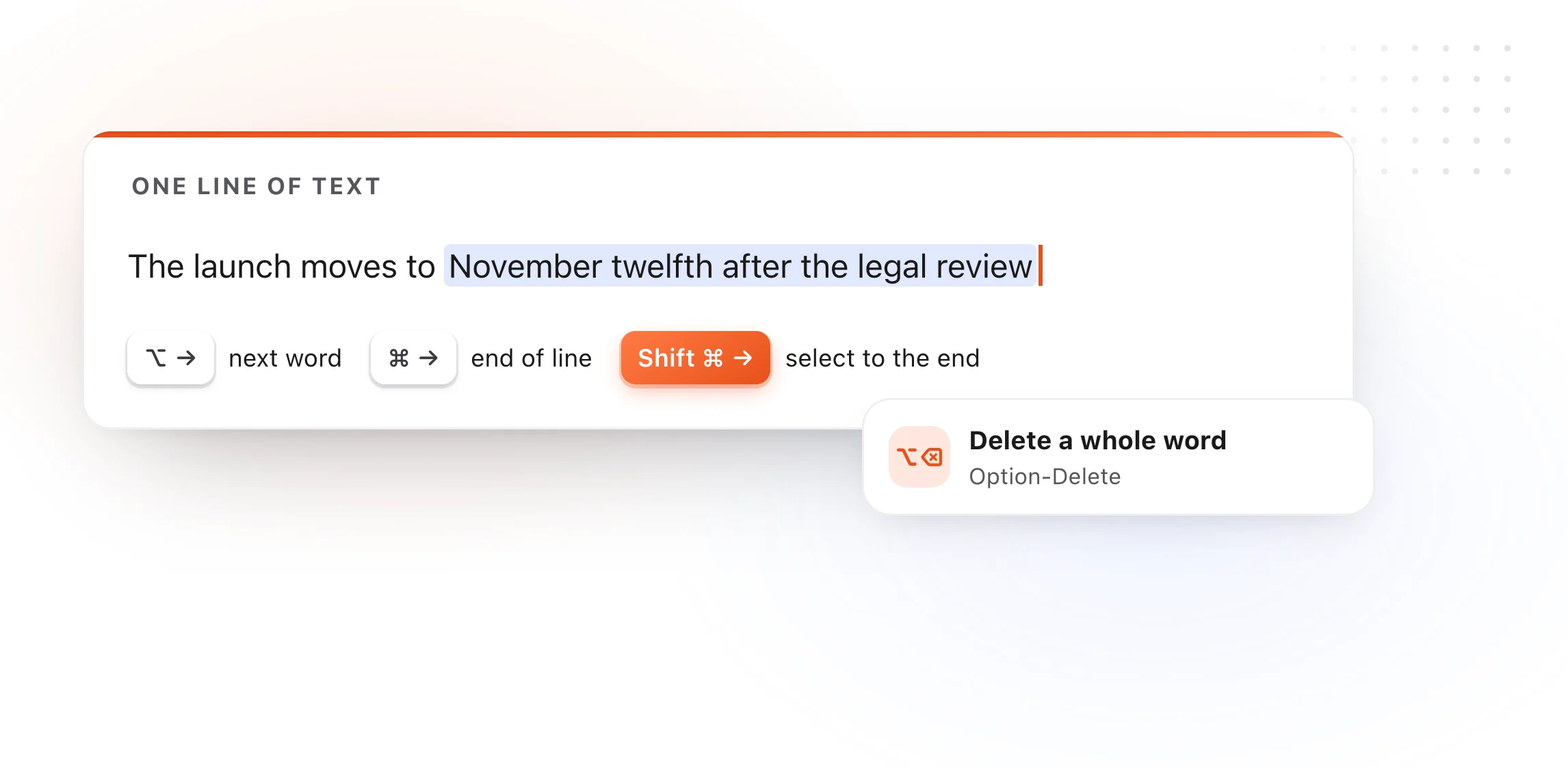
Most people edit text with the mouse: click, drag, delete, click again. The keyboard is faster once three ideas click. Option moves by word. Command moves to the edge, of a line or the whole document. Shift turns any move into a selection.
Moving the cursor
| Shortcut | Moves to |
|---|---|
| Option-Left Arrow | The start of the previous word |
| Option-Right Arrow | The end of the next word |
| Command-Left Arrow | The start of the line |
| Command-Right Arrow | The end of the line |
| Command-Up Arrow | The start of the document |
| Command-Down Arrow | The end of the document |
| Fn-Up Arrow, Fn-Down Arrow | Page up, page down |
Selecting
Add Shift to any move above and it selects instead.
| Shortcut | Selects |
|---|---|
| Shift-Left or Right Arrow | One character |
| Option-Shift-Left or Right Arrow | To the start or end of the word, then the next |
| Shift-Command-Left or Right Arrow | To the start or end of the line |
| Shift-Command-Up or Down Arrow | To the start or end of the document |
| Option-Shift-Up or Down Arrow | To the start or end of the paragraph, then the next |
| Command-A | Everything |
Deleting
| Shortcut | Deletes |
|---|---|
| Delete | The character to the left |
| Fn-Delete | The character to the right |
| Option-Delete | The word to the left |
| Control-K | From the cursor to the end of the line, kept for Control-Y |
Pasting and formatting
| Shortcut | What it does |
|---|---|
| Option-Shift-Command-V | Paste and match the surrounding style, so no stray fonts |
| Option-Command-C | Copy the formatting of the selection |
| Option-Command-V | Apply that formatting to another selection |
| Command-B, Command-I, Command-U | Bold, italic, underline |
| Command-K | Add a link |
The Control-key moves most people never learn
These come from the old Emacs editor, and they work in almost every Mac text field.
| Shortcut | What it does |
|---|---|
| Control-A | Start of the line or paragraph |
| Control-E | End of the line or paragraph |
| Control-K | Cut to the end of the line into a separate clipboard |
| Control-Y | Paste what Control-K cut |
| Control-T | Swap the two characters around the cursor |
| Control-O | Insert a new line after the cursor |
| Control-D | Delete the character to the right |
| Control-H | Delete the character to the left |
Control-K and Control-Y use their own clipboard, separate from Command-C, so you can move a line without losing what you'd copied.
Spelling and words
| Shortcut | What it does |
|---|---|
| Command-; | Jump to the next misspelled word |
| Shift-Command-: | Open Spelling and Grammar |
| Control-Command-D | Look up the word under the pointer |
For text you type over and over
Shortcuts make editing faster. They don't help with text you type the same way every time: your address, a sign-off, a support answer, a block of code. That's what a text expander is for. With TypeFire you type a short abbreviation and get the whole thing, in every app, free. And when you need something you copied earlier, not just the last thing, its clipboard history brings it back.
More shortcuts by task: screenshots, Finder, and all of them.

The keys that move, select and delete text on a Mac, from Apple's own list, checked October 27, 2026. They work in Mail, Notes, Messages, Safari, Chrome and most other apps. Part of the Mac keyboard shortcuts guide.
Most people edit text with the mouse: click, drag, delete, click again. The keyboard is faster once three ideas click. Option moves by word. Command moves to the edge, of a line or the whole document. Shift turns any move into a selection.
Moving the cursor
| Shortcut | Moves to |
|---|---|
| Option-Left Arrow | The start of the previous word |
| Option-Right Arrow | The end of the next word |
| Command-Left Arrow | The start of the line |
| Command-Right Arrow | The end of the line |
| Command-Up Arrow | The start of the document |
| Command-Down Arrow | The end of the document |
| Fn-Up Arrow, Fn-Down Arrow | Page up, page down |
Selecting
Add Shift to any move above and it selects instead.
| Shortcut | Selects |
|---|---|
| Shift-Left or Right Arrow | One character |
| Option-Shift-Left or Right Arrow | To the start or end of the word, then the next |
| Shift-Command-Left or Right Arrow | To the start or end of the line |
| Shift-Command-Up or Down Arrow | To the start or end of the document |
| Option-Shift-Up or Down Arrow | To the start or end of the paragraph, then the next |
| Command-A | Everything |
Deleting
| Shortcut | Deletes |
|---|---|
| Delete | The character to the left |
| Fn-Delete | The character to the right |
| Option-Delete | The word to the left |
| Control-K | From the cursor to the end of the line, kept for Control-Y |
Pasting and formatting
| Shortcut | What it does |
|---|---|
| Option-Shift-Command-V | Paste and match the surrounding style, so no stray fonts |
| Option-Command-C | Copy the formatting of the selection |
| Option-Command-V | Apply that formatting to another selection |
| Command-B, Command-I, Command-U | Bold, italic, underline |
| Command-K | Add a link |
The Control-key moves most people never learn
These come from the old Emacs editor, and they work in almost every Mac text field.
| Shortcut | What it does |
|---|---|
| Control-A | Start of the line or paragraph |
| Control-E | End of the line or paragraph |
| Control-K | Cut to the end of the line into a separate clipboard |
| Control-Y | Paste what Control-K cut |
| Control-T | Swap the two characters around the cursor |
| Control-O | Insert a new line after the cursor |
| Control-D | Delete the character to the right |
| Control-H | Delete the character to the left |
Control-K and Control-Y use their own clipboard, separate from Command-C, so you can move a line without losing what you'd copied.
Spelling and words
| Shortcut | What it does |
|---|---|
| Command-; | Jump to the next misspelled word |
| Shift-Command-: | Open Spelling and Grammar |
| Control-Command-D | Look up the word under the pointer |
For text you type over and over
Shortcuts make editing faster. They don't help with text you type the same way every time: your address, a sign-off, a support answer, a block of code. That's what a text expander is for. With TypeFire you type a short abbreviation and get the whole thing, in every app, free. And when you need something you copied earlier, not just the last thing, its clipboard history brings it back.
More shortcuts by task: screenshots, Finder, and all of them.
Loved by people who type all day.
Unprompted reactions from users, in their own words.
Used by people at
Company names are places where our users work. They do not imply endorsement or affiliation.