Free · README template included

Free online README editor

Start from a README template with the sections people look for, and see it formatted as you write: code blocks, tables and task lists. Download it as README.md when it's ready.

README.md
FileEditViewInsertFormatHelp
README.md

Project name

One sentence on what this project does and who it's for.

Features

  • What it does best, in one line
  • The second thing people come for
  • What makes it different

Installation

npm install your-package

Usage

import { start } from "your-package";

start({ verbose: true });

Configuration

Option Default What it does
verbose false Logs each step
timeout 3000 Milliseconds before giving up

Contributing

Pull requests are welcome. For a big change, open an issue first so we can talk it through.

License

MIT
Loading the editor…Your files stay in your browser
  • Your files never leave your browser
  • Free, no sign-up
  • Download as Markdown, a web page or a PDF

This editor comes from TypeFire, free for Mac

Your whole folder of Markdown notes in tabs, Quick Look previews in Finder, plus a text expander and a clipboard manager.

How it works

Write a README in three steps

  1. 01

    Start from the template

    The page opens on a README.md with the usual sections: what it is, features, install, usage, configuration, contributing and license.

  2. 02

    Fill it in, formatted

    Replace the placeholders. Code blocks get syntax colors, tables get handles, and everything renders as you type.

  3. 03

    Download README.md

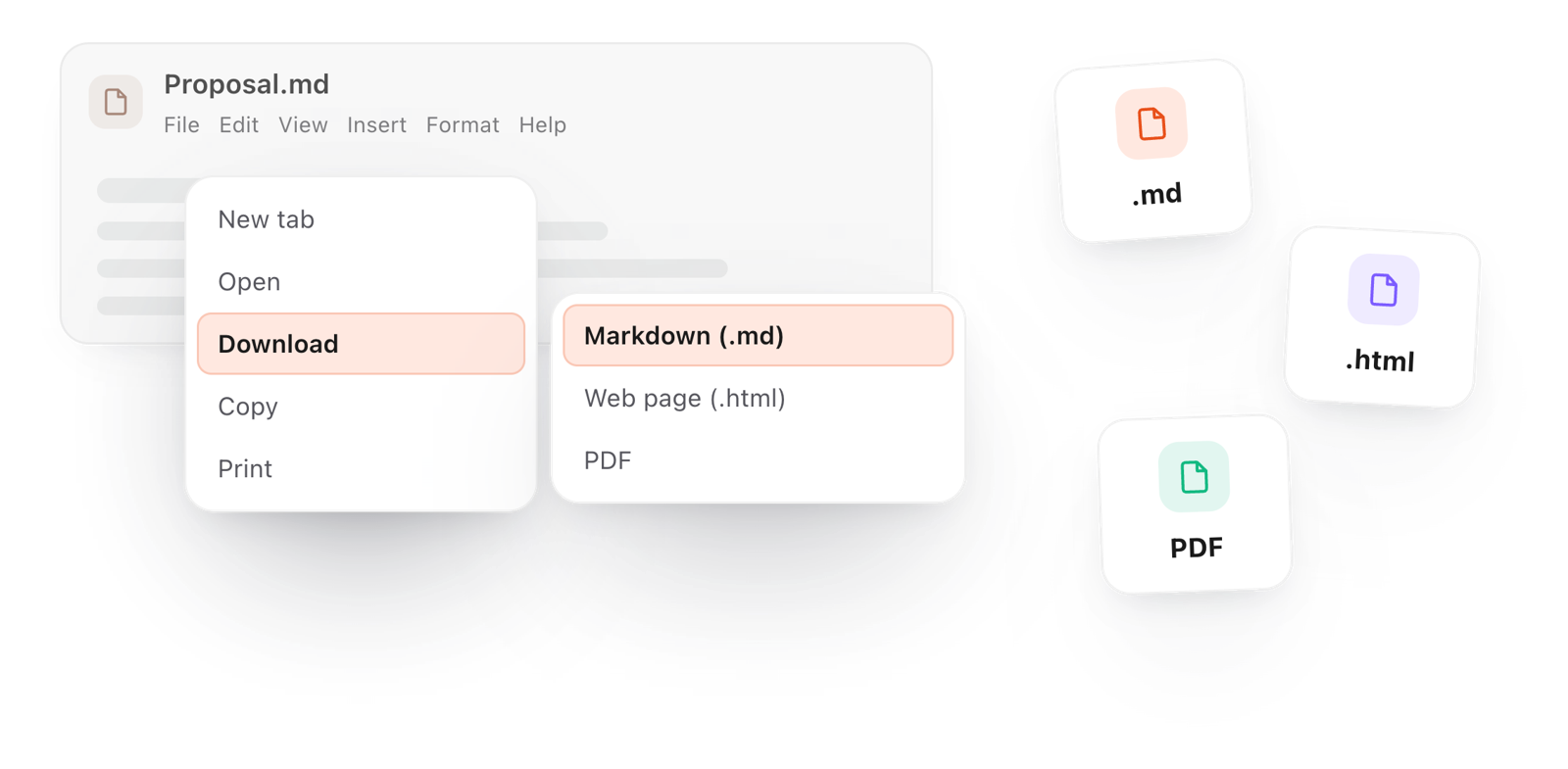
    File > Download > Markdown (.md) saves it, ready to commit. Or File > Copy > As Markdown and paste it into your repository's web editor.

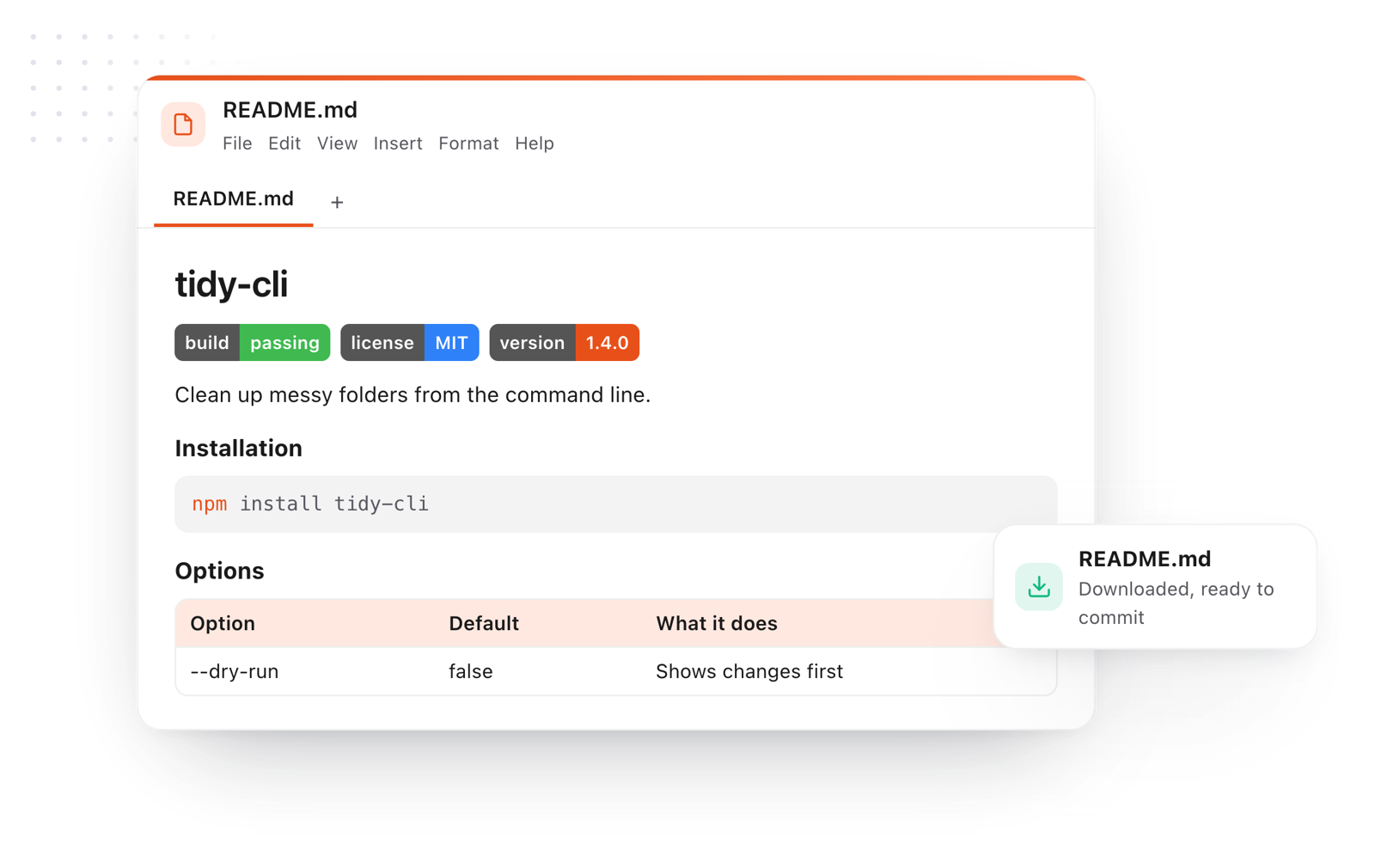
A README.md in the editor with badges, an install command and an options table, downloaded ready to commit
Free for Mac and Chrome

Like this editor? Get TypeFire.

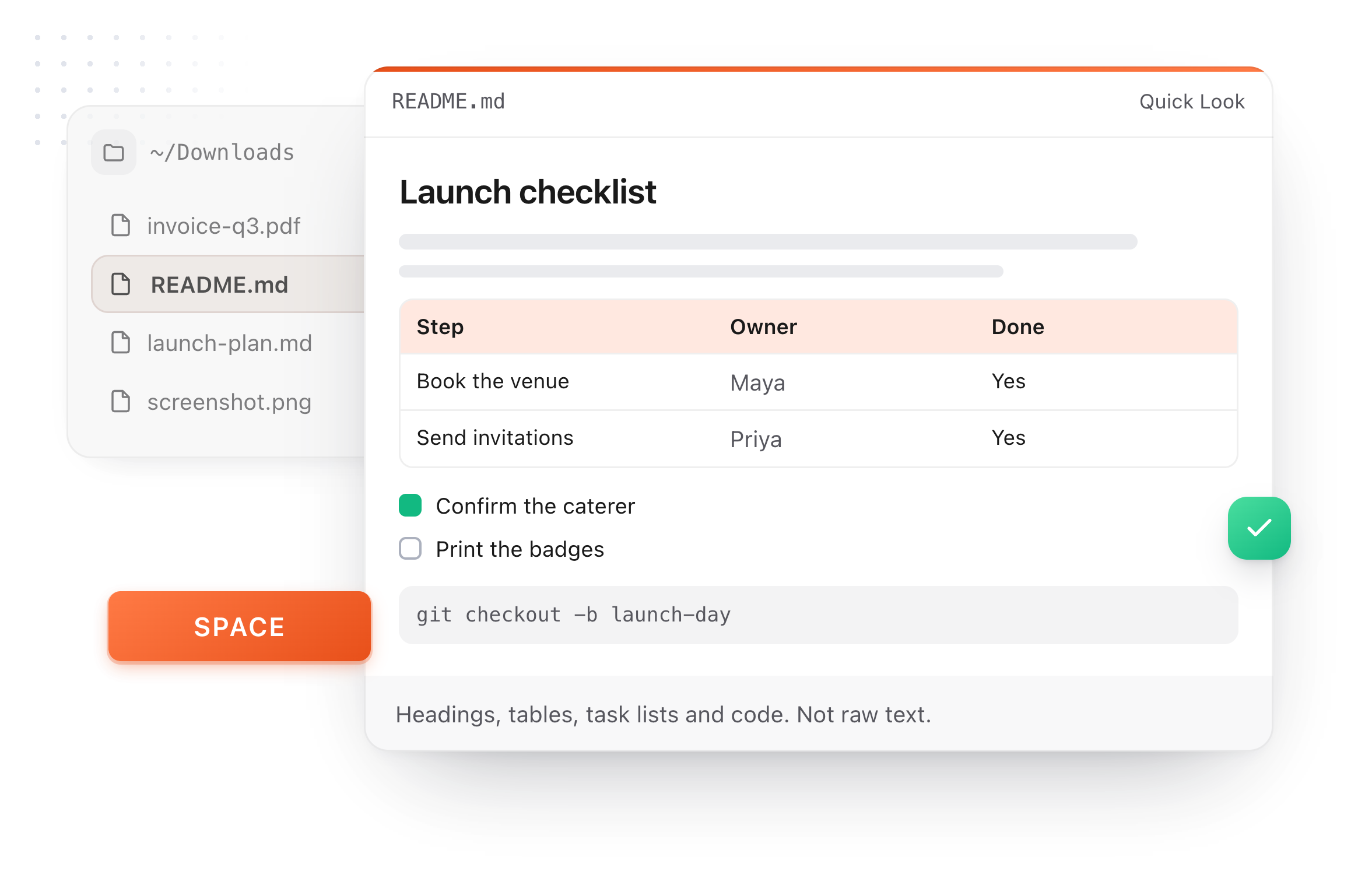
The same editor on your whole folder of Markdown notes, plus a text expander and a clipboard manager. On a Mac, every .md file previews in Finder when you press Space.

Download free for MacAdd to Chrome7 day Pro trial, no card required.

Free text expander, clipboard manager and markdown notes. $18 once for unlimited clips, notes sync and AI prompts.

A README.md previewed in Finder with Quick Look on a Mac, after pressing Space
What goes in a good README

Seven sections, in the order people read them

The template above follows this order. Keep each section short; a README is a front door, not a manual.

Name and one line
What the project is and who it's for, in a sentence a stranger understands.
Features
Three to five bullets on what it does best. The reason someone keeps reading.
Installation
The exact command, in a code block, so it can be copied as is.
Usage
The smallest example that works, then a slightly bigger one.
Configuration
A table of options with their defaults and what each one changes.
Contributing
How to report a bug and how to propose a change.
License
One line naming the license, with a link to the file.
What it does

Everything a README needs

The parts of Markdown READMEs lean on, rendered as you write.

Download the README as Markdown, a web page or a PDF from the File menu
  1. Fenced code with syntax colors

    Install commands and usage examples read like code, in the language you mark the block with, with a copy button on each.

  2. Tables for options and flags

    Configuration tables are the part of a README people get wrong. Here you add rows and columns with a click.

  3. Task lists for the roadmap

    - [ ] and - [x] render as checkboxes, the way roadmaps and checklists show on repository pages.

  4. Badges and images

    Badges and pictures from other sites show after one click on Load pictures, so nothing loads from outside sites until you say so.

  5. Saved while you work

    Your draft saves in this browser as you type, so you can come back to it before you commit.

Take it further

The same editor, without the browser tab

This editor comes from TypeFire, a free app for Markdown notes, a text expander and a clipboard manager. Here it works on the files you open. In the app, it opens your whole folder.

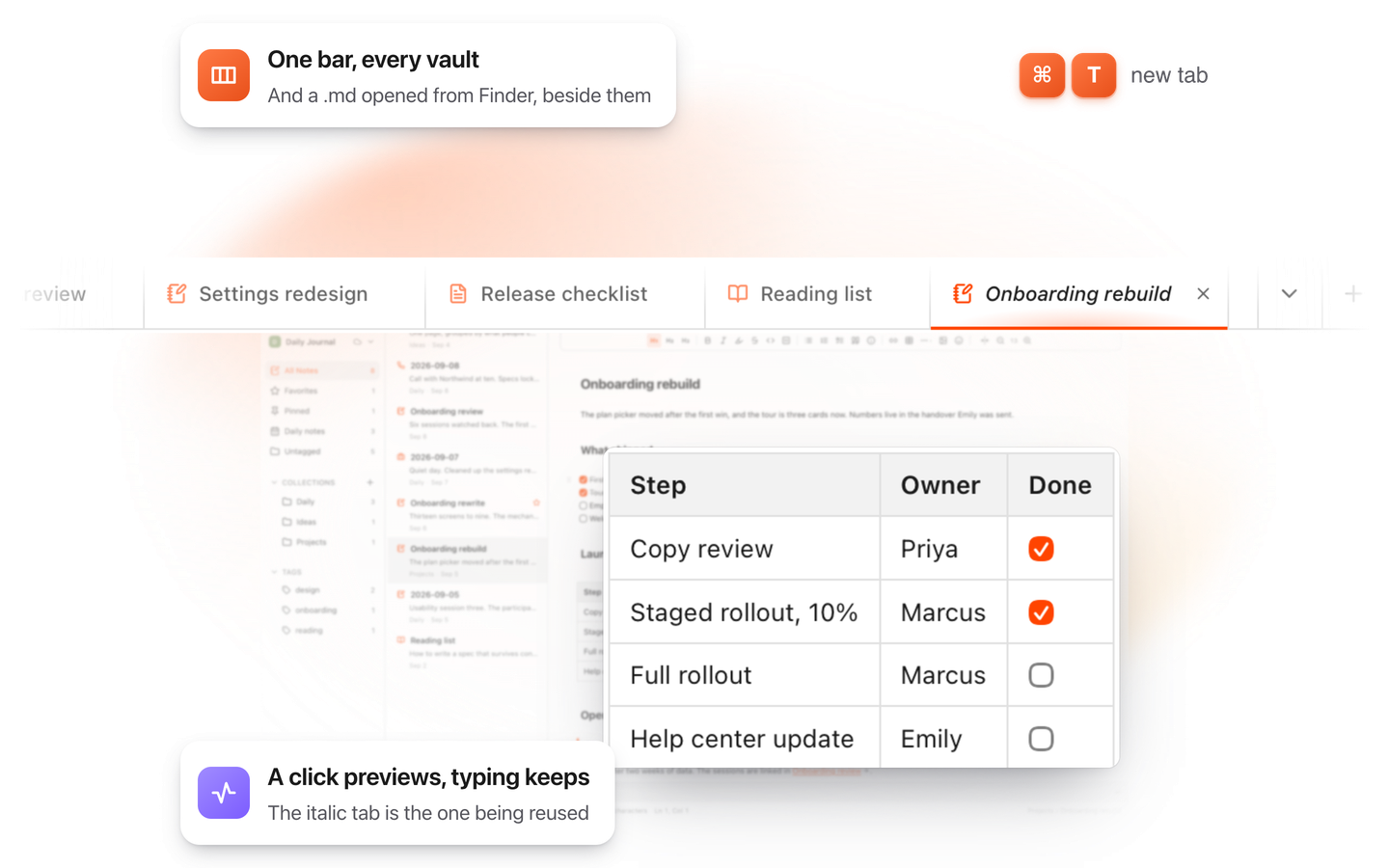
TypeFire for Mac with several Markdown notes open in one tab bar

TypeFire for Mac

  • Press Space on any .md file in Finder and read it rendered, with Quick Look.
  • Open a folder of Markdown, an Obsidian vault included, with tabs, search and links.
  • A text expander and a clipboard history in the same free app.
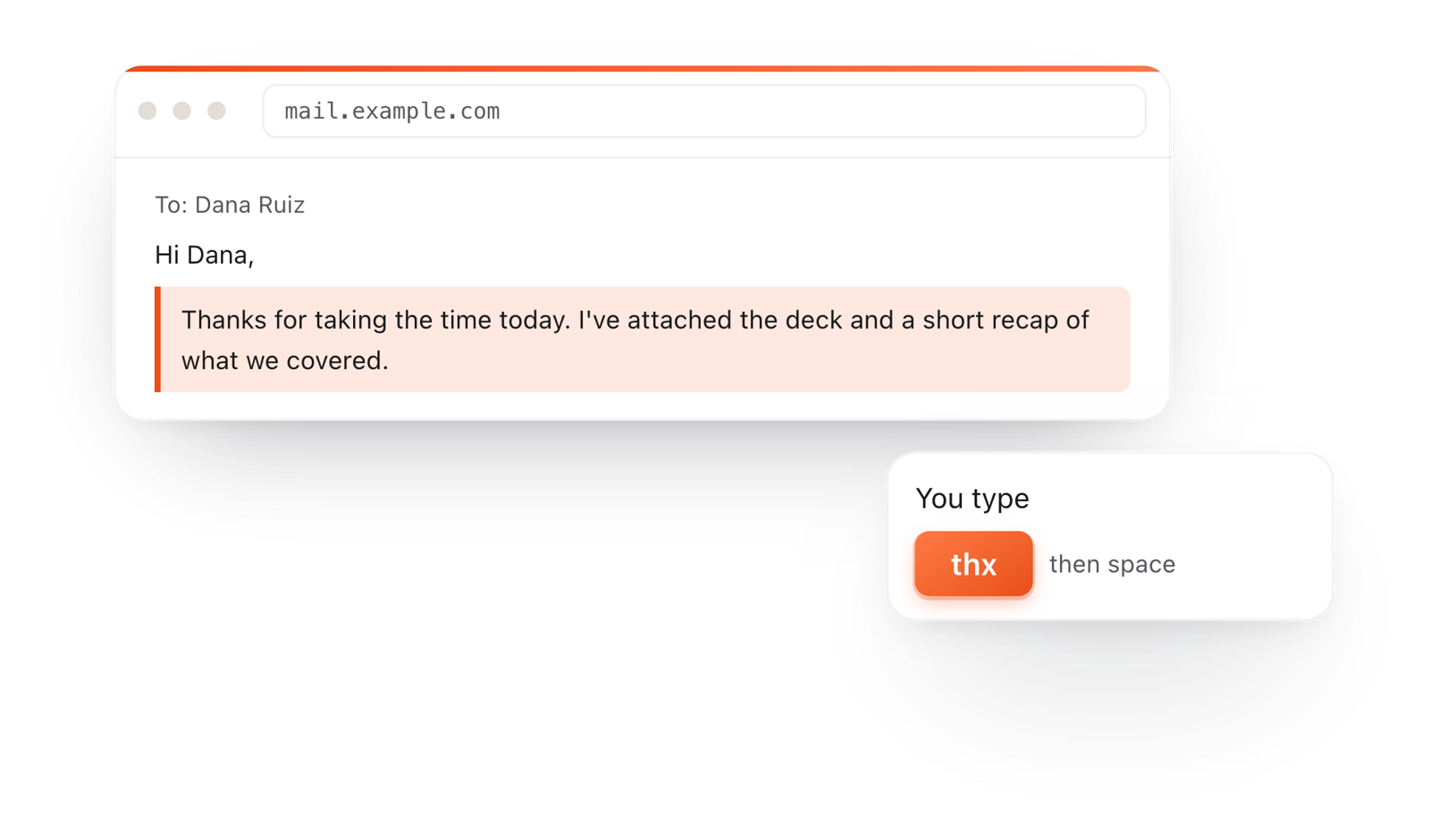
In a browser email, typing thx and a space expands into a whole thank-you reply

TypeFire for Chrome

  • A free text expander for Chrome, Edge and Brave.
  • Type a few letters and get the whole reply, on any site.
  • Works on Windows, Linux, ChromeOS and Mac.

Frequently asked questions

Still not answered?

Start with one sentence on what the project does and who it's for.

Then features, installation, a short usage example, configuration, how to contribute, and the license. The template on this page has all of these as headings to fill in.

Paste your README.md here or drop the file onto the page.

It renders as you edit, so you can fix headings, tables and code blocks before you commit.

It renders the parts READMEs use most: fenced code blocks with syntax colors, tables, task lists, strikethrough and autolinks.

A badge is an image link: [![alt text](image-url)](link-url).

Pictures from other sites, like shields.io badges, show after you click Load pictures on the document.

The template is already called README.md, so File > Download > Markdown (.md) saves it under that name.

You can rename any document by clicking its name at the top. Or use File > Copy > As Markdown and paste it into your repository's web editor.

Yes, with no account and no sign-up. Your draft is never uploaded.

Stop retyping the same boilerplate

TypeFire's text expander turns a few letters into your license header, install steps or PR template, in every app. Free on the Mac.

Download free for MacAdd to ChromeSee what $18 adds7 day Pro trial, no card required.

Free text expander, clipboard manager and markdown notes. $18 once for unlimited clips, notes sync and AI prompts.

your clips your snippets