A CopyClip alternative
that does more than remember
Is there a CopyClip alternative with search and OCR?
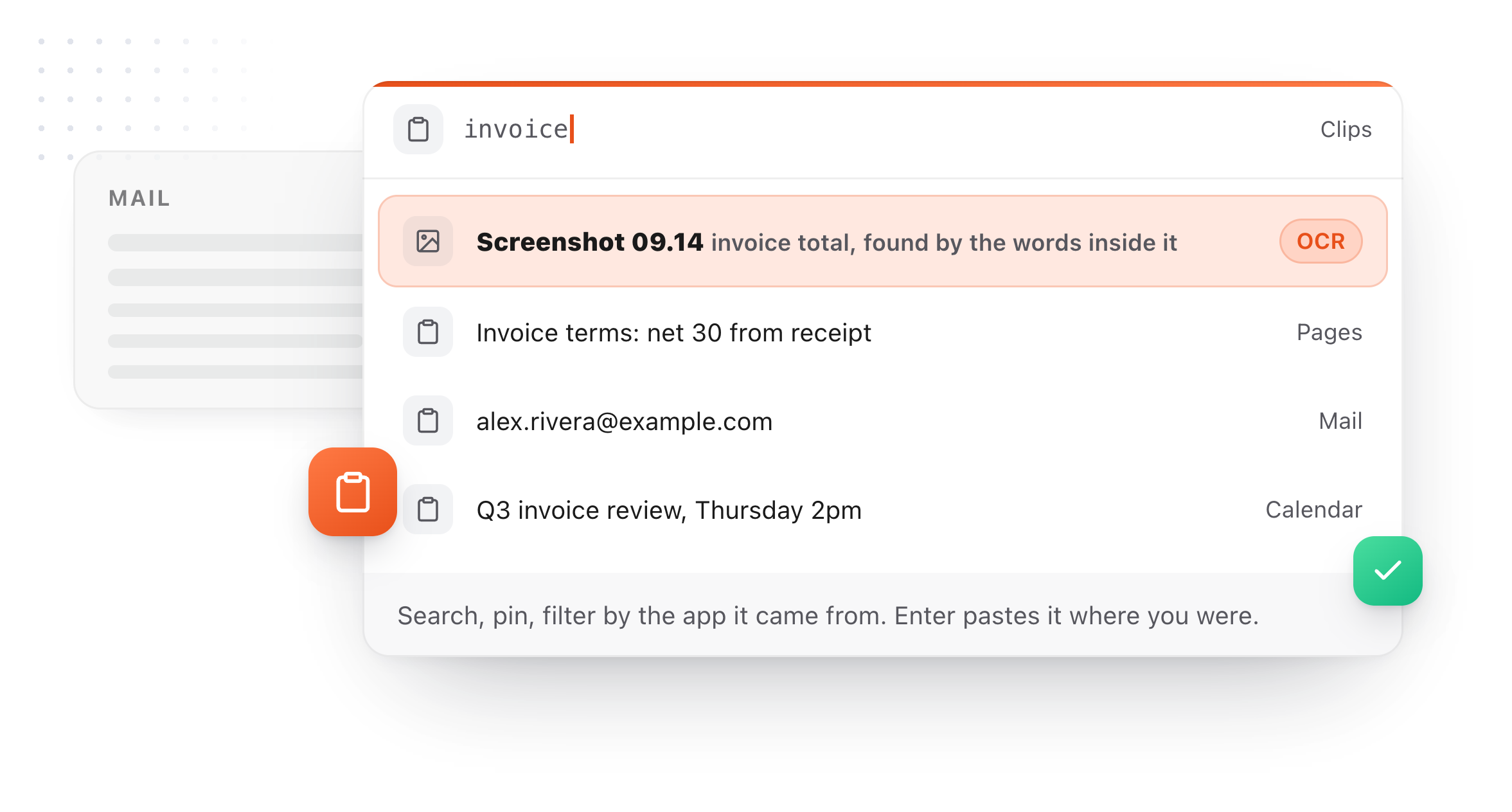
CopyClip keeps a simple text history. TypeFire adds full search across text, images and files, and reads the words inside screenshots on device so an image is findable by what it says.
Free for your 10 most recent clips with every feature available. Pro is $18 once for three Macs.
Why people move from CopyClip
The specific reasons people give for switching.
It is a menu, not a search
CopyClip drops a list of recent items into your menu bar. That works until the item you want is forty entries down. TypeFire searches across everything you copied, including the text inside screenshots.
Text is most of what it keeps
TypeFire keeps text, rich text, HTML, images, screenshots, files, links and colors, each with a preview that suits it. A color comes back as a swatch you can copy as HEX, RGB, HSL or CMYK.
No text expansion
The things you paste most often do not belong in a clipboard history at all. They belong behind an abbreviation you type. TypeFire does both halves in one app.
No AI anywhere
Summarize a thread you copied, rewrite it, or translate it, using Apple Intelligence or a local model. Included on the free tier.
Nothing becomes permanent
In CopyClip a clip scrolls away eventually. In TypeFire you can promote it to a snippet with an abbreviation and stop looking for it entirely.

TypeFire compared with CopyClip
Prices and capabilities as of September 2026.
| TypeFire | CopyClip | |
|---|---|---|
| Price | $0, then $18 once for unlimited | Free, paid version on the App Store |
| Clip limit on free | 10 most recent | Configurable |
| Search across clips | Yes, including inside images | Limited |
| Images and screenshots | Yes, with OCR search | Limited |
| Files, links, colors | Yes | No |
| Text expander | Yes, unlimited, free | No |
| AI actions on clips | Yes, free tier | No |
| Save a clip as a snippet | Yes, with an abbreviation | No |
| Encrypted storage | Yes, on your Mac | No |
| Retention controls | By age, count or disk budget | By count |
CopyClip details from the Mac App Store, August 2026. Both apps keep clipboard history on your Mac.
What CopyClip does better
Three of them, named plainly, with what TypeFire does instead directly below.
It is free and extremely simple
CopyClip asks almost nothing of you: install it, and recent items are in the menu bar. If that is the whole of what you want, it is hard to argue with and TypeFire is more app than you need.
Tiny footprint
A small utility that sits in the menu bar and stays out of the way. TypeFire is doing considerably more and is correspondingly larger.
Mac App Store distribution
Installed and updated through the App Store, which some people prefer for sandboxing and trust reasons. TypeFire ships as a signed and notarized DMG with in-app updates.
What TypeFire adds
Not available in CopyClip at any price.
Search that scales
By content, by source app, by tag, by date, and by a word inside a screenshot thanks to on-device text recognition.
Everything you copy, not just text
Images, screenshots, files, links and colors, each previewed appropriately.
A full text expander, free
Unlimited abbreviations expanding in every native Mac app and every website, with rich text, Markdown, tokens, fill-ins and scripts.
The clip-to-snippet loop
Right-click a clip, save it as a snippet, give it an abbreviation. The one-off becomes something you own.
Encrypted, and it skips your passwords
Encrypted on your Mac, and anything a password manager marks confidential is never recorded.
Turn anything you copy into something you type
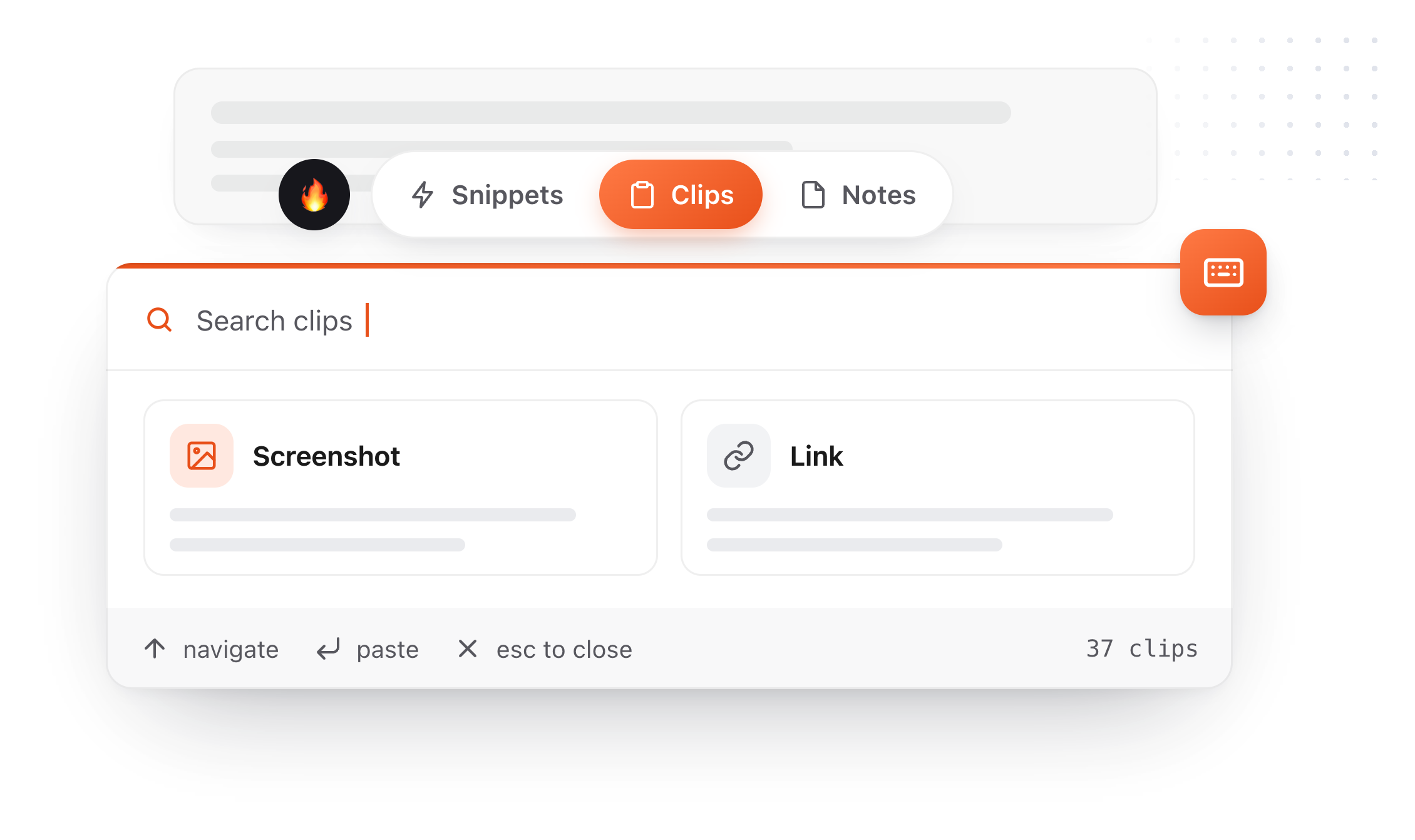
Right-click a clip, choose Save as snippet, give it an abbreviation. The thing you copied once becomes something you type three characters to get, forever. The same conversions run across all three surfaces: a clip becomes a note, and a note you keep rewriting becomes a snippet. Snippets, clips and notes live in one app, which is what makes each of those a single click rather than an export and an import.
- 01
Copy something
It lands in Clips alongside everything else you copied today.
- 02
Save as snippet
It leaves your rolling history and enters your permanent library.
- 03
Give it a trigger
Type
invfrom then on and never look it up again.
A clipboard manager you can tell what to ignore
A clipboard manager sees everything you copy. Until 4.0 the only control over that was a password-manager exclusion you could not see. There are three now, none of them gated, and the limits of the strongest one are stated rather than buried.
Turn image capture off
One switch. Text keeps being captured and pictures stop. Images you have already saved are kept rather than deleted, which is not what most people expect a privacy toggle to do, so it is worth saying.
Name apps to skip
Add any application and TypeFire ignores what you copy in it. Choose from the apps it has already seen, with clip counts, or browse to any app on your Mac. Each app gets one of three settings: allow it, block images only, or block everything you copy there. The middle one is what most people want for a work tool, keeping the text and losing the screenshots.
The password managers, now visible
TypeFire has always ignored password managers. That list is in Settings now, twenty-three apps including 1Password, Bitwarden, KeePassXC, Dashlane and Apple Passwords, blocked by bundle ID in code rather than by a setting you have to find. It shows which of them you have installed, and any one can be overridden.
Encrypted on your Mac
Clips are stored in an encrypted database on your Mac. The key is generated on your machine and kept in the macOS Keychain. Images sit beside it, readable only by your own account.
Secrets expire in minutes
Card numbers and high-entropy strings are detected and deleted after five minutes by default, adjustable in Settings. Everything else follows the retention you choose.
An on-device AI option
Apple Intelligence and local models through Ollama or LM Studio run entirely on your machine. If you pick Claude, OpenAI, or Gemini instead, text goes to that provider directly; TypeFire operates no server in that path.
Where blocking by app stops being a guarantee
macOS does not tell an application which other application wrote to the clipboard. TypeFire matches on the app that was in front at the time, plus any app that identifies itself using the standard convention. That covers the overwhelming majority of real cases and it is not absolute. The protection that does not depend on a guess is the concealed-content marker: password managers mark what they copy, and TypeFire never stores it whatever else is set.
The app list also covers what you copy, not screenshots you save as a file. A PNG on your desktop records nothing about what was on screen, so TypeFire matches those to an app where it can and skips them when it does. It is right in the ordinary case and it is not a promise: to keep saved screenshots out entirely, turn off Save screenshots to Clips.
Eighteen dollars. Once.
TypeFire Pro is a single payment that unlocks unlimited clips, Selection Prompts, Prompt Chains, notes sync, note version history and saving from AI apps through MCP. There is no subscription and no per-seat pricing.
Free tier, then one payment
No free tier at all
One time
No free tier
One time
Lifetime, or $3.99/mo
Five snippets free, then a subscription
CopyClip is free and simple. TypeFire is free at 10 clips with search, OCR and a text expander, and $18 once for unlimited.
The graph is free, and it needs nothing
Press ` and TypeFire draws every note, snippet and clip on one canvas, using the links, tags and folders already in your files. Nothing to download and nothing to switch on. A connection you made is drawn solid, one TypeFire worked out is drawn dashed.
Turn on Weave and search starts matching what you meant rather than the exact words you typed. It runs on your Mac, with no account and nothing uploaded.
Moving from CopyClip
Still not answered?
The text expander is free forever and uncapped.
The clipboard manager is free at your 10 most recent clips, with every clipboard feature available including OCR search and AI actions. CopyClip is free with a longer history, so on clip count alone it wins; $18 once removes TypeFire's cap permanently.
You would not, if the menu bar list is enough.
The reasons people pay are search that works when history is deep, screenshots findable by their contents, and having text expansion in the same app instead of a second utility with a second Accessibility permission.
It is not a good idea. Two apps watching the same pasteboard produce duplicate entries and occasionally compete over restoring the clipboard after a paste.
If you are trialling TypeFire, quit CopyClip for the week.
Clips are encrypted on your Mac, and the key never leaves it.
Nothing is transmitted anywhere. Content that password managers mark as confidential, which covers 1Password, Bitwarden and browser autofill, is never captured at all.
Other comparisons
13 apps, prices checked
CopyQ alternativeA native Mac app
CopyEm alternativeFree for 10 clips
Maccy alternativeFree and unlimited
Clipy alternativeOpen source
Free clipboard managerWhat $0 gets you
Clipboard history on MacHow it works
Clipboard manager for MacThe full feature tour
PricingPro is exactly six things
Loved by people who type all day.
Unprompted reactions from users, in their own words.
Used by people at
Company names are places where our users work. They do not imply endorsement or affiliation.