Markdown Quick Look for Mac. Press Space, read it rendered.
How do I preview a Markdown file in Finder with the spacebar?
Install a Quick Look extension for Markdown, then select the file and press Space. macOS has never shipped one, so out of the box the spacebar preview shows the source. TypeFire adds the extension the moment it is installed, free, with no setting to find.
It renders headings, lists, tables, task lists, code and pictures, on every .md file on the Mac, and it runs no script and loads nothing from the network while it does.
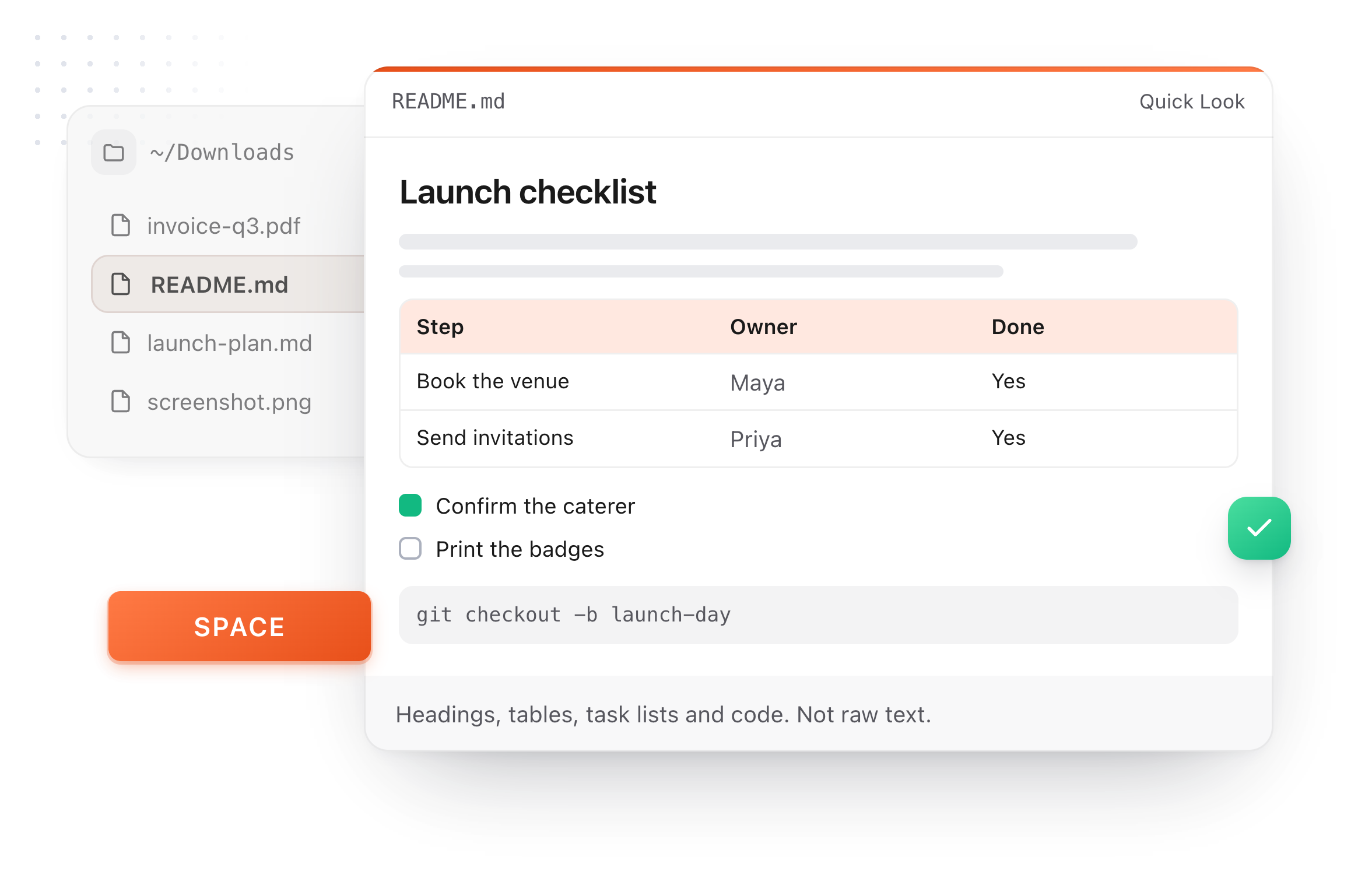
Space, and it is rendered
Select any .md file in Finder and press Space. Headings, tables, task lists and code, not a page of hashes and pipes.
Nothing to switch on
The extension ships inside TypeFire and macOS registers it on install. No setting, no second download, no terminal.
Every .md on the Mac
A README in a repo, a note in an Obsidian vault, a file someone sent you. Quick Look works on the file, wherever it is.
The document, not the syntax.
A Quick Look preview is for deciding whether this is the file you wanted. That takes about a second when the structure is visible and much longer when it is not.
Headings, lists, quotes and links
The structure of the document is the first thing you see, which is the whole reason to preview it rather than open it.
Tables that read as tables
Pipe delimited markdown is close to unreadable as source. Rendered, a table is the fastest thing in the file to scan.
Task lists and code
GitHub Flavored Markdown checkboxes show as checkboxes, and fenced code sits in a monospaced block the way it does on GitHub.
Pictures, in place
An image referenced next to the file is shown where the markdown put it, so a note with a screenshot previews as the note, not as a link.
Every .md file on the Mac, including a whole vault.
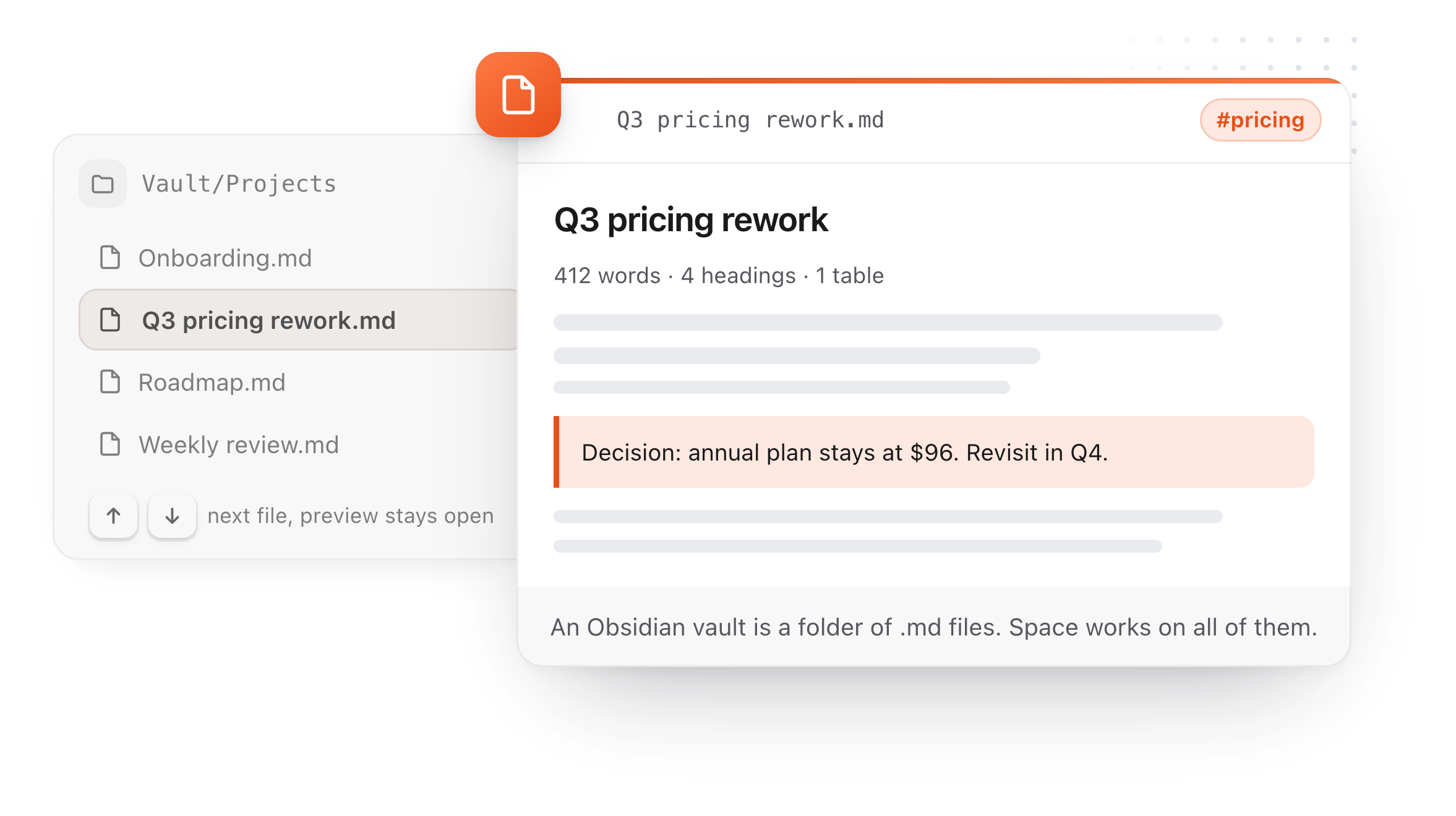
Quick Look works on the file, so it does not matter which app wrote it. An Obsidian vault is a folder of markdown, and Space works on all of it.
Arrow through a folder
Keep the preview open and move with the arrow keys. Each note renders as you land on it, which is faster than opening any editor for every candidate.
Obsidian, Bear exports, iA Writer, READMEs
All of them are plain .md files on disk, and Quick Look works on the file rather than the app that wrote it.
The same look as the editor
The preview uses the styling of TypeFire's own markdown editor, so what you see on Space is what you get on double click. Light and dark follow the system.
A preview that stays on your Mac.
Markdown files arrive from repositories, colleagues and strangers. The preview treats every one of them as untrusted, which is the only correct way to treat a file you have not opened yet.
No script runs, nothing is fetched
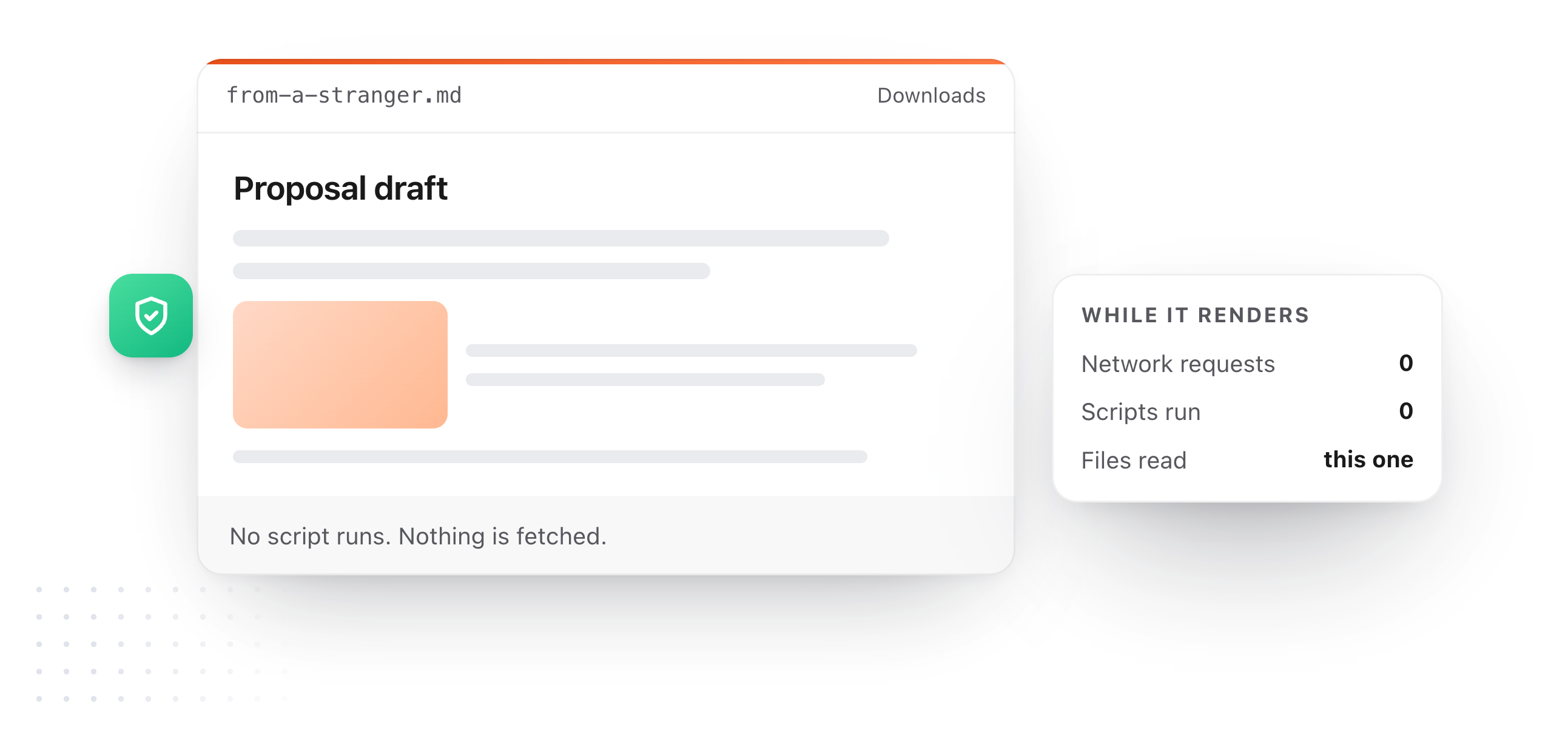
A markdown file can carry HTML, and HTML can carry a script or a tracking pixel. This preview runs none of it and makes no network request, so a file from anyone previews safely.
Pictures come from the file itself
Images are read from beside the document and shown inline. The preview never reaches out for one, so previewing a file tells nobody that you did.
Intel and Apple silicon, macOS 13 up
One universal build, and the Quick Look extension is built for both slices. Free, and not part of Pro.
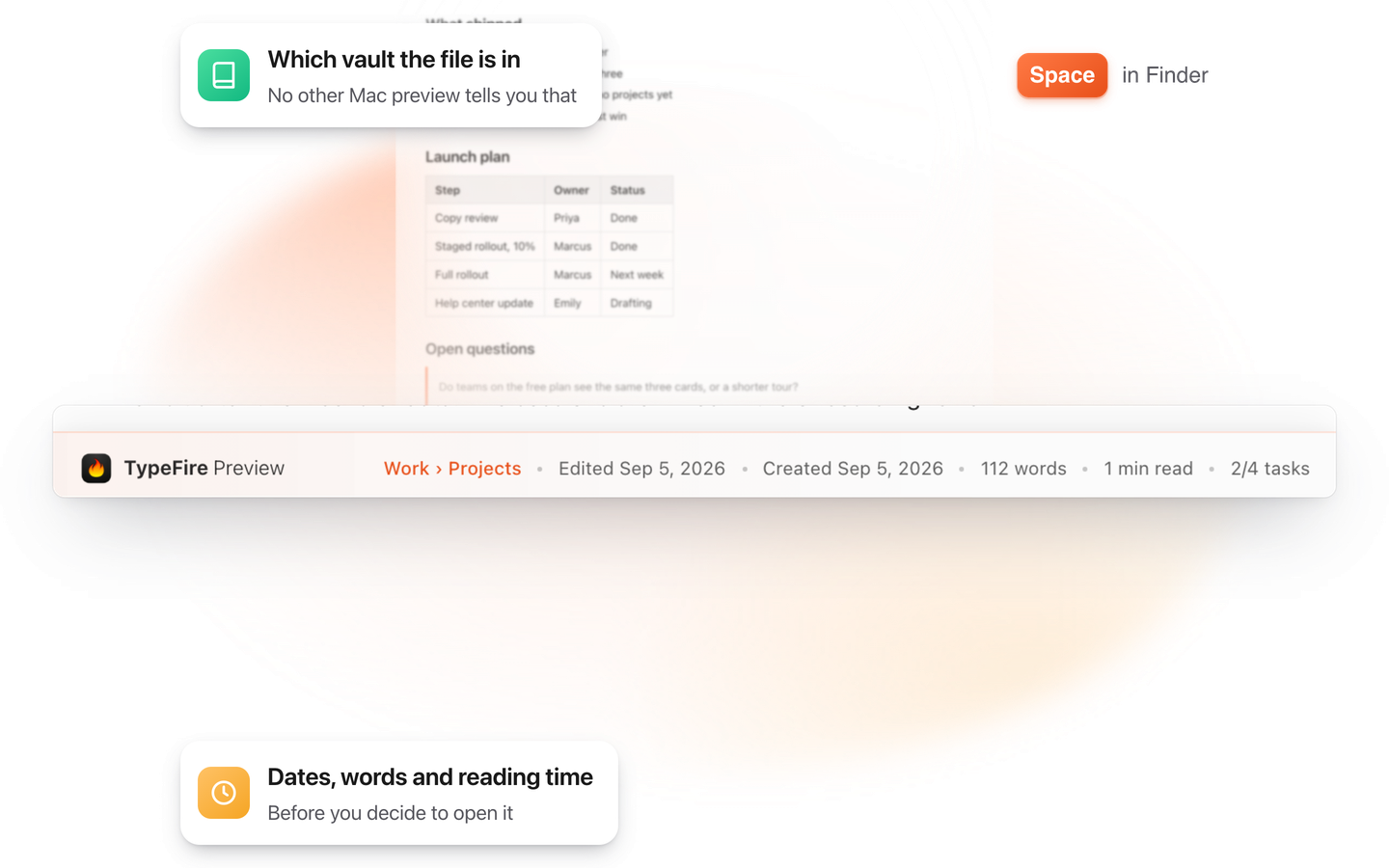
The preview tells you where the file belongs.
A preview answers one question: is this the file I wanted. Rendering the Markdown answers half of it. The other half is which vault it came from and when it last changed, so 5.3 puts that along the bottom of the preview.
Which vault, and which collection
A frosted TypeFire Preview bar names where the note lives, so a folder of similarly named files stops being a guessing game. No other Markdown preview on the Mac tells you that, because no other one knows about your vault.
Dates, word count, reading time
When it was created, when it last changed, how long it is and how long it takes to read, along the bottom of the preview you already opened, plus its task progress when the note has a checklist.
It follows your theme
Light, Dark, Warm, Cool and Dim: the preview uses the theme you set in TypeFire, so a file previewed in Finder looks like the app that opens it next, and the bar is the same in every one of them.
Full width when you want it
The preview opens page-shaped, as tall as Apple's own text previews. Settings, then Markdown, switches it to full width for wide tables and long code blocks.
The other Markdown Quick Look extensions for Mac
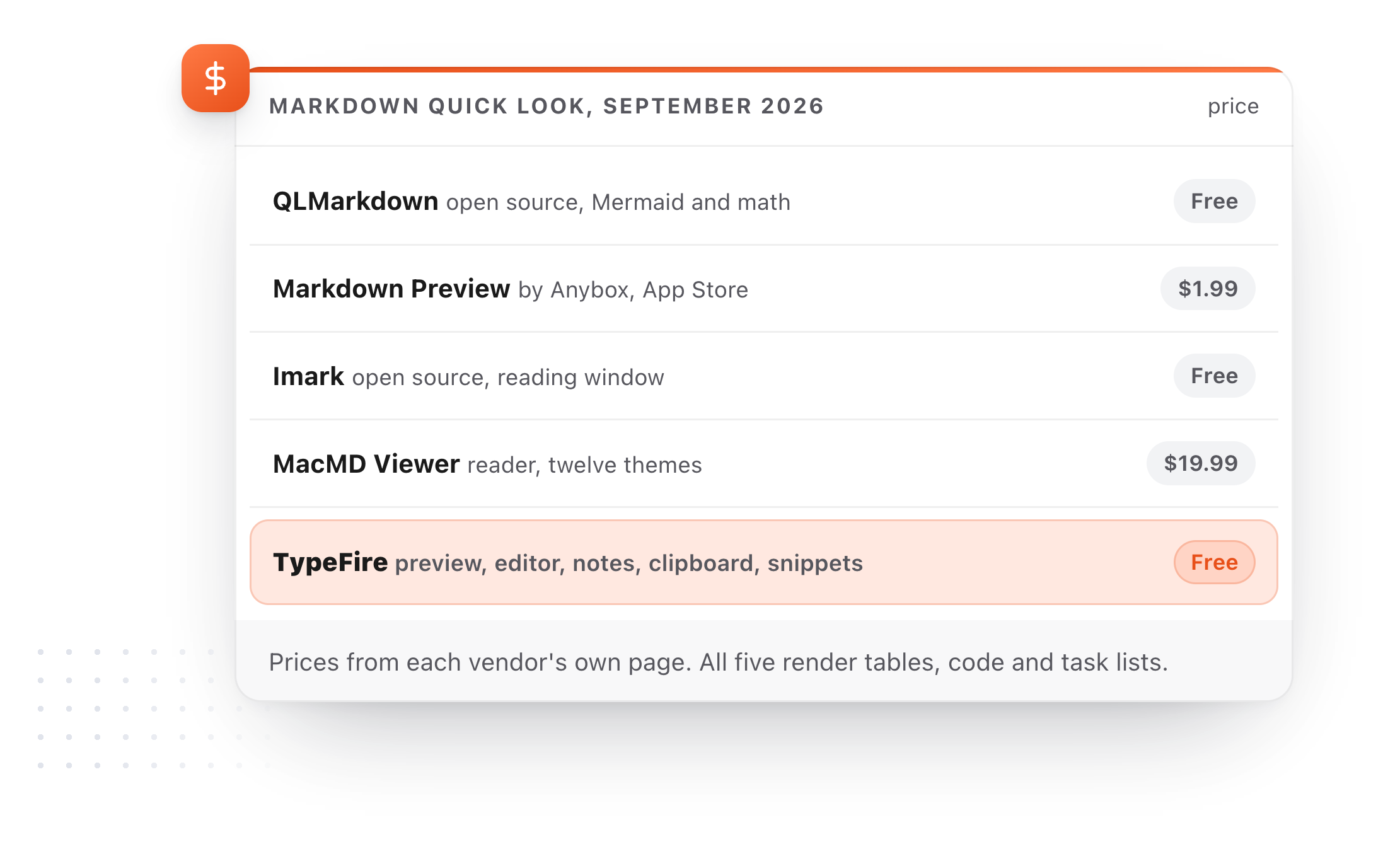
Five of them, with what each costs and needs. Prices checked 25 September 2026 on each vendor's own page.
QLMarkdown, free and open source
The incumbent. Signed, notarized, installed with Homebrew or from GitHub, and it renders more than we do: Mermaid diagrams, math, syntax highlighting for many languages. It is a single purpose tool by a solo maintainer, and you launch it once so macOS finds the extension.
Markdown Preview by Anybox, $1.99 on the App Store
A small paid extension with Mermaid, KaTeX math and code highlighting, plus a source view. macOS 12 and up.
MacMD Viewer, $19.99 once
A reading app whose Quick Look extension ships with it. Mermaid, twelve themes, macOS 14 and up, sold direct and through Setapp. No free tier.
Imark and Markdown QuickLook, free and open source
Two newer open source options. Imark adds Mermaid, math and a reading window on macOS 14 and up. Markdown QuickLook is lighter, MIT licensed, and runs on macOS 12 and up.
TypeFire, free, and it is not only a previewer
The preview arrives with a markdown editor that opens the same file on double click, a notes app that can adopt the folder the file lives in, a clipboard manager and a text expander. If all you want is Space on a README, QLMarkdown is the honest pick. If you also write markdown, this is one install instead of two.
| TypeFire | the others | |
|---|---|---|
| Price | Free | Free, $1.99, or $19.99 once |
| Install | Comes with the app, nothing to enable | Homebrew, GitHub or App Store, launch once |
| Headings, lists, tables, code, task lists | Yes | Yes |
| Pictures inline | Yes | Yes, on most |
| Mermaid diagrams and math | No | Yes, on QLMarkdown, Anybox, MacMD and Imark |
| Runs no script, fetches nothing | Yes | Varies, Imark says the same |
| macOS floor | 13 | 12 to 14 |
| Names the vault and collection the file is in | Yes | No, none of them |
| Follows your app's theme | Light, dark, Warm, Cool and Dim | MacMD has twelve themes of its own |
| Also edits the file | Yes, and a notes app, clipboard and expander | MacMD and Imark read, the rest preview only |
Quick Look questions
Still not answered?
Install a Quick Look extension for Markdown, then select the .md file and press Space. macOS has never shipped a Markdown preview generator, so without one the spacebar preview shows the raw source with visible hashes, asterisks and pipe characters.
TypeFire adds the extension when it is installed: headings, lists, tables, task lists, code blocks and pictures all display rendered. There is nothing to configure.
No, and that includes macOS 26 Tahoe. Markdown is registered as plain text, so Quick Look shows the characters in the file.
Every rendered preview on a Mac comes from an extension somebody installed, whether that is QLMarkdown, an App Store app, or the one inside TypeFire.
No. The preview extension ships inside TypeFire.app and macOS registers it automatically when the app is installed.
There is no setting, no separate download, and no permission prompt for this feature. If a preview looks stale after an update, log out of macOS and back in once, which makes the system re-register preview extensions.
Three things, in order. First, open the app once, because macOS discovers a Quick Look extension the first time its app launches.
Second, open System Settings, then General, then Login Items and Extensions, then Quick Look, and confirm the extension is enabled. Third, if you have more than one Markdown extension installed, macOS picks one and the choice is not predictable, so remove the one you do not want.
Running qlmanage -r in Terminal reloads the Quick Look generators if it is still stubborn.
No. It is free and always will be. TypeFire Pro is $18 once and unlocks six things: unlimited clips, Selection Prompts, Prompt Chains, notes sync between your Macs, note version history, and saving and editing from AI apps through MCP.
Quick Look is not one of them, and neither is the text expander, the notes vault, or screenshot search inside your first 10 clips.
The ones you meet in notes and READMEs: headings, ordered and unordered lists, nested lists, tables, fenced code blocks, inline code, blockquotes, task lists, horizontal rules, bold and italic, links, and pictures referenced beside the file.
The styling matches TypeFire's own Markdown editor, so a file looks the same on Space as it does when you open it, and it follows the system light and dark appearance. It does not render Mermaid diagrams or math; QLMarkdown does, if you need those.
Yes, because all of them store plain .md files on disk and Quick Look works on the file rather than the app.
An Obsidian vault is a folder of Markdown, so you can arrow through it in Finder pressing Space to read each note rendered without opening Obsidian. Obsidian's double bracket links render as literal text, since they are not standard Markdown.
With TypeFire's preview, yes. Markdown can carry raw HTML, and HTML can carry a script, a remote image that reports when it was loaded, or a link to a local file.
The preview runs no script, makes no network request, and reads only the file being previewed and the pictures beside it. A file from a stranger renders as a document and does nothing else.
If two Markdown extensions are installed, macOS chooses one for .md files and the choice is not always the one you expect.
The simplest fix is to remove the one you do not want. TypeFire's extension lives inside the app bundle, so removing TypeFire removes it cleanly with no leftover files in your Library folder.
Yes. TypeFire is one universal build for Intel and Apple silicon on macOS 13 Ventura and later, and the Quick Look extension is built for both.
Related
Markdown, code, video, all of them
QLMarkdown alternativeThe free incumbent, compared
MacMD Viewer alternative$19.99 against free
Quick Look shows raw text?The fixes, in order
Preview markdown on MacEvery method compared
Markdown editor for MacDouble click opens it here
TypeFire NotesAdopt the folder the file lives in
Loved by people who type all day.
Unprompted reactions from users, in their own words.
Used by people at
Company names are places where our users work. They do not imply endorsement or affiliation.