TypeFire 6: Your AI Apps Can Use Your Notes and Snippets
If you wanted Claude to know what's in your notes, you used to paste them into the chat, one at a time, and lose whatever it wrote back the moment the conversation scrolled away.
TypeFire 6 changes that. Claude, Cursor, Codex and the other AI apps on your Mac can now use your notes and snippets directly, through MCP, the standard way AI apps reach other apps. You connect each one with a click.
The short version
- AI apps (MCP): Claude, Claude Code, Cursor, Codex, VS Code (GitHub Copilot agent mode), LM Studio and Windsurf can search, read and save your notes and snippets, and your clipboard history if you turn that on.
- One click per app in Settings, AI apps (MCP). No API key.
- Searching and reading are free. Creating and editing from an AI app are Pro.
- Several at once in Snippets and Notes: tick, ⇧-click or ⌘A, then move, tag or delete.
- Editor settings: five switches for the note editor, a new Dim color, and a calmer dark mode for long sessions.
- Deleted snippets go to the Trash, search finds a snippet by its abbreviation, and renaming a note keeps the #heading in links to it.
Your AI apps can use TypeFire
Open Settings, AI apps (MCP), and you'll see the AI apps installed on your Mac with a Connect button beside each. Click it. Claude and Codex want to be reopened once; the others pick it up on their own. Onboarding offers the same button on its last screen.
From then on you can just ask.
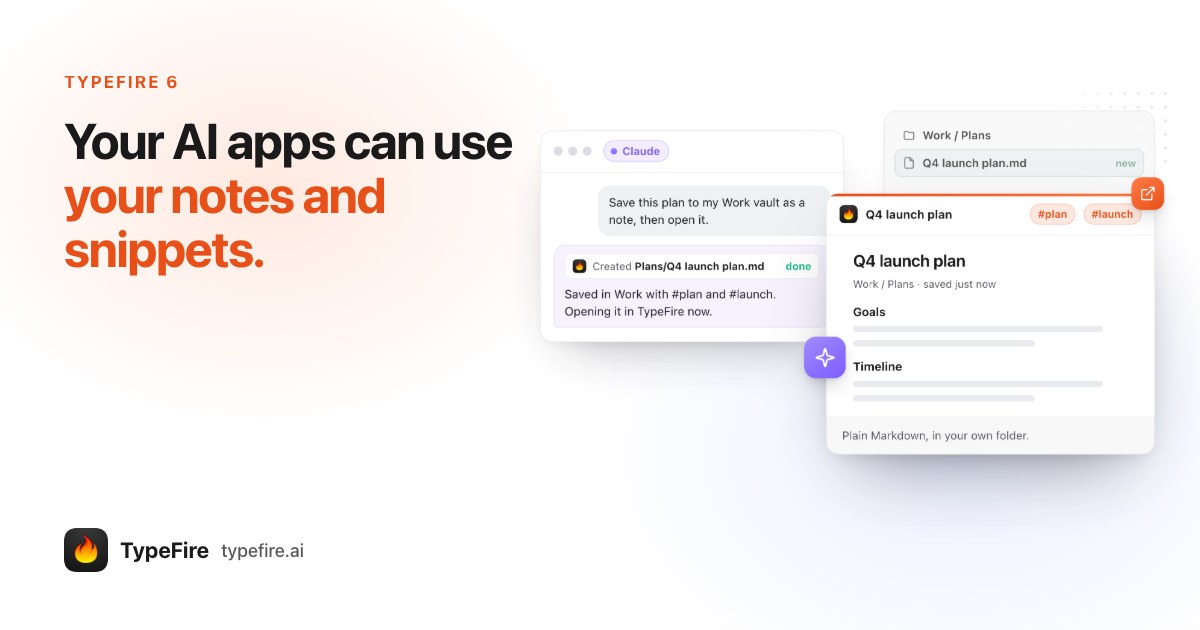
- "Save this plan to my Work vault, then open it." The AI writes a real Markdown note, with tags, in the folder you'd expect, and brings TypeFire forward with it open.
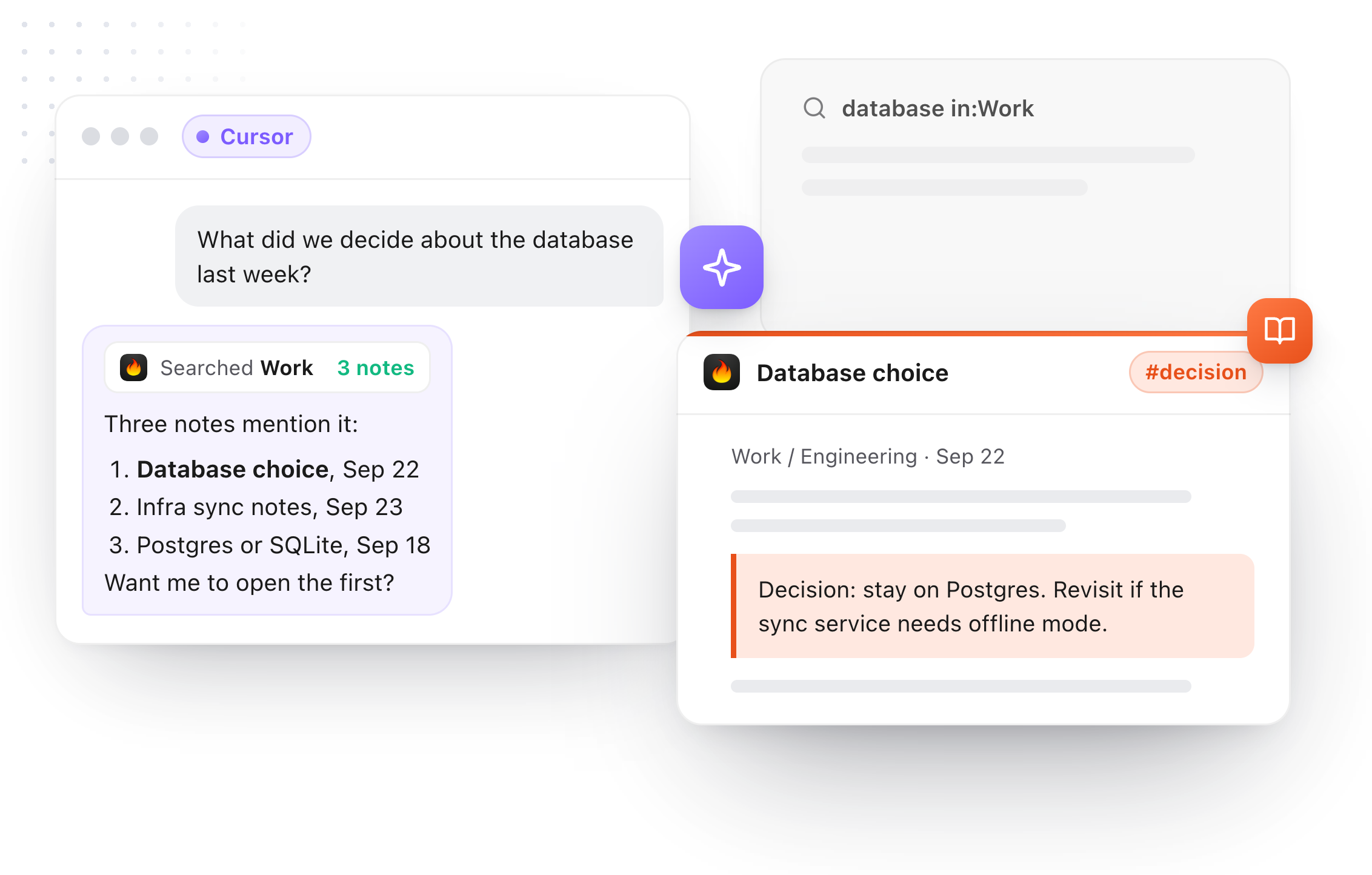
- "What did we decide about the database last week?" It searches every vault first, with the same operators you type (
tag:,in:, dates, properties, phrases), and shows what it found as a short list to pick from. - "Summarize the note I have open." It reads whatever is open in TypeFire. No path to spell out.
- "Fix the date in the second paragraph." It changes just those words instead of rewriting the note.
- "Make a snippet ;sig with my signature." Snippets are readable and writable too, Selection Prompts and chains included.
With Weave on, AI apps can also find notes by what they're about, not just the words in them, and when a word search comes back empty they try meaning on their own. Weave needs Apple silicon.
Obsidian vaults too
A vault is a folder of Markdown, and TypeFire opens it as it is. So if your notes live in Obsidian, AI apps can reach them through TypeFire with no Obsidian plugin, no API key, and Obsidian doesn't even need to be open. More on the Obsidian MCP page.
For coding agents
Claude Code and Cursor write plans all day and lose them between sessions. Settings has a ready line for each vault to paste into a project's CLAUDE.md or AGENTS.md, so the agent keeps its plans and decisions in your vault and looks there before starting new work. The longer version is in Claude Code memory with a notes vault.
What keeps it safe
- An AI app can't overwrite a change you just made. If the note changed since it read it, the edit is refused.
- Deletes go to the Trash, and more than 20 in a minute are refused.
- Clipboard history is off for AI apps until you turn it on, because what you copy can include passwords and codes.
- One switch for all AI apps, one each for Notes, Snippets and Clipboard history, and Read only.
- Recent activity lists the last 20 things AI apps asked for. It stays on your Mac.
The connection stays on your Mac and nothing goes through our servers. What an AI app does with what it reads is up to that app: a cloud AI sends it to its own servers, the way it does with anything you give it, and a local model in LM Studio keeps everything on your Mac. It works with AI apps running on your Mac, not with browser or phone versions.
Free and Pro
Searching, reading and opening things in TypeFire are free for every AI app. Creating, editing, moving and deleting need Pro, which is still $18 once and now six things instead of five. On the free plan the AI is told why a save didn't happen, and nothing changes.
Several at once
Snippets and Notes can now tick several items at once, the way Clips already could. Hover a row for its checkbox, ⇧-click for a range, or ⌘A for everything in the list. A bar at the top moves them, tags them, favorites them (in Notes) or deletes them.
Editor settings
The note editor has five switches in Settings, Notes: Highlight the current line, Check spelling (it underlines, it never autocorrects), Auto pair brackets (with text selected, typing * twice makes it bold), Indentation guides and Fold headings.
Dark mode got easier on the eyes for long sessions. There's a new color, Dim, soft graphite in dark mode and gray paper in light, beside Standard, Warm and Cool in the theme menu, and it follows into the Spotlight windows and the Quick Look preview. The current line is a quiet gray band, body text is a little softer, headings are a weight lighter, and placeholders like <note> are no longer red.
Focus mode now stays on when you open Markdown files from Finder or move between tabs, and it can have its own shortcut in Settings, Shortcuts. The note's ⋮ menu is grouped: favorite and pin, then copy and make a snippet, then open, show and move, then delete.
Tabs and files
- Sort your tabs once. The tab search has Recent, A–Z, Vault and Folder. It's a one-time reorder with an Undo, and new tabs still open beside the one you're on.
- Close all, with Undo. It asks first about a file with unsaved changes.
- ⌘O follows your setting. A Markdown file you open with ⌘O or File, Open lands as a tab by default, the same as a double-click in Finder. The setting in Settings, Markdown is now called Open Markdown files.
- Opening a lot of files from Finder is much faster.
AI in snippets and Selection Prompts
Each AI provider now starts on its fast model, the best fit for snippets and Selection Prompts, and answers come back noticeably quicker, especially on Claude. Settings, AI is now one Model menu with every model grouped by provider and a short note on what each is good for. And when a key tests green for a provider you aren't using, TypeFire asks whether to switch to it.
And the smaller things
- A deleted snippet goes to the Trash, so you can get it back. On the rare drive with no Trash, TypeFire asks once.
- A new note left empty is cleaned up when you move on.
- Search finds a snippet by its abbreviation.
- The world buttons show their names when the sidebar has room.
- Renaming a note keeps the #heading or #^block in links that point to it.
- Appearance set to System now stays System after a restart.
- Version history on the free plan now says it's part of Pro, instead of showing nothing.
- The license, purchase and trial screens are translated into every language, with clearer error messages.
TypeFire offers the update itself. If you don't have it yet, download TypeFire for Mac. Then see everything AI apps can do with it.
Loved by people who type all day.
Unprompted reactions from users, in their own words.
Used by people at
Company names are places where our users work. They do not imply endorsement or affiliation.