Clipboard History: How to See It on Windows, Mac, Chromebook and Android
Every computer now keeps some clipboard history, and every one hides it behind a different key. Here's where to find it on Windows, Mac, Chromebook and Android, what each one keeps, and what to use when it isn't enough.
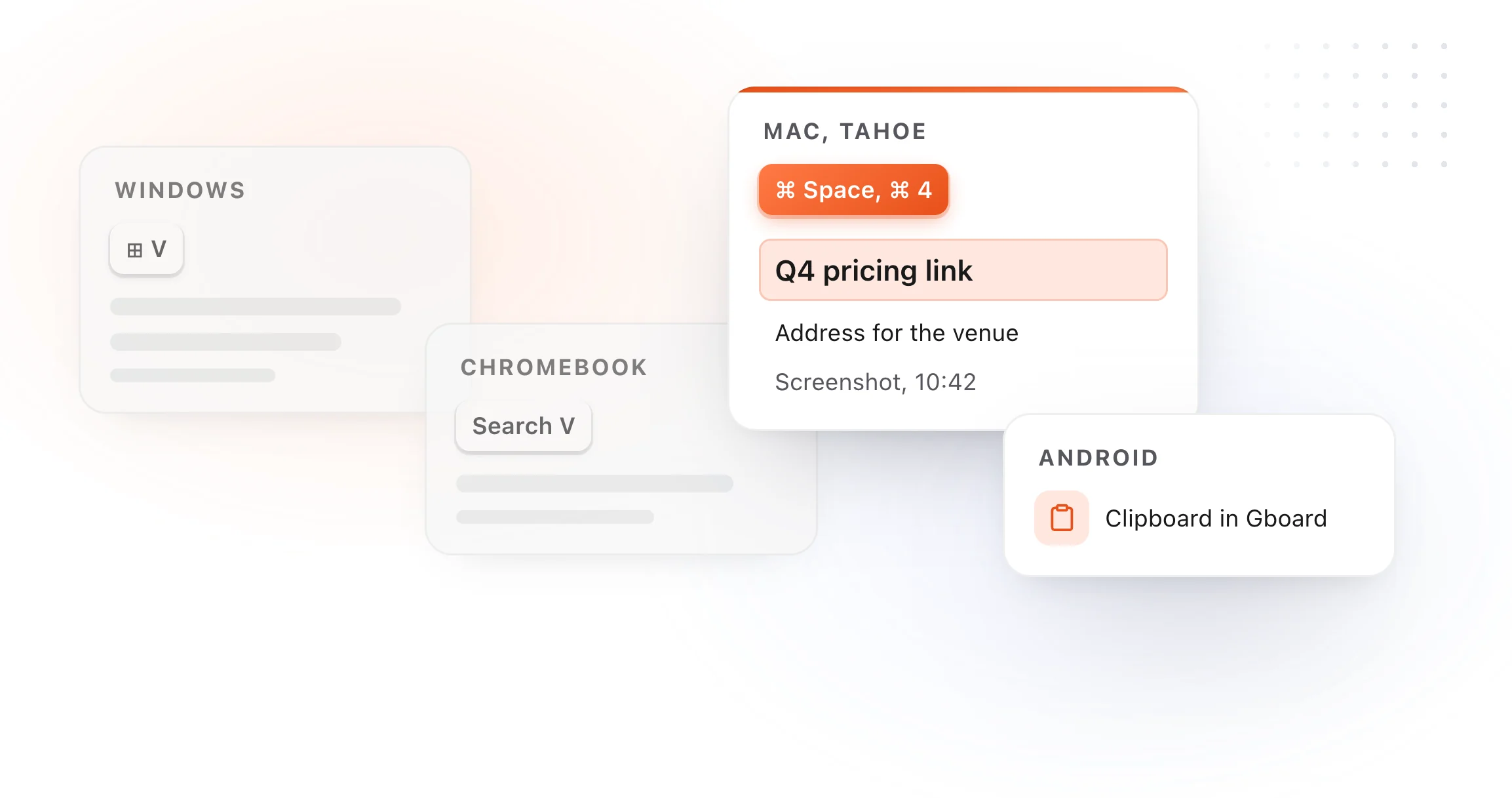
At a glance
| Computer | Open it with | What it keeps |
|---|---|---|
| Windows 10 and 11 | Windows logo key + V | Up to 25 items, cleared on restart unless pinned |
| Mac, macOS Tahoe 26 | Command-Space, then Command-4 | Recent copies, for a period you choose in Spotlight settings |
| Mac, earlier versions | Finder: Edit > Show Clipboard | Only the last thing you copied |
| Chromebook | Search + V | The last five items |
| Android with Gboard | The clipboard button above the keyboard | Recent copies, cleared after a while unless pinned |
Windows
Press Windows logo key + V. The first time, Windows asks you to turn it on; you can also switch it on in Settings > System > Clipboard.
According to Microsoft, it keeps up to 25 copied items, each up to 4 MB, as text, HTML or pictures. Restarting clears everything except the items you pin. Turn on Clipboard history across your devices in the same settings and it syncs between PCs signed in to the same Microsoft account.
Mac
On macOS Tahoe 26, Spotlight has a clipboard view. Press Command-Space to open Spotlight, then Command-4 to switch to the clipboard. The first time, it asks you to turn it on. In System Settings > Spotlight you can choose how long it keeps your copies, and clear them.
On earlier versions, macOS keeps exactly one item: the last thing you copied. In Finder, choose Edit > Show Clipboard to see it.
The Mac clipboard history guide goes deeper, including what Spotlight's version leaves out.
Chromebook
Press Search + V (on some keyboards the Launcher key + V). A small panel shows the last five things you copied, text and pictures, and you click one to paste it.
Android
In Gboard, Google's keyboard, tap the clipboard icon in the row above the keys. It shows recent copies and offers to pin the ones you want to keep, since unpinned items are cleared after a while. Other keyboards, such as Samsung's, have their own clipboard button in the same spot.
When built-in history isn't enough
Every built-in history has the same limits: it's short, it forgets on a restart or a timer, and you can't search far back. If you copy a lot, those limits show up daily: the link from this morning is gone, the paragraph you copied before lunch got pushed out.
A clipboard manager keeps your copies, searchable, for as long as you want.
- On a Mac. TypeFire keeps your clipboard history in an encrypted database on your Mac, searchable by text, and it reads the words inside screenshots so you can find a picture by what it says. It skips password managers. See the clipboard manager for Mac.
- In Chrome on any computer. TypeFire for Chrome keeps what you copy on web pages, searchable from a launcher over any page, in Chrome, Edge and Brave, so it works on Windows, Linux and Chromebooks too.
Both are free, and both turn a clip you keep reaching for into a snippet you can type with a short abbreviation.

Every computer now keeps some clipboard history, and every one hides it behind a different key. Here's where to find it on Windows, Mac, Chromebook and Android, what each one keeps, and what to use when it isn't enough.
At a glance
| Computer | Open it with | What it keeps |
|---|---|---|
| Windows 10 and 11 | Windows logo key + V | Up to 25 items, cleared on restart unless pinned |
| Mac, macOS Tahoe 26 | Command-Space, then Command-4 | Recent copies, for a period you choose in Spotlight settings |
| Mac, earlier versions | Finder: Edit > Show Clipboard | Only the last thing you copied |
| Chromebook | Search + V | The last five items |
| Android with Gboard | The clipboard button above the keyboard | Recent copies, cleared after a while unless pinned |
Windows
Press Windows logo key + V. The first time, Windows asks you to turn it on; you can also switch it on in Settings > System > Clipboard.
According to Microsoft, it keeps up to 25 copied items, each up to 4 MB, as text, HTML or pictures. Restarting clears everything except the items you pin. Turn on Clipboard history across your devices in the same settings and it syncs between PCs signed in to the same Microsoft account.
Mac
On macOS Tahoe 26, Spotlight has a clipboard view. Press Command-Space to open Spotlight, then Command-4 to switch to the clipboard. The first time, it asks you to turn it on. In System Settings > Spotlight you can choose how long it keeps your copies, and clear them.
On earlier versions, macOS keeps exactly one item: the last thing you copied. In Finder, choose Edit > Show Clipboard to see it.
The Mac clipboard history guide goes deeper, including what Spotlight's version leaves out.
Chromebook
Press Search + V (on some keyboards the Launcher key + V). A small panel shows the last five things you copied, text and pictures, and you click one to paste it.
Android
In Gboard, Google's keyboard, tap the clipboard icon in the row above the keys. It shows recent copies and offers to pin the ones you want to keep, since unpinned items are cleared after a while. Other keyboards, such as Samsung's, have their own clipboard button in the same spot.
When built-in history isn't enough
Every built-in history has the same limits: it's short, it forgets on a restart or a timer, and you can't search far back. If you copy a lot, those limits show up daily: the link from this morning is gone, the paragraph you copied before lunch got pushed out.
A clipboard manager keeps your copies, searchable, for as long as you want.
- On a Mac. TypeFire keeps your clipboard history in an encrypted database on your Mac, searchable by text, and it reads the words inside screenshots so you can find a picture by what it says. It skips password managers. See the clipboard manager for Mac.
- In Chrome on any computer. TypeFire for Chrome keeps what you copy on web pages, searchable from a launcher over any page, in Chrome, Edge and Brave, so it works on Windows, Linux and Chromebooks too.
Both are free, and both turn a clip you keep reaching for into a snippet you can type with a short abbreviation.
Loved by people who type all day.
Unprompted reactions from users, in their own words.
Used by people at
Company names are places where our users work. They do not imply endorsement or affiliation.