How to Insert a Table in Gmail, and Reuse It in a Few Keystrokes
Gmail's compose window can do bold, lists, links and colors. What it can't do is insert a table. There is no table button in the toolbar, and no menu hides one.
You can still send a real table, with rows and columns the reader can copy. The trick is to make it somewhere else and paste it in. Here are three ways, from the quickest one-off to the one that saves you the most time if you send the same grid every week.
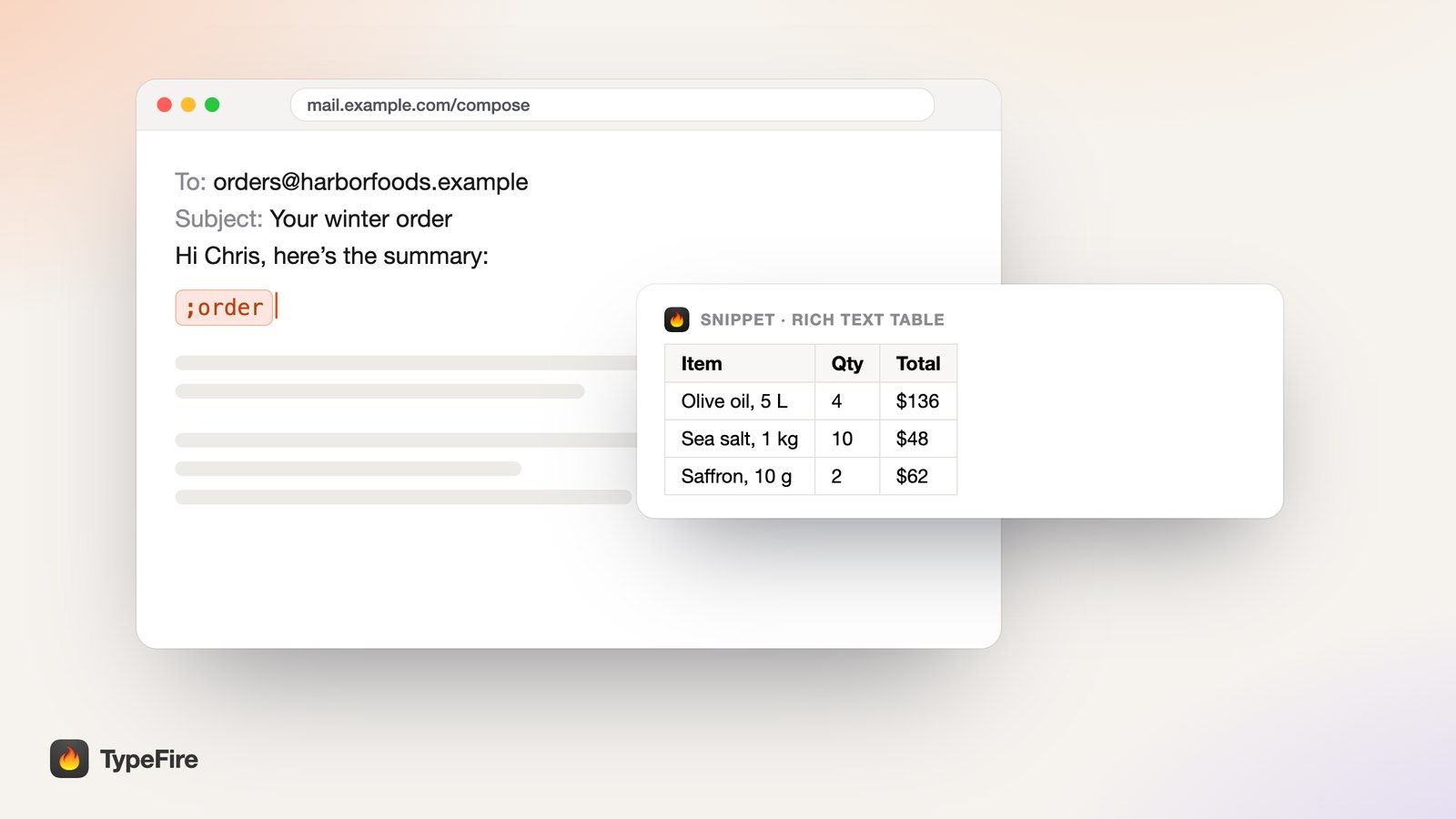
Way 1: copy it from Google Sheets
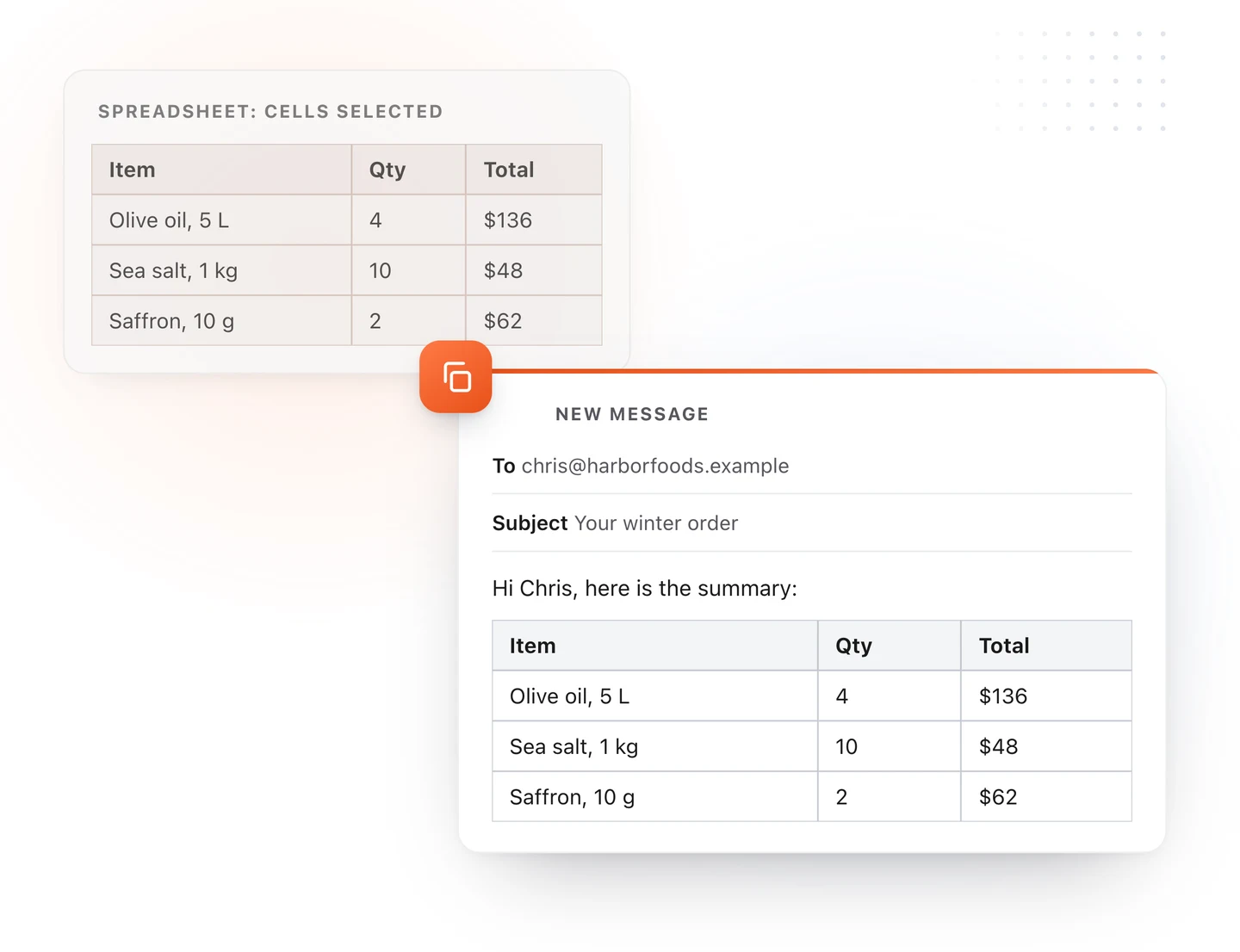
This is the fastest for a one-off table, and the most reliable.
- Open a sheet at sheets.new and type your table.
- Select the cells, then add borders from the toolbar if you want lines between cells. Borders set on the cells usually come along with the paste.
- Copy with Command C (Mac) or Ctrl C (Windows and ChromeOS).
- Click into your Gmail message and paste with Command V or Ctrl V.
The table arrives with its rows and columns, and usually with its bold header and cell colors too.
Way 2: copy it from Google Docs
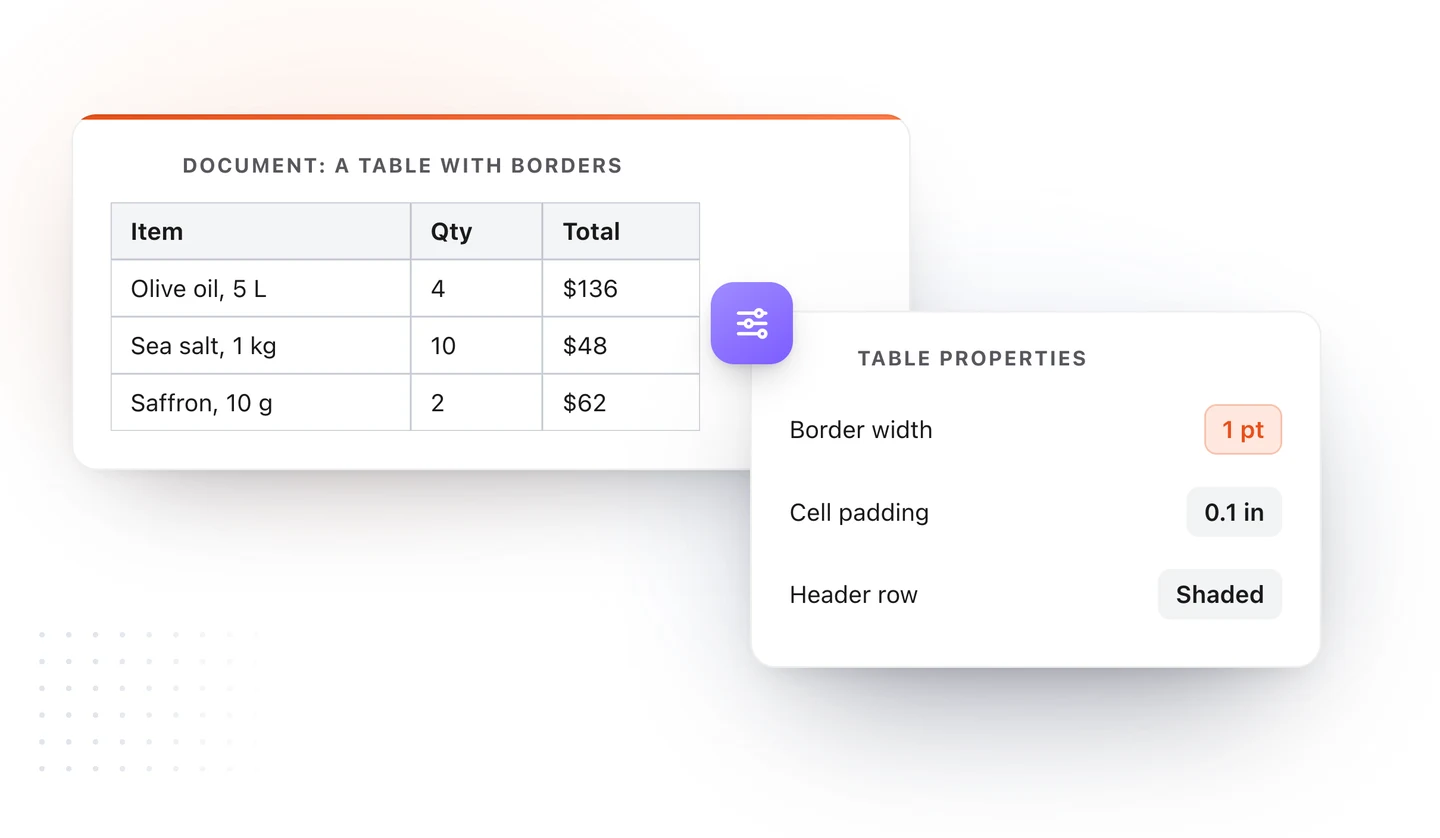
Docs gives you more control over the look: header shading, cell padding, border thickness.
- Open a doc at docs.new.
- Choose Insert > Table and pick a size.
- Fill it in. Right-click the table and open Table properties to set the border width and cell padding.
- Select the whole table, copy it, and paste it into Gmail.
If the borders vanish after pasting, go back to Table properties, set the border to 1 pt or more, and copy it again.
Way 3: save it once, type it back in any email
Both copy and paste methods mean a second tab every time. If you send the same table over and over, like a price list, an order summary or a weekly status grid, store it once and call it up from the message itself.
That's what a text expander does. In TypeFire for Chrome:
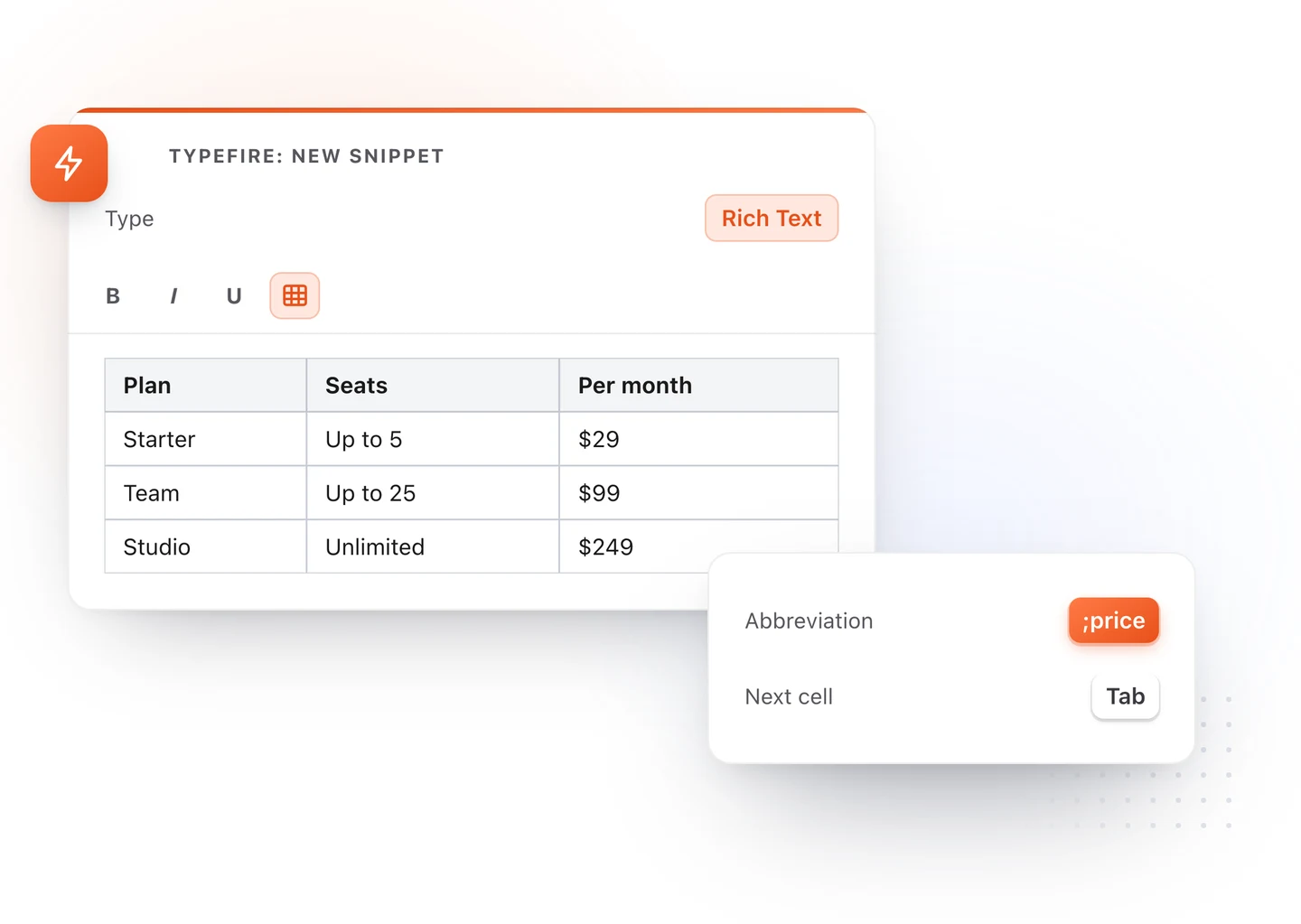
- Open TypeFire and create a snippet. Set its type to Rich Text.
- Click the table button in the editor's toolbar. A table appears.
- Type into the cells. Tab moves to the next cell.
- Give the snippet an abbreviation, for example
;price. - In Gmail, type
;pricein the message. It turns into the table.
| What you type | What lands in the email |
|---|---|
;price |
A price table with a bold first row |
;order |
An order summary: item, quantity, total |
;status |
A weekly grid: done, next, blocked |
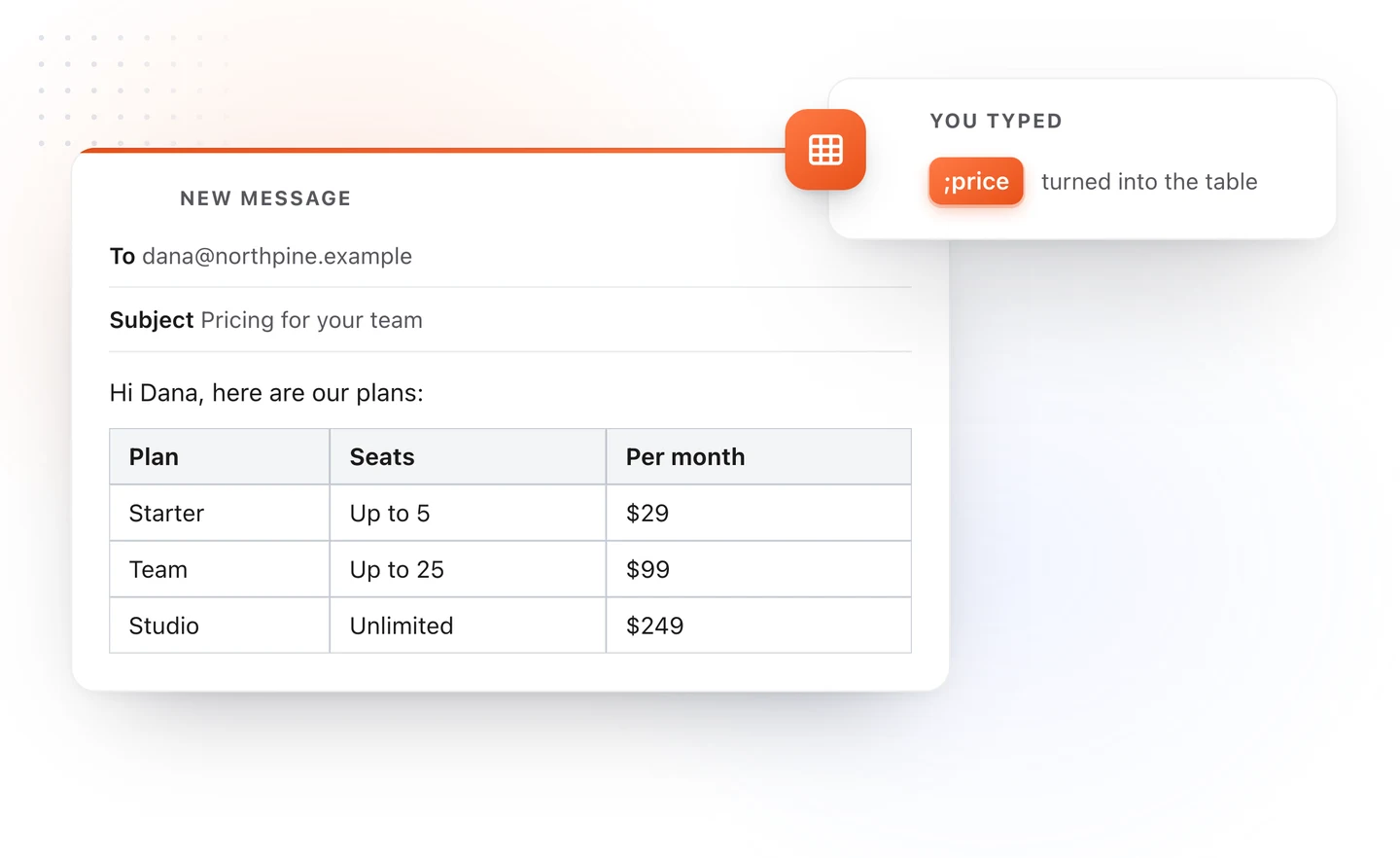
The snippet works on other sites too. Where a page has a rich text editor, the table lands as a table. In a plain text box, like many support forms, each row becomes one line, so nothing turns into a jumble.
The table carries no borders of its own, so it picks up the styling of the place you paste it. That keeps it looking native in Gmail.
On a Mac, outside the browser
Apple Mail has no Insert Table command either. The common workaround is to build the table in Numbers or TextEdit and paste it in.
TypeFire for Mac does the same thing the extension does, in every app. Make a rich text snippet with a table (the toolbar also adds and deletes rows and columns while the caret is in it), type its abbreviation in a Mail message, and it pastes as a real table in Mail and TextEdit. Where an app accepts only plain text, each row arrives as one line with the cells separated by tabs, which pastes cleanly into a spreadsheet.
Tips for tables people can read
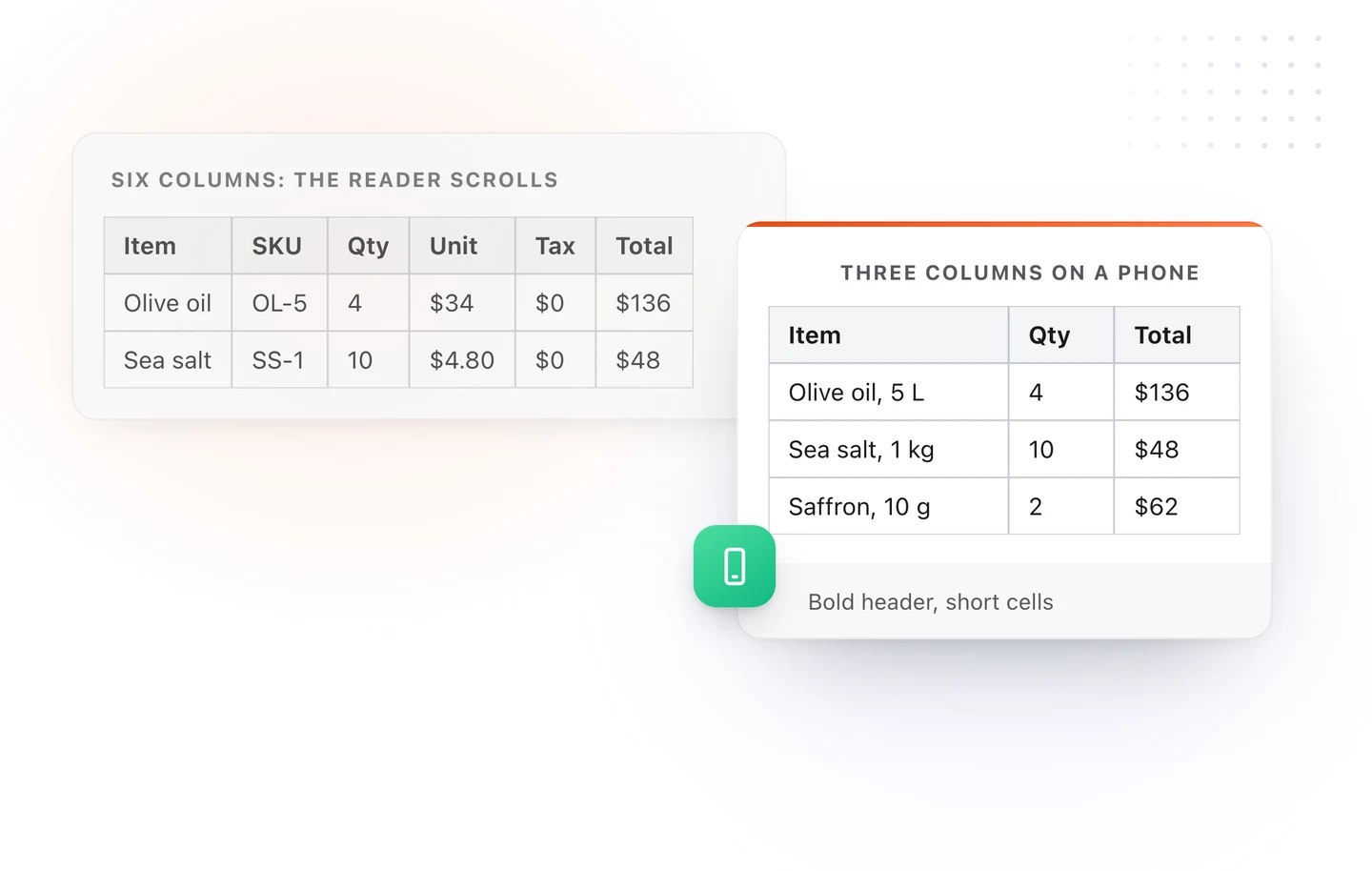
- Keep it narrow. Three or four columns read well on a phone. Past that, the reader scrolls sideways.
- Put the header in bold. Bold survives in almost every mail app.
- Short cells. A table is for scanning. Long sentences belong in the text above it.
- Send yourself a test. Open it on your phone before it goes to a client.
Which way to use
| You need | Use |
|---|---|
| One table, right now | Google Sheets, copy and paste |
| A table with custom borders and shading | Google Docs, copy and paste |
| The same table in many emails | A rich text snippet in TypeFire |
Loved by people who type all day.
Unprompted reactions from users, in their own words.
Used by people at
Company names are places where our users work. They do not imply endorsement or affiliation.