Slack Markdown: Every Formatting Code, and the Setting That Turns It On
Slack looks like it speaks Markdown, and mostly it does. It just disagrees on the
two codes people type most. In Slack, bold is one asterisk on each side, and
strikethrough is one tilde. Type **bold** the way you would in a README and you
get stray asterisks.
Here is every code Slack understands, the setting that decides whether typing them works at all, and the few places it behaves differently from everywhere else.
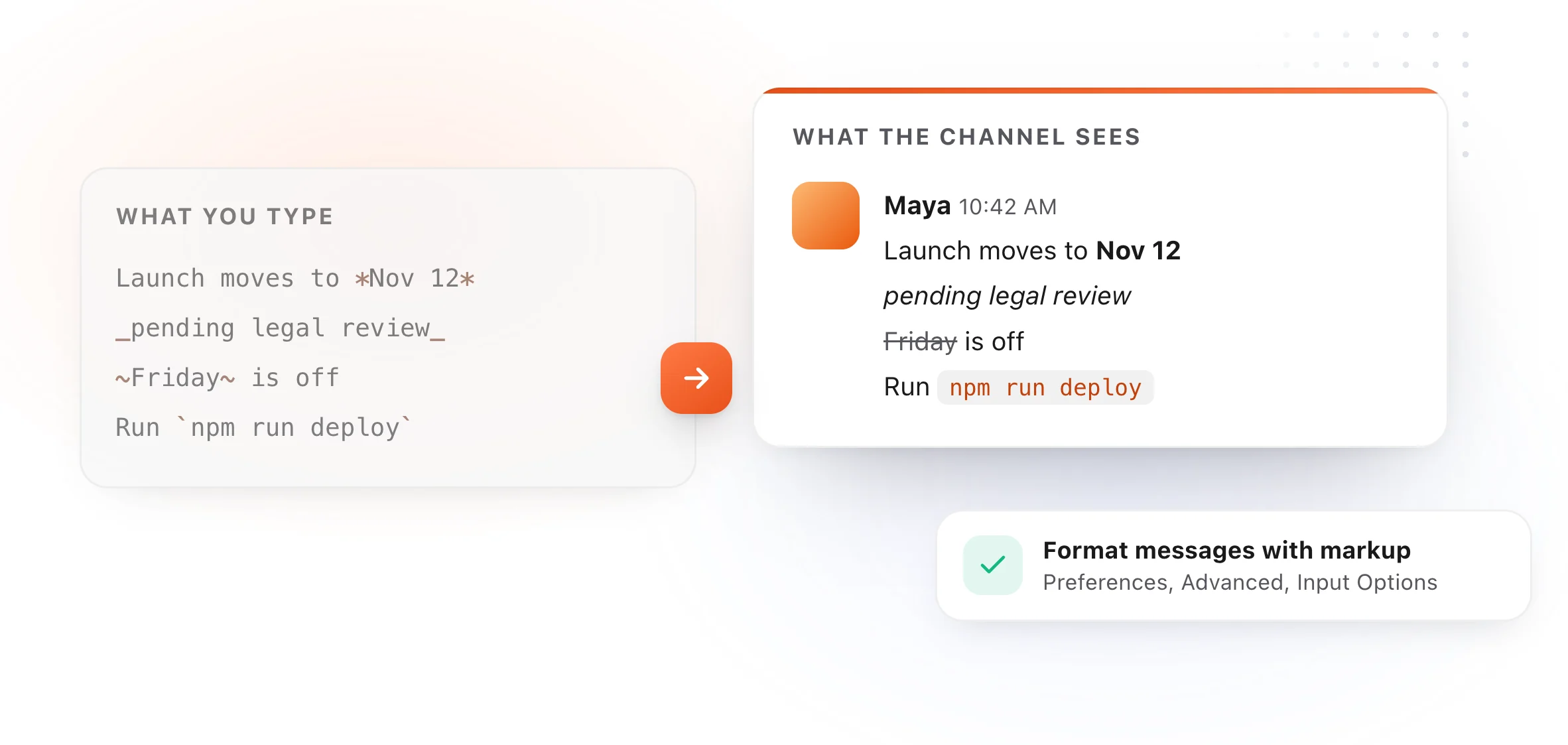
Every Slack formatting code
| Format | Type this | You get |
|---|---|---|
| Bold | *text* |
text |
| Italic | _text_ |
text |
| Strikethrough | ~text~ |
|
| Inline code | `text` |
text |
| Code block | ```text``` |
a block in a monospace font |
| Quote | >text |
an indented quote |
| Link | [text](URL) |
text that links to the address |
| Bulleted list | * then a space |
a bullet |
| Numbered list | 1. then a space |
a numbered item |
| New line | Shift + Return | a line break, without sending |
The table follows Slack's own help pages on markup and formatting, read on October 27, 2026. The two list rows are for Slack's default composer; with markup on, lists stay exactly as you type them.

Turn on markup first
This is the step most guides leave out. On the desktop app, Slack formats with a toolbar by default. To type the symbols instead, turn markup on:
- Click your profile picture in the sidebar
- Choose Preferences
- Choose Advanced
- Under Input Options, check Format messages with markup
With it on, the codes in the table work as you type them, and the formatting is applied when you send the message.
Three ways Slack differs from Markdown
One symbol, not two. Bold is *bold* and strikethrough is ~strike~. If you
write Markdown elsewhere, this is the habit to adjust.
Pasted text stays plain. With markup on, Slack says pasted text appears as plain text. Formatting a long update somewhere else and pasting it in won't carry the formatting through.
Lists don't format themselves. With markup on, Slack's automatic formatting for bulleted, numbered and indented lists isn't applied, so a list stays as plain lines with your dashes or numbers. Turn markup off for a message that's mostly a list.
Code blocks, the one people need most
For a command inside a sentence, use one backtick on each side:
Run `npm run deploy` after the merge.
For several lines, wrap them in three backticks:
```
git pull
npm install
npm run deploy
```
Code blocks are also the safe way to share anything with symbols in it, such as a path, a regex or a JSON snippet, because Slack leaves everything inside them alone.
Quotes and links
A quote is a > at the start of the line. Quote someone's message, then reply
under it, and the thread stays readable.
A link with your own words on it is [text](URL). Plain addresses link on their
own, so you only need this when the words matter more than the address.
Messages you send every week
The formatting is the easy part. The part that eats time is typing the same messages again and again: the standup, the release note, the on-call handoff, the "thanks, looking into it" reply.
A text expander handles that. Save each message once as a snippet, then type a short abbreviation in Slack and the whole message drops in, ready to edit. TypeFire does it free on a Mac, in the Slack app and everywhere else, and the Chrome extension does it in Slack on the web.
If you also write notes in Markdown, the Markdown cheat sheet covers standard syntax, and the Discord and GitHub guides cover the other two places Markdown dialects trip people up.
Loved by people who type all day.
Unprompted reactions from users, in their own words.
Used by people at
Company names are places where our users work. They do not imply endorsement or affiliation.