TypeFire 5.1: The Notes Editor Grew Up, and Search Learned Operators
You write a note, you need a table, and you go and find the pipes and dashes. You want a warning box and you remember it is a blockquote with a bracket in it. You know the note is somewhere and you type the word, and the search box gives you every note with that word in it, from three years.

5.1 fixes all three.
The short version
- The editor grew up. Slash commands, tables with grips and menus, callouts, footnotes, a contents block, folding, code blocks that know their language.
- Search operators on every surface:
tag:,in:,is:,before:,after:,type:, drawn as capsules. - Notes embed notes.
![[note]]shows it in place, hovering a link previews it, a link to a missing note creates it. - Clips paste files as files, keep formatting, and search inside PDFs.
- Nineteen video tutorials inside the guide, which opens on a home page now, and at /tutorials.
- Free, including for existing owners.
Slash commands
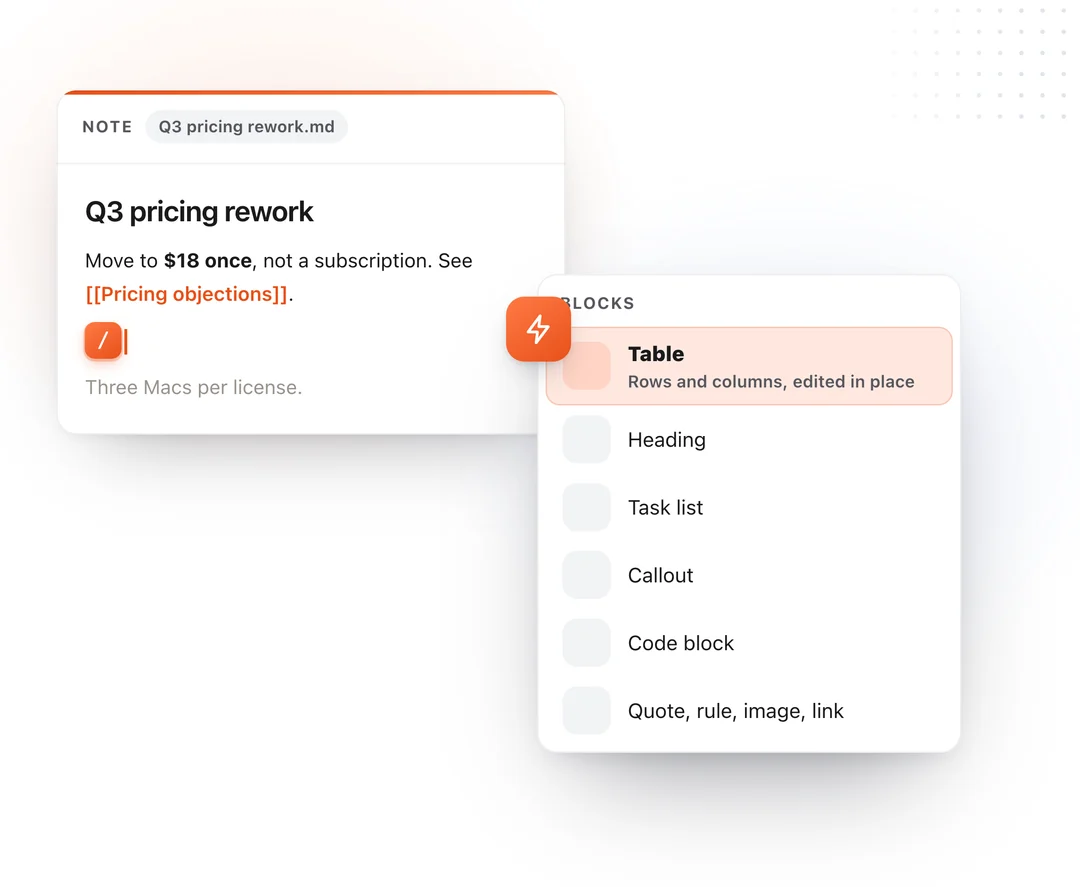
Type / on an empty line and a menu offers every block the editor draws: heading, list, task, table, code, callout, quote, rule, image, link. Arrow down, Enter, and it is there. You do not learn the markdown for a callout to write one, though the file still gets the markdown.
Tables you edit in place
Move the pointer over a table and a grip appears beside the row and the column. Click it to select, drag it to reorder, right-click it for a menu: sort by this column, move, align, duplicate, delete, hide the header row. Rails on the right and bottom edges add a column or a row. Arrow keys move between cells, a rectangle of cells can be selected, and Shift+Enter is a line break inside a cell.
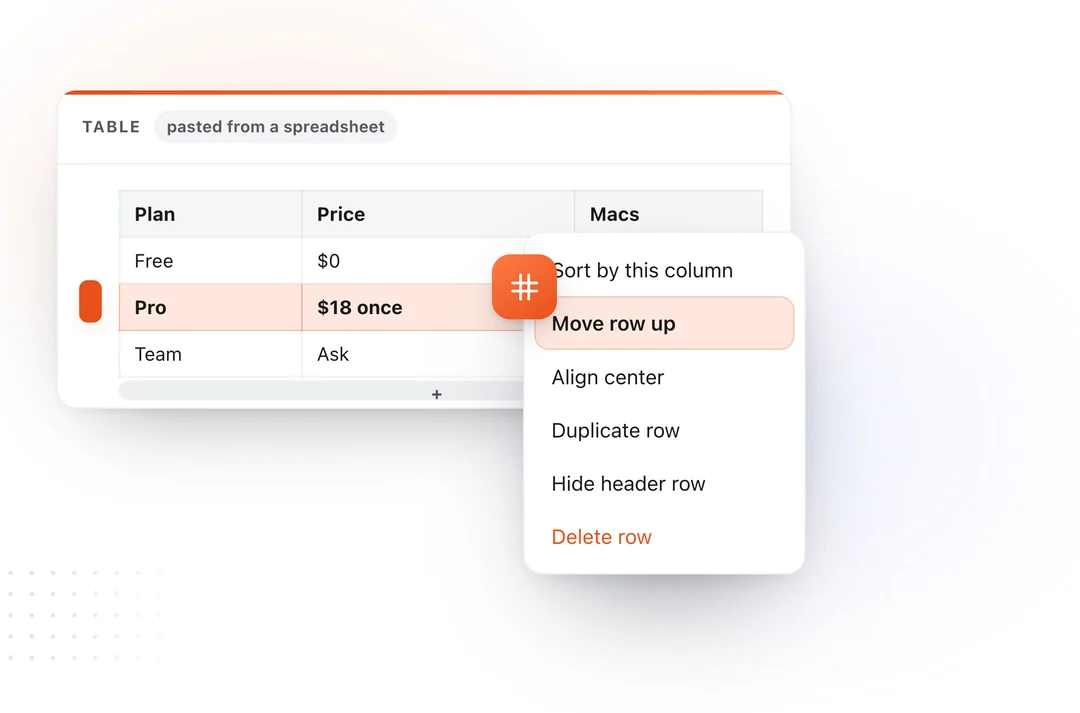
Paste a spreadsheet on an empty line and it becomes a table. Paste into a cell and it fills across and down. Tables size to their content, the way Obsidian's do, and a cell with the caret shows its markdown, so bold keeps its stars while you edit it.
Callouts, footnotes, folding
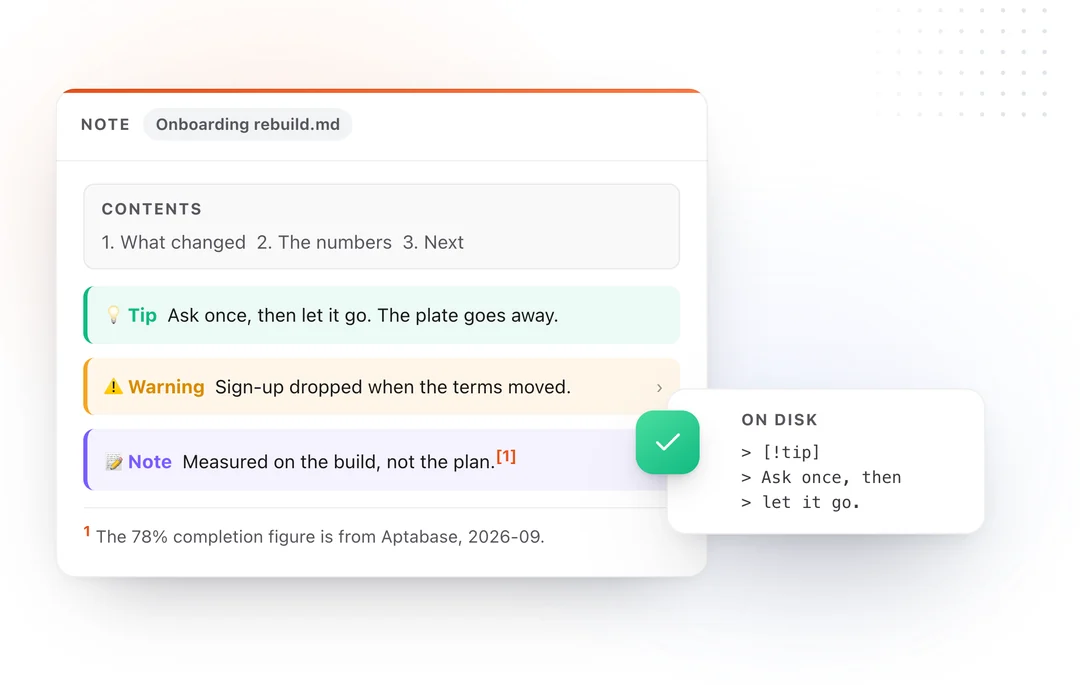
Obsidian's callouts draw as colored boxes and fold: > [!note], [!tip], [!warning] and the rest, with a toolbar button so you never type the bracket. Footnotes get numbered references and a click each way. A [TOC] block keeps itself current. Sections fold from the gutter. [[Note#Heading]] links land on the heading.
Code blocks get syntax highlighting, a language label with a picker, a copy button, and optional line numbers and wrapping. Emoji shortcodes draw as the emoji, : and two letters opens a picker. And the editing set a code editor has: several cursors (⌘D), move a line (⌥ and the arrows), join lines (⌘J), select a word and type * to wrap it.
Notes that embed notes
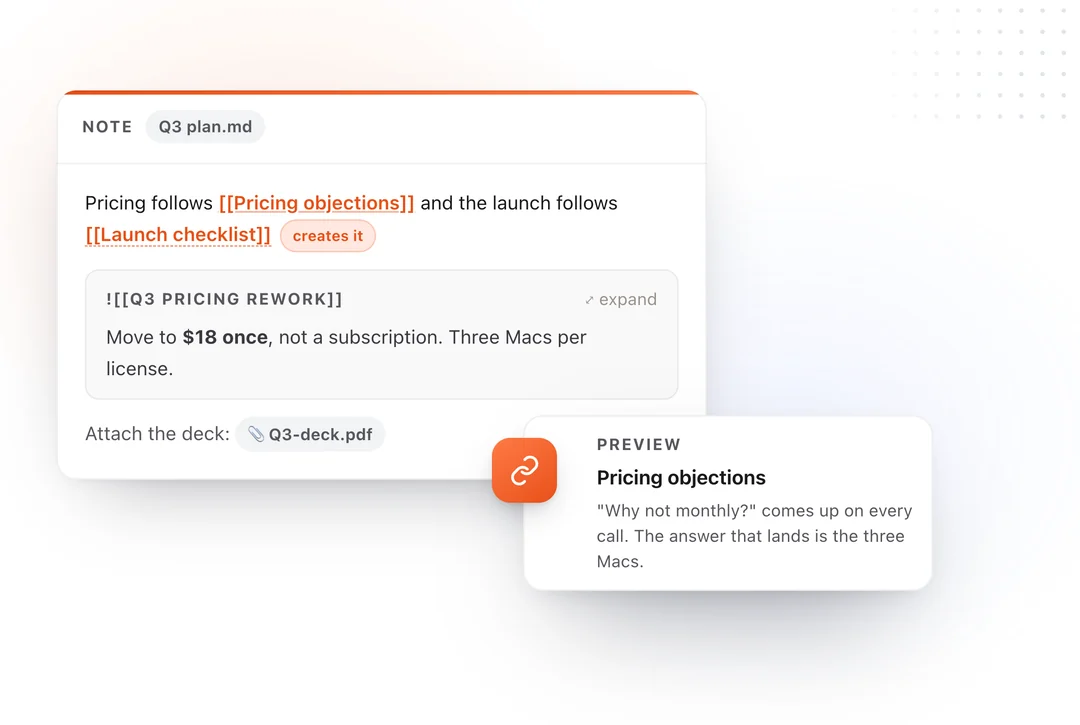
![[note]] shows the note in place, with a control to expand it. Hover any [[link]] and the note appears in a card. A link to a note that does not exist creates it, at the path in the link if you gave one. A file pasted from Finder becomes a card; pictures pasted from Google Docs or a web page are copied into the vault, so the note still has them next year.
Quick capture is the real editor now: a title field, rich paste as markdown, a pasted picture saved into the vault. Find in note (⌘⇧F) finds and replaces inside the note, in the main editor and the Markdown window alike. A line height setting, compact to relaxed, in Settings.
Search operators, everywhere
Every search box takes the same operators, and each one becomes a capsule you can type into, with suggestions under it: your tags, your folders, your apps.
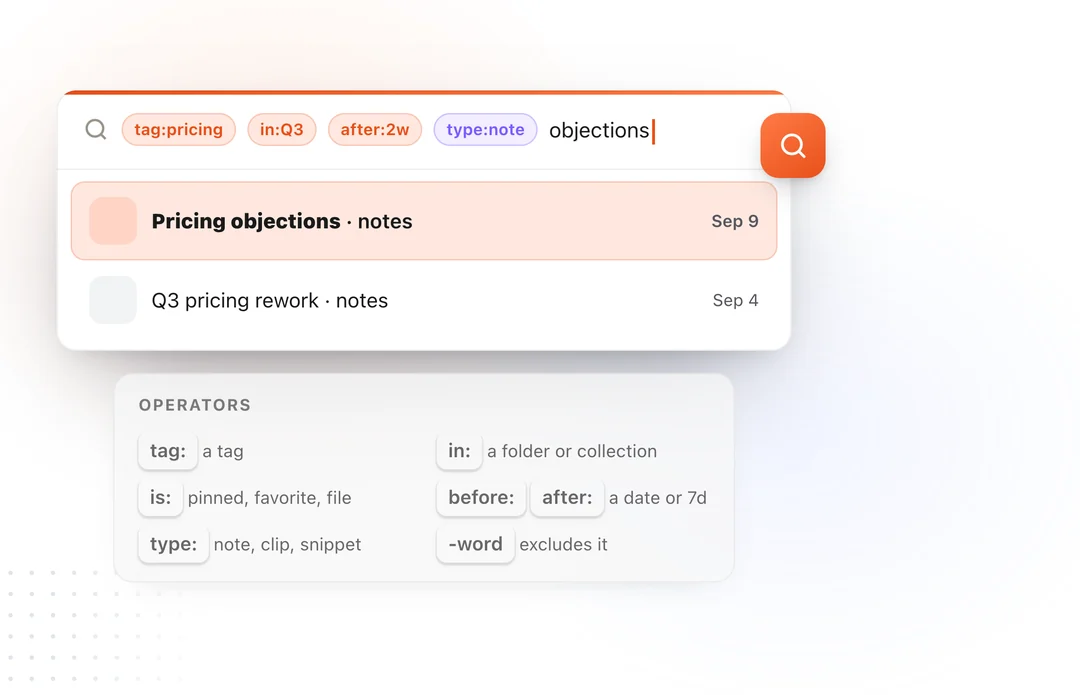
tag:pricing in:Q3 after:2w type:note objections finds the note. is:pinned in clips, is:chain in snippets, -word to exclude, quoted phrases, before: and after: with a date, an age like 7d, or today. type: picks a world or a sub-type in it: type:image, type:chain. Notes add path:, file:, section: and [property] for frontmatter; snippets add abbr:; clips add app:. Thirteen operators, and the tooltip on an empty box lists them, so you never have to remember which is which. Full list in the guide.
Clips
Files paste as files, all of them, with the path as the text fallback. Formatted text keeps its formatting when it comes back. PDFs and documents are searchable by what is in them, the way screenshots already were. Click a source app in the sidebar and the grid narrows to it.
Snippets
One snippet can expand as you type while the rest wait for a space, or the other way round: Override expansion mode, beside the abbreviation. If you are coming from Espanso, it is word: true, per match. A body that ends in a space keeps it.
The guide, and nineteen videos
The in-app guide opens on a home page now, with quick starts and the worlds, and every section carries its own short video, playing in place. The same guide is on the site at /docs, and the videos are at /tutorials, in the order to learn them.
Also in 5.1: the menu bar icon opens the search you choose, ⌘⌫ deletes the selected item in every world, ⌘0 brings the main window back, and every setting and screen is in all eight languages.
Free, for everyone
Everything above is free, including for people who bought Pro before it existed. Pro stays a one-time $18: unlimited clipboard history, note sync, version history, Selection Prompts and Chains.
Download TypeFire 5.1 or, if you have it, let it update itself.
Loved by people who type all day.
Unprompted reactions from users, in their own words.
Used by people at
Company names are places where our users work. They do not imply endorsement or affiliation.