TypeFire 4.0: Notes, for the Markdown Vault You Already Have
TypeFire began as a text expander for Mac, then grew a clipboard manager. Version 4.0 adds the third thing you keep reaching for: your notes. Not a new place to put them. The ones you already have.

TypeFire is now three worlds in one app. Snippets, the text you write on purpose. Clips, everything you copy. And Notes, the Markdown vault you have been keeping in Obsidian, Bear, iA Writer or a folder on your Desktop. Each has its own hotkey. All three are covered by a single one-time purchase of $18, across three Macs. No subscription.
The short version
- Notes is a third world in the app, and it opens the Markdown vault you already have. No import, no database, no lock-in.
- A live editor. Markdown formats as you type while the file underneath stays plain Markdown.
- Wikilinks and backlinks. Rename a note and every link to it follows.
- Your notes over any app. One hotkey, search, Enter, and the note lands in whatever you were typing in.
- iCloud sync for all three worlds, each with its own switch, through your own iCloud Drive.
- Notes is free, including the AI actions. Pro adds notes sync and version history.
This post covers everything new since version 3.0, from the headline features down to the details that only show up after a week of use.
What is new in TypeFire 4.0, at a glance
| Feature | What it does | Tier |
|---|---|---|
| Notes world | A third tab that opens your existing folder of Markdown files | Free |
| Live Markdown editor | Formats as you type, and the file stays plain Markdown | Free |
| Wikilinks and backlinks | [[Links]] that follow a note when you rename it, and a panel showing what points here |
Free |
| Notes overlay | Your notes over any app, with Enter to paste one in | Free |
| Quick capture | A note without opening the app | Free |
| Daily notes | Today's note, in whatever date format your vault already uses | Free |
| AI on a note | Summarize, outline, continue, rewrite, extract tasks | Free |
| iCloud sync, per world | Separate switches for snippets, clips and notes | Free / Pro |
| Notes sync | Your notes and their attachments on every Mac | Pro |
| Note version history | Every save keeps a snapshot you can roll back to | Pro |
| Full clip sync | Your whole clipboard library, not just the 10 most recent | Pro |
Notes: the vault you already have
Most note apps begin by asking you to move in. Import your files, or start again in their format, and hope their export works when you leave.
TypeFire asks for a folder.
Point it at your Obsidian vault and it reads the same files Obsidian does, at the same time. There is no import step, no database and no proprietary format, because there is nothing to convert: your notes are Markdown files, and they stay Markdown files. Open the folder in any other editor and it looks exactly as it did.
That commitment shapes everything else in this release, so it is worth being precise about what it means in practice.
Reading your vault never changes it
Browsing, searching and opening notes leave every file byte-identical. We tested this against a corpus of 10,012 files: unusual encodings, unicode filenames, plugin frontmatter, dotted filenames, files with no trailing newline, and a 60,000-word note. Zero files modified.
When you do edit a note, only that file is written, and any frontmatter keys TypeFire does not understand are preserved exactly. Dataview fields, Templater keys, plugin metadata: untouched.
TypeFire also never writes its own welcome notes into a folder you pointed it at. Starter notes are only seeded into a vault TypeFire created itself, because dropping a welcome file into somebody's vault is not a warm welcome.
It is fast on a real vault
A vault of 10,000 notes lists in about 214 milliseconds on a release build. The list is windowed, search runs in two tiers, and the row building is parallelized. A large vault is not something you should have to think about, and here you do not.
The editor formats as you type
There is no View mode and no Edit mode, because there is nothing to switch between.
Headings look like headings. Bold text is bold. Bullets are bullets, lists indent with a real hanging indent, quotes get a rule down the side, and images render inline. Move your cursor onto a line and the Markdown syntax for that line appears so you can edit it, then tidies itself away when you leave.
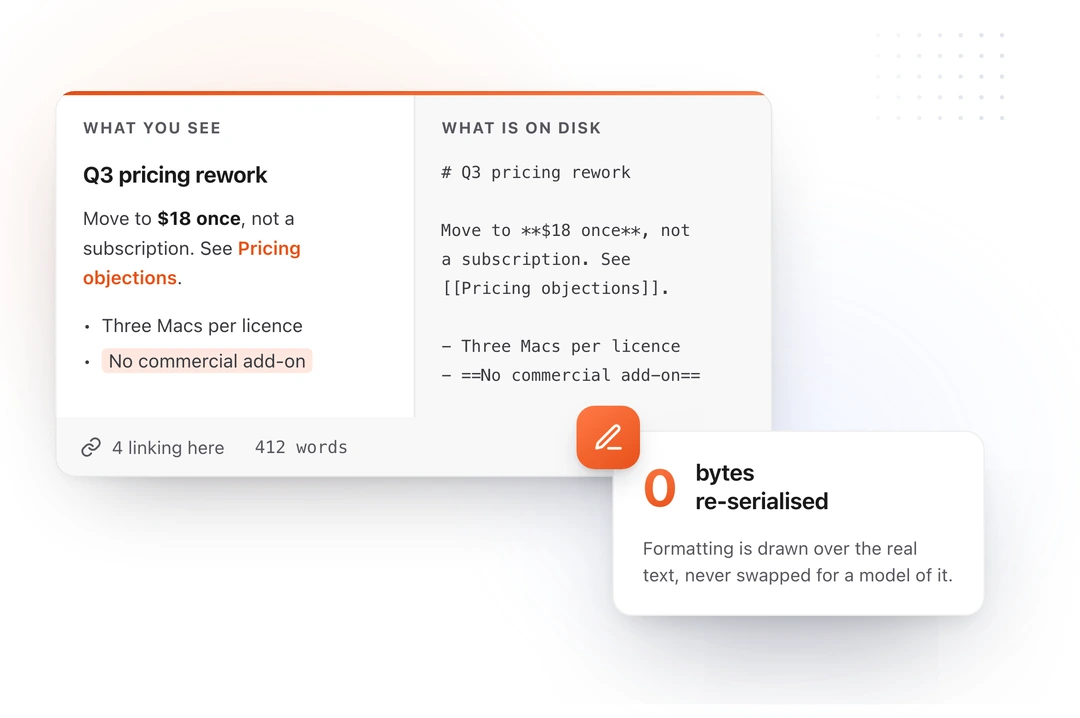
Underneath, the document is plain Markdown at every moment. This is the part that matters, and it is a deliberate engineering decision rather than a detail: a rich-text editor has to re-serialize your file every time it saves, which rewrites it in the editor's own dialect. Bullets normalize, _emphasis_ becomes *emphasis*, and anything the model cannot represent, such as callouts, embeds, footnotes or raw HTML, is quietly dropped.
TypeFire's editor draws formatting over the real text rather than replacing it with a model. Nothing is re-serialized, so nothing can be lost.
The rest of the editor:
- A formatting toolbar for headings, bold, italic, strikethrough, code, lists, quotes, links and images.
- Line numbers, and a toggle to turn the formatting off and see raw Markdown.
- Find and replace, with match case, whole word and regular expressions.
- An outline rail built from your headings, draggable to whatever width you like.
- Focus mode, which hides everything except the note.
- Note font and size, ten typefaces that ship with macOS, four sans, four serif and two monospaced.
Checkboxes, highlight and tables
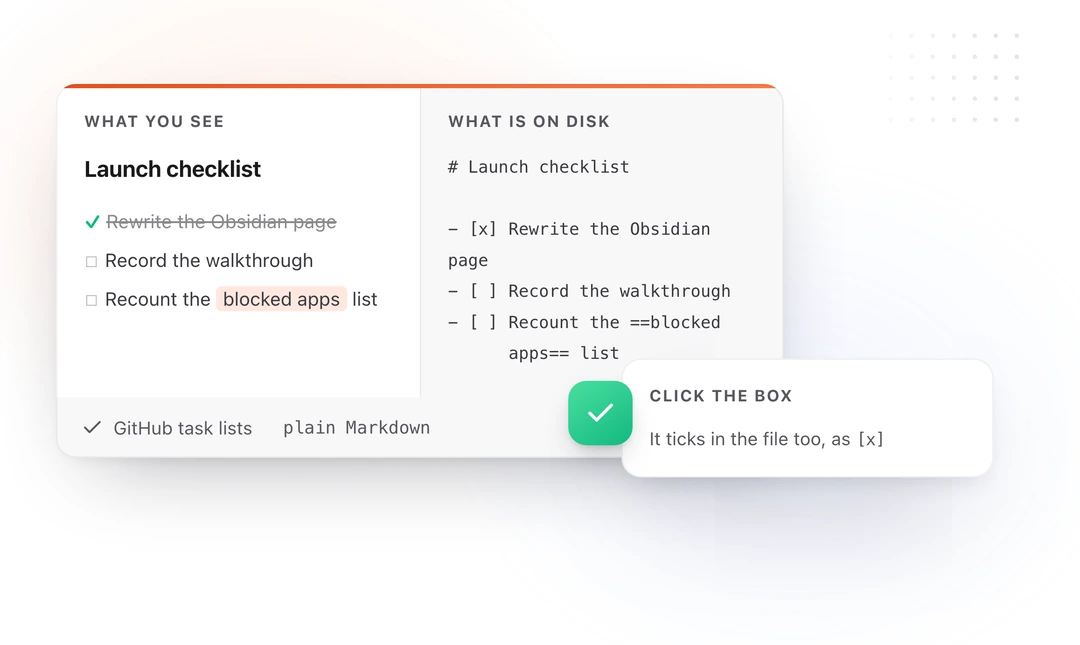
Type - [ ] and you get a checkbox you can click. Tick it and the line strikes through. They are ordinary Markdown task lists, so the same file shows the same checkboxes in Obsidian.
Wrap text in ==equals signs== and it highlights. That is Obsidian's syntax, chosen on purpose: a highlight you write in TypeFire is still a highlight when you open the vault somewhere else. It is the same principle as everything else here. Your file has to keep working without us.
Tables get a button that inserts one already aligned, and table rows are set in a tabular font so the columns line up as you type them. These are Markdown tables you author and edit as text, not a spreadsheet-style grid.
The formatting bar itself now adapts. Wide enough and every control is visible; narrow the pane and headings and lists fold into menus rather than the bar wrapping onto a second line.
Images, properly
Paste an image into a note and it is copied into your vault's attachments folder and linked. TypeFire renders standard Markdown images, vault-root paths, and Obsidian's ![[embed]] syntax. Double-click an image to edit its Markdown without leaving the editor.
Links that follow their notes
Type [[ and TypeFire suggests notes as you write. Under the editor, a backlinks strip shows every note that links to this one, with the line it was mentioned in.
Rename a note and every link to it is rewritten, keeping whichever link style the author used. A link you have not written yet is marked rather than hidden, so an unresolved [[link]] reads as a note you have not made, not as a bug.
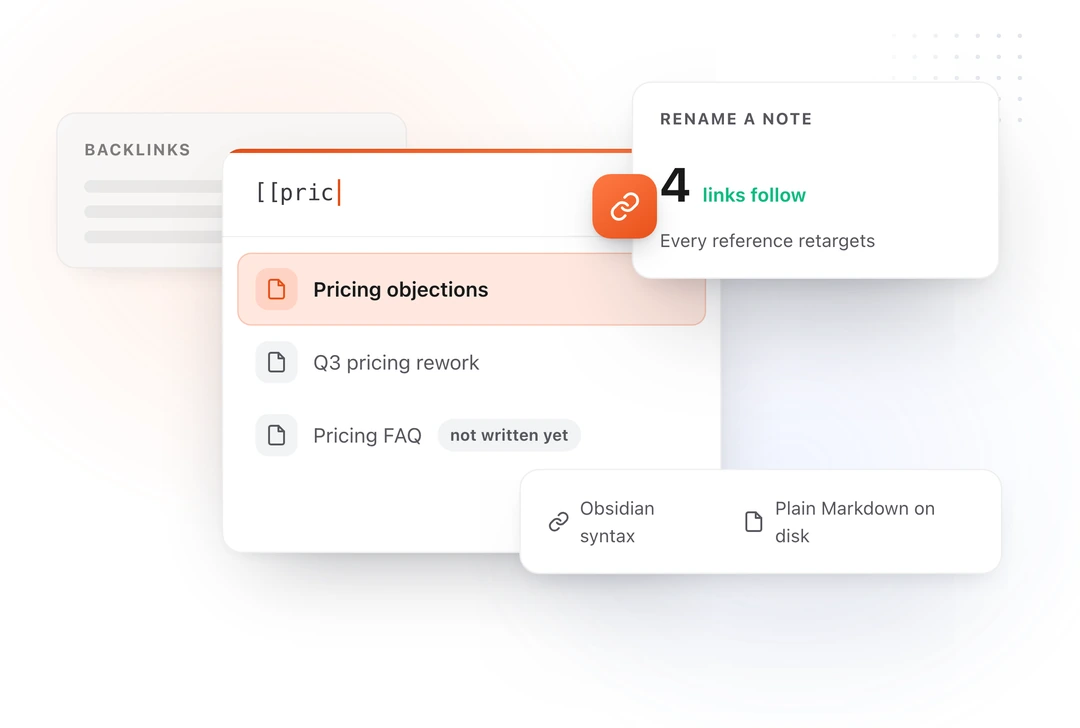
Backlinks do the part of this people reach for most: from any note, see everything that points at it, without leaving the note you are reading.
Your notes, over whatever you are typing in
This is the part no other note app does, and it is the reason Notes belongs in TypeFire rather than in a separate app.
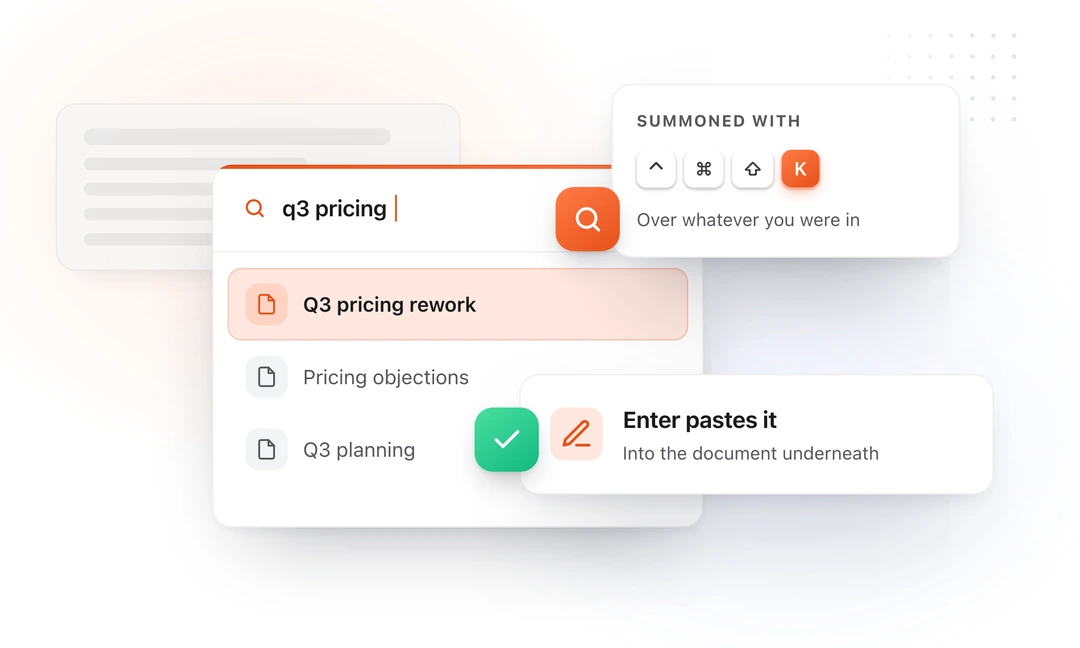
Press ⌃⌘⇧K anywhere on your Mac. Your notes appear over Mail, Slack, Xcode, Figma, whatever you are in. Search, press Enter, and the note's text lands in the document you were already typing in. Escape puts you back exactly where you were.
It completes the set: ⌃⌘⇧T for snippets, ⌃⌘⇧V for clips, ⌃⌘⇧K for notes.
Quick capture
⌃⌘⇧N opens a composer over whatever you are in. Type, press Save, and it becomes its own note, titled from the first line. No app switch, no window to find.
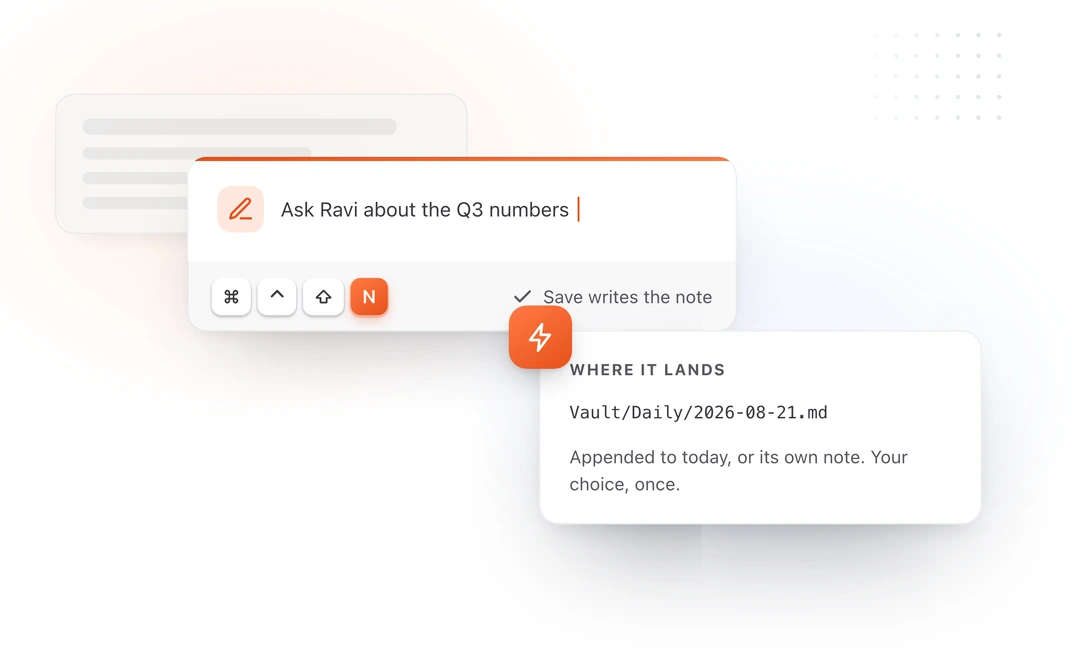
Daily notes
A hotkey opens today's note, creating it if it does not exist and putting your cursor at the end if it does. TypeFire detects the date format your vault already uses rather than imposing one, so an existing daily-notes habit keeps working.
Both conversions
A clip becomes a note. A note becomes a snippet. The three worlds are one app, and things move between them.
iCloud sync, one switch per world
Settings now has an iCloud section with three independent switches, because "sync my stuff" is three different decisions.
| What | Free | Pro |
|---|---|---|
| Snippets | Everything | Everything |
| Clipboard history | Your 10 most recent clips | Your whole library |
| Images in clips | Opt-in | Opt-in |
| Notes and attachments | Not synced | Yes |
It runs through your own iCloud Drive. There is no TypeFire server holding your content, because there is no TypeFire server. Snippets go to one folder, notes to another, clips to a third, and each row tells you exactly where.
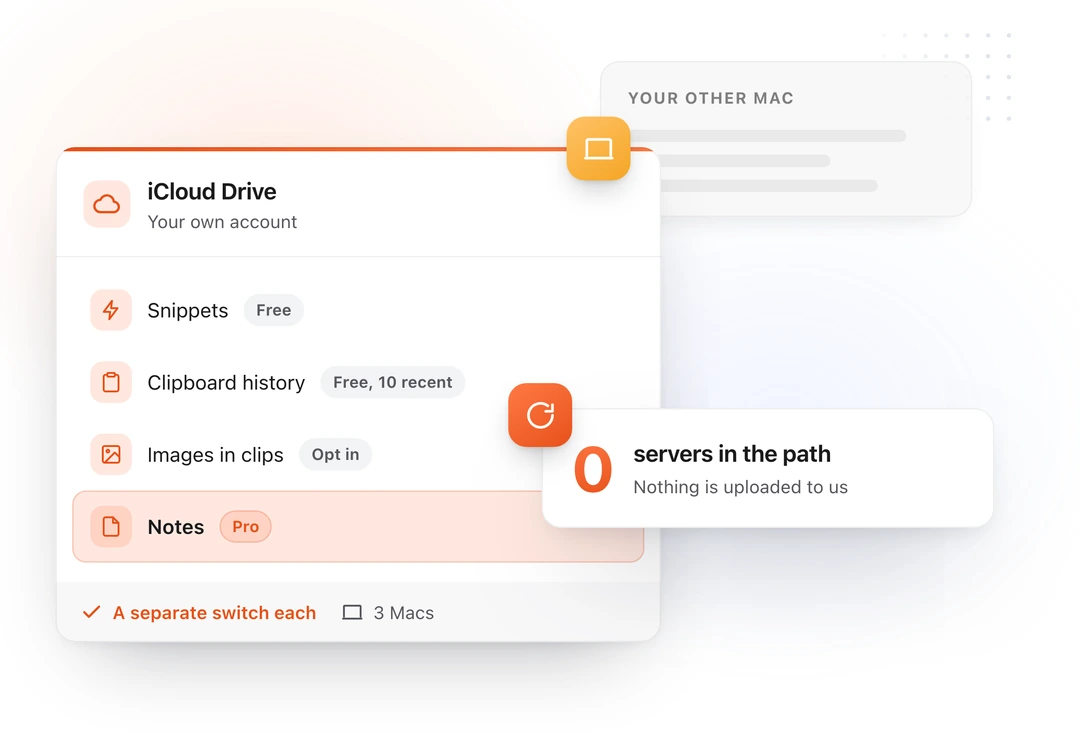
A few details that took the most care:
- Anything detected as a password or secret never syncs, on any tier, in any mode.
- Turning a switch off never deletes anything, on either Mac. Neither does losing a device slot.
- Images are opt-in on both tiers, and TypeFire tells you how many images and roughly how much space before you turn it on.
- Free clip sync is your 10 most recent, which is everything a free clipboard history holds. It is a real feature, not a trial of one.
Note version history
Every time a note is saved, TypeFire keeps a copy of what it looked like before. Open a note, then ⋯ → Version history, to see earlier versions and restore one.
- Kept in TypeFire's own storage, never inside your vault. Nothing hidden is written into the folder you chose.
- Up to 50 versions per note for 90 days, and the most recent is always kept however old it is.
- Restoring is itself undoable: the current text is saved to history first.
- Deleting a note forgets its history. Renaming one keeps it.
AI on a note, and it is free
Summarize, outline, continue, rewrite, or pull the tasks out of any note. It runs on your own AI provider with your own key, or entirely on-device through Apple Intelligence or a local model, and results never overwrite your note without you choosing where they go.
There is no TypeFire AI subscription, no token allowance, and no proxy in the middle. The app never sees your text.
Your clipboard, and what you can keep out of it
A clipboard manager sees everything you copy. That has always been the deal, and TypeFire has always refused to store what password managers mark as secret.
4.0 adds the controls for everything else.
Turn off image capture. One switch. Text keeps being captured, pictures stop. Images you have already saved stay where they are. A screenshot carries a great deal more than the part you meant to copy, and sometimes the right answer is not to keep it at all.
Name apps to ignore. Add any app and TypeFire skips what you copy in it. Pick from the apps it has already seen, with counts, or browse to any app on your Mac. Each one gets three settings: allow it, block images only, or block everything you copy there. The middle one is what most people want for a work tool, keeping the text and losing the pictures.
See what was already protected. TypeFire has always ignored password managers. Now you can see the list, all twenty-three of them, blocked by bundle ID in code rather than by a setting you have to find, with the ones you actually have installed shown by their own icons. Any of them can be overridden.
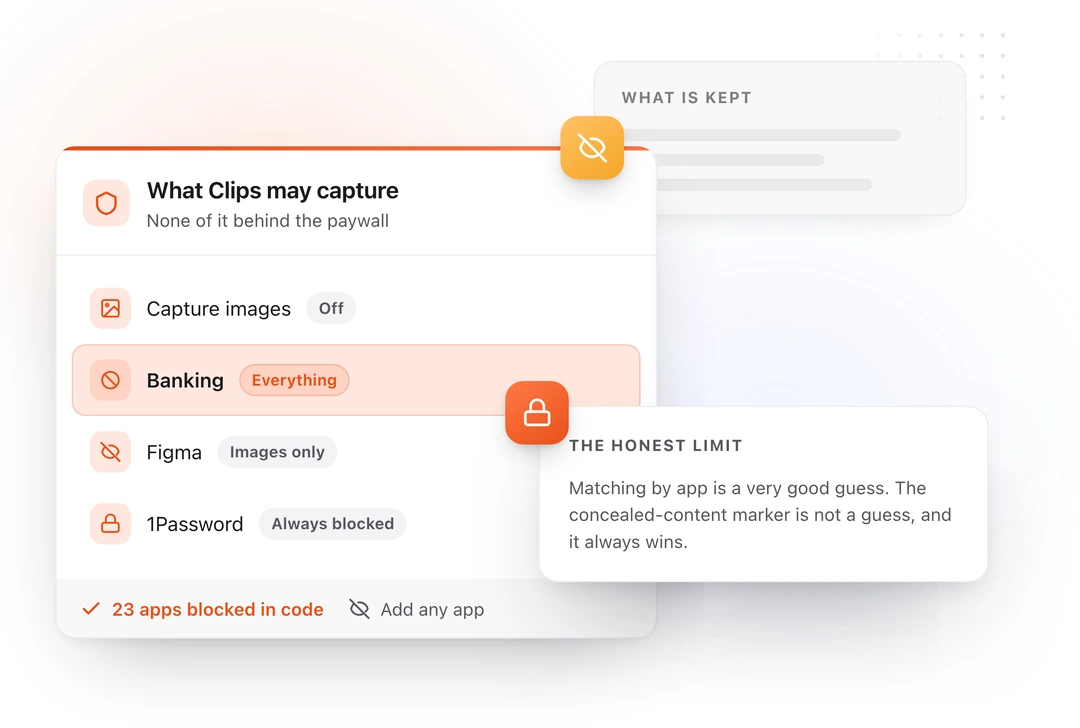
Every screenshot you take, searchable
Shift Command 3 and Shift Command 4 save a picture to your desktop rather than your clipboard, and those never used to appear in TypeFire. They do now.
Because Clips already reads the text inside images on your Mac, that means every screenshot you take is searchable by what it says, not only the ones you remembered to copy. It is off until you turn it on, and macOS will ask for Desktop access once when you do. After that it follows wherever screenshots are actually configured to save rather than assuming the Desktop, and imports screenshots only rather than everything that lands in that folder.
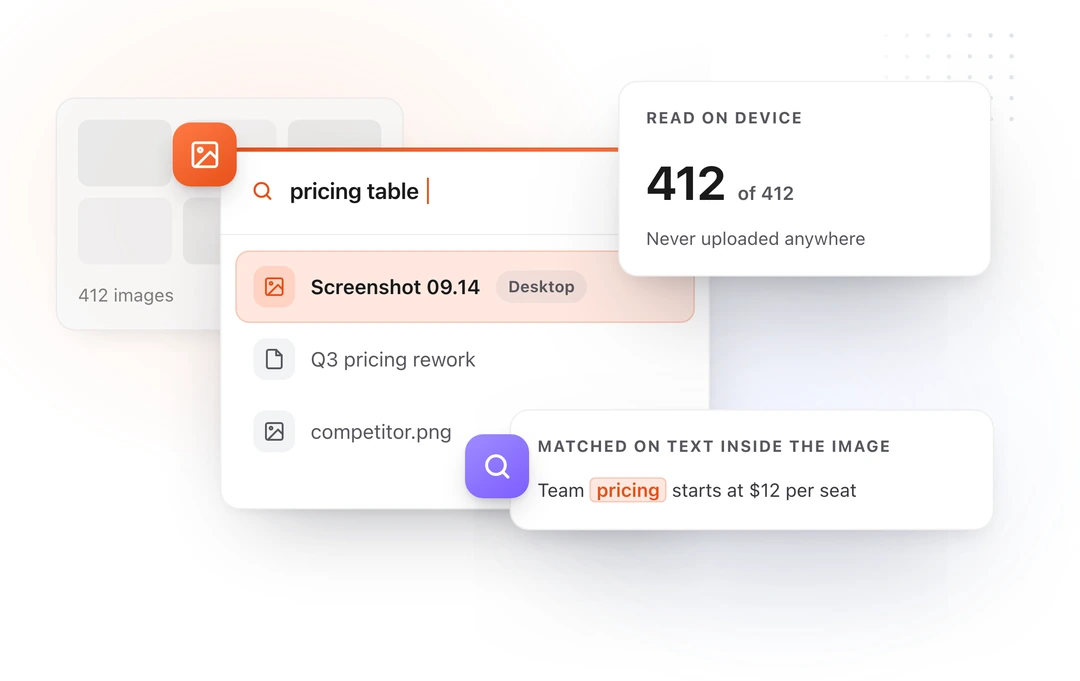
And the app list covers what you copy, not screenshots you save as a file. A PNG on your desktop records nothing about what was on screen, so we match those to an app where we can and skip them when we do. That is right in the ordinary case and it is not a promise. To keep saved screenshots out altogether, turn off Save screenshots to Clips.
Everything else that changed since 3.0
- Comfortable reading width caps a line at a proper measure instead of running the full width of a wide window.
- Backlinks show the same note icons as the notes list.
- Nested tags.
project/typefire/v4draws as a tree, so a tag can be a hierarchy rather than a flat label. - Smart note icons. Notes get an icon derived from what they contain, matched locally first and by Apple Intelligence for the rest.
- Collections are folders. Rename one and the folder is renamed, with every link into it following.
- Quick Look now previews any Markdown file in Finder, not only TypeFire's own, so pressing Space on a
.mdfile shows the rendered document. - Open a Markdown file from Finder and TypeFire's standalone editor opens it, with Save as note to bring it into your vault.
- The Keychain prompt is gone. An older version could show a password prompt on launch that looked like phishing. It does not any more.
- 8 languages, with 1,155 new translated strings in this release alone.
Free or Pro: what you actually get
TypeFire's free tier is deliberately generous, and it is not a trial. Full detail is on the pricing page.
Free, forever, with no counters: the entire text expander with unlimited snippets, the entire Notes world including AI on a note, snippet sync, your 10 most recent clips with every clipboard feature available, OCR search, AI actions on clips, Quick Look, imports, and 8 languages.
Pro, in full:
- Your whole clipboard library, synced and unlimited, rather than the 10 most recent.
- Selection Prompts. Rewrite highlighted text in place, in any app.
- Prompt Chains. Several steps from one trigger.
- Notes sync. Your notes and their attachments on every Mac.
- Note version history.
$18, once, across three Macs. Not a subscription. Every future Pro feature is included. There is a 7-day trial with no card required, and it starts by itself.
Upgrading from TypeFire 3.x
Nothing you have breaks. Your snippets, clips, collections, tags, shortcuts and license carry over untouched, and Notes simply appears as a third tab. If you never point it at a vault, nothing changes about how you use the app.
If you skip the notes step during setup, the empty state offers it again whenever you are ready.
Privacy, in specifics
- Notes are files in a folder you chose. No database, no import, no service.
- Clips are encrypted on your Mac, and the key never leaves it.
- Content copied from password managers is never captured at all, and that list is now visible in Settings.
- You can turn image capture off, and name any app for TypeFire to skip.
- Sync runs through your own iCloud Drive. TypeFire has no server storing your snippets, clips or notes, and never sees them.
- AI runs on your key or on your machine. Nothing is proxied through us.
- Analytics are anonymous and cover feature usage only. Never your content.
Frequently asked questions
Does TypeFire replace Obsidian? No, and it is not trying to. It opens the same folder, reads and writes the same files, and adds a global hotkey so your notes reach the app you are typing in. Keep using Obsidian for everything else.
Will it modify my existing vault? Not until you edit a note. Reading never writes, verified against a 10,012 file corpus.
Is Notes free? Yes, including the AI actions, with no note limit. Pro adds notes sync and version history.
Is TypeFire a subscription? No. $18 once, three Macs, every future Pro feature included.
Does it work offline? Yes, apart from the AI features and license activation.
How fast is it on a large vault? About 214 milliseconds to list 10,000 notes.
Get TypeFire 4.0
TypeFire 4.0 is a free update for everyone, and Pro remains a one-time $18 across three Macs.
Download TypeFire · Pricing · What's new
Loved by people who type all day.
Unprompted reactions from users, in their own words.
Used by people at
Company names are places where our users work. They do not imply endorsement or affiliation.