Best Clipboard Manager for Windows in 2026: 6 Options Compared
Windows has had clipboard history since Windows 10, and for a lot of people it's enough. When it isn't, it's usually for one of three reasons: 25 items is too few, a restart wipes them, or you can't search. Here are the six options worth knowing, checked against each one's own site on October 27, 2026.
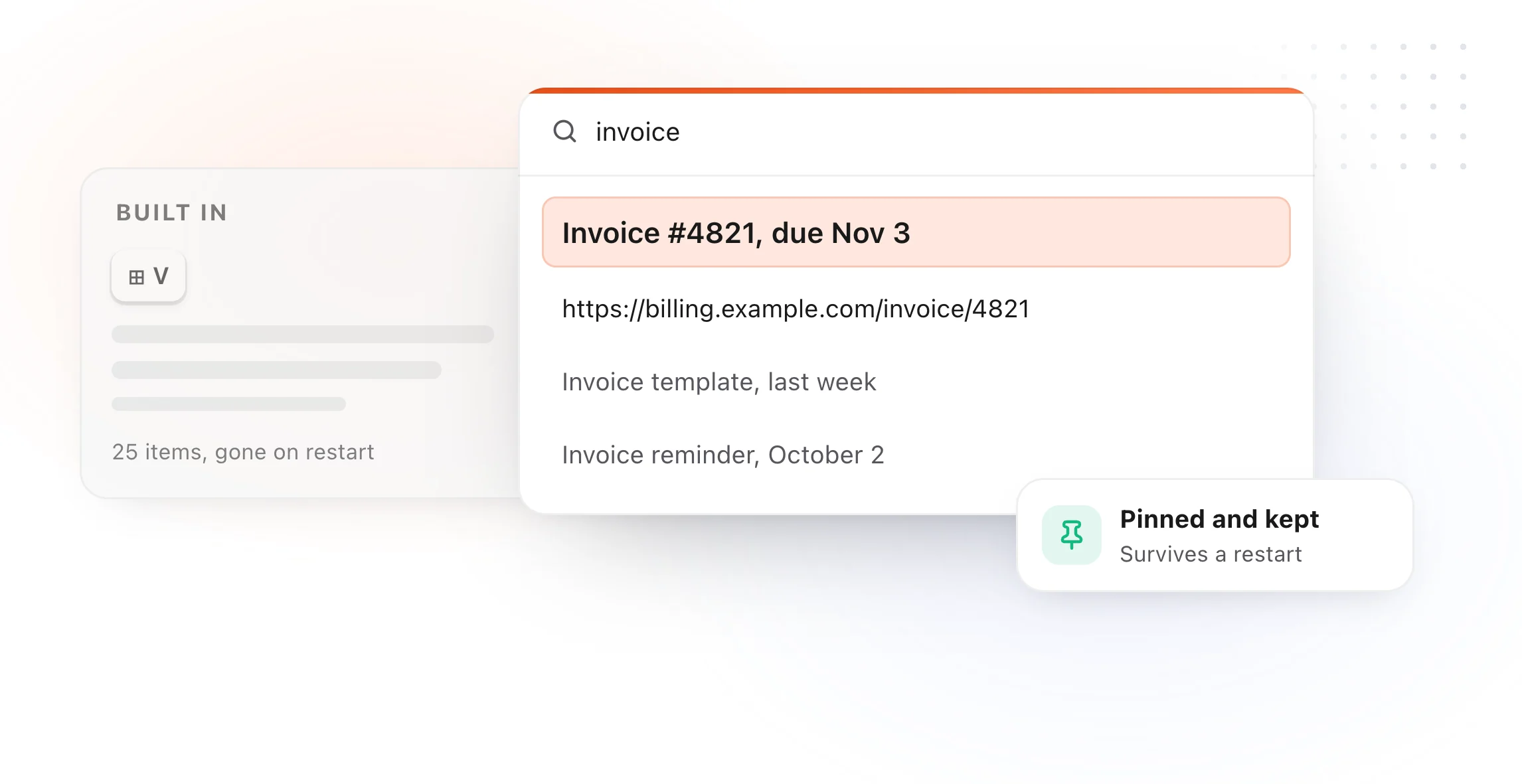
At a glance
| Option | Price | Keeps | Best for |
|---|---|---|---|
| Windows + V | Built in | 25 items, cleared on restart unless pinned | The basics |
| Ditto | Free, open source | A long history, stored locally | Most people |
| CopyQ | Free, open source | A long history, in tabs | Power users |
| PowerToys Advanced Paste | Free | The clipboard, plus Windows history | Pasting as plain text, Markdown or JSON |
| ClipClip | Free app with paid offers | Up to 1,000 clips, in folders | Organizing clips |
| TypeFire for Chrome | Free | What you copy on web pages | Working in the browser |
1. Windows + V, the built-in history
Price: Built into Windows 10 and 11.
Press Windows logo key + V, and turn it on the first time. Microsoft's page sets the limits: up to 25 items of up to 4 MB each, as text, HTML or pictures, cleared on restart except for pinned items. It can sync between PCs on the same Microsoft account.
Good for: grabbing something you copied a minute ago. Not for: finding yesterday's link.
2. Ditto
Price: Free and open source (GPL-3.0).
Ditto calls itself an extension to the standard Windows clipboard. It saves text, images, HTML and custom formats, and it's local first: no login, no cloud and no telemetry. Install it from the Microsoft Store, winget, Chocolatey or as a portable app.
Good for: anyone who wants a long, searchable history without an account.
3. CopyQ
Price: Free and open source.
CopyQ keeps your history in tabs you can sort and edit, stores text, HTML and images, and has a command line and a scripting API. It runs on Windows, Linux and macOS.
Good for: people who like to organize and automate. It takes longer to set up than Ditto.
4. PowerToys Advanced Paste
Price: Free, as part of Microsoft PowerToys.
Advanced Paste opens with Win+Shift+V and pastes the clipboard as plain text, Markdown or JSON, saves it as a file, or reads the text in an image with local OCR. It can show your Windows clipboard history too. AI transforms are off by default and need a provider: an online one with your own API key, or a local one such as Ollama.
Good for: changing what you paste rather than keeping more of it. Pair it with Ditto or the built-in history.
5. ClipClip
Price: A free Windows app, with paid offers on its pricing page.
ClipClip stores up to 1,000 clips, organizes them in folders, edits clips in place, rich text and images included, and adds offline converter tools.
Good for: people who want their clips in folders.
6. TypeFire for Chrome
Price: Free.
If most of your copying happens in a browser, TypeFire for Chrome keeps what you copy on web pages, searchable from a launcher you open over any page, and lets you pin, name and tag clips. It runs in Chrome, Edge and Brave, so it works the same on Windows, Linux and Chromebooks. It's also a text expander and a Markdown notes app, so a clip you keep reaching for can become a snippet you type with a short abbreviation.
Good for: browser-heavy work, and anyone who also wants snippets.
How to choose
- You copy and paste a few things a day: Windows + V is enough. Pin what you reuse.
- You lose things you copied yesterday: Ditto.
- You want tabs, scripts and control: CopyQ.
- You keep fixing the format of what you paste: add PowerToys Advanced Paste.
- You live in the browser: TypeFire for Chrome.
On a Mac instead? See the best clipboard managers for Mac, and for every computer's built-in history, clipboard history on Windows, Mac, Chromebook and Android.

Windows has had clipboard history since Windows 10, and for a lot of people it's enough. When it isn't, it's usually for one of three reasons: 25 items is too few, a restart wipes them, or you can't search. Here are the six options worth knowing, checked against each one's own site on October 27, 2026.
At a glance
| Option | Price | Keeps | Best for |
|---|---|---|---|
| Windows + V | Built in | 25 items, cleared on restart unless pinned | The basics |
| Ditto | Free, open source | A long history, stored locally | Most people |
| CopyQ | Free, open source | A long history, in tabs | Power users |
| PowerToys Advanced Paste | Free | The clipboard, plus Windows history | Pasting as plain text, Markdown or JSON |
| ClipClip | Free app with paid offers | Up to 1,000 clips, in folders | Organizing clips |
| TypeFire for Chrome | Free | What you copy on web pages | Working in the browser |
1. Windows + V, the built-in history
Price: Built into Windows 10 and 11.
Press Windows logo key + V, and turn it on the first time. Microsoft's page sets the limits: up to 25 items of up to 4 MB each, as text, HTML or pictures, cleared on restart except for pinned items. It can sync between PCs on the same Microsoft account.
Good for: grabbing something you copied a minute ago. Not for: finding yesterday's link.
2. Ditto
Price: Free and open source (GPL-3.0).
Ditto calls itself an extension to the standard Windows clipboard. It saves text, images, HTML and custom formats, and it's local first: no login, no cloud and no telemetry. Install it from the Microsoft Store, winget, Chocolatey or as a portable app.
Good for: anyone who wants a long, searchable history without an account.
3. CopyQ
Price: Free and open source.
CopyQ keeps your history in tabs you can sort and edit, stores text, HTML and images, and has a command line and a scripting API. It runs on Windows, Linux and macOS.
Good for: people who like to organize and automate. It takes longer to set up than Ditto.
4. PowerToys Advanced Paste
Price: Free, as part of Microsoft PowerToys.
Advanced Paste opens with Win+Shift+V and pastes the clipboard as plain text, Markdown or JSON, saves it as a file, or reads the text in an image with local OCR. It can show your Windows clipboard history too. AI transforms are off by default and need a provider: an online one with your own API key, or a local one such as Ollama.
Good for: changing what you paste rather than keeping more of it. Pair it with Ditto or the built-in history.
5. ClipClip
Price: A free Windows app, with paid offers on its pricing page.
ClipClip stores up to 1,000 clips, organizes them in folders, edits clips in place, rich text and images included, and adds offline converter tools.
Good for: people who want their clips in folders.
6. TypeFire for Chrome
Price: Free.
If most of your copying happens in a browser, TypeFire for Chrome keeps what you copy on web pages, searchable from a launcher you open over any page, and lets you pin, name and tag clips. It runs in Chrome, Edge and Brave, so it works the same on Windows, Linux and Chromebooks. It's also a text expander and a Markdown notes app, so a clip you keep reaching for can become a snippet you type with a short abbreviation.
Good for: browser-heavy work, and anyone who also wants snippets.
How to choose
- You copy and paste a few things a day: Windows + V is enough. Pin what you reuse.
- You lose things you copied yesterday: Ditto.
- You want tabs, scripts and control: CopyQ.
- You keep fixing the format of what you paste: add PowerToys Advanced Paste.
- You live in the browser: TypeFire for Chrome.
On a Mac instead? See the best clipboard managers for Mac, and for every computer's built-in history, clipboard history on Windows, Mac, Chromebook and Android.
Loved by people who type all day.
Unprompted reactions from users, in their own words.
Used by people at
Company names are places where our users work. They do not imply endorsement or affiliation.