A Markdown Editor With Tabs on Mac: One Bar for Every File
Most Markdown apps on the Mac are built around one note at a time. You click a second note and the first one leaves the screen. The workaround everybody lands on is a window per file, and by the afternoon there are nine of them stacked over each other and none of them says which is which.
Code editors solved this in the nineties and browsers solved it in 2001. Markdown editors have been slower, and the ones that did add tabs mostly kept them inside a single vault, which is only half the problem: the file you actually need to read is often a README, a spec someone sent you, or a note in the other vault.

TypeFire 5.3 puts every one of those in the same bar.
The short version
- One tab bar for notes from every vault and Markdown files from anywhere on your Mac, in one window.
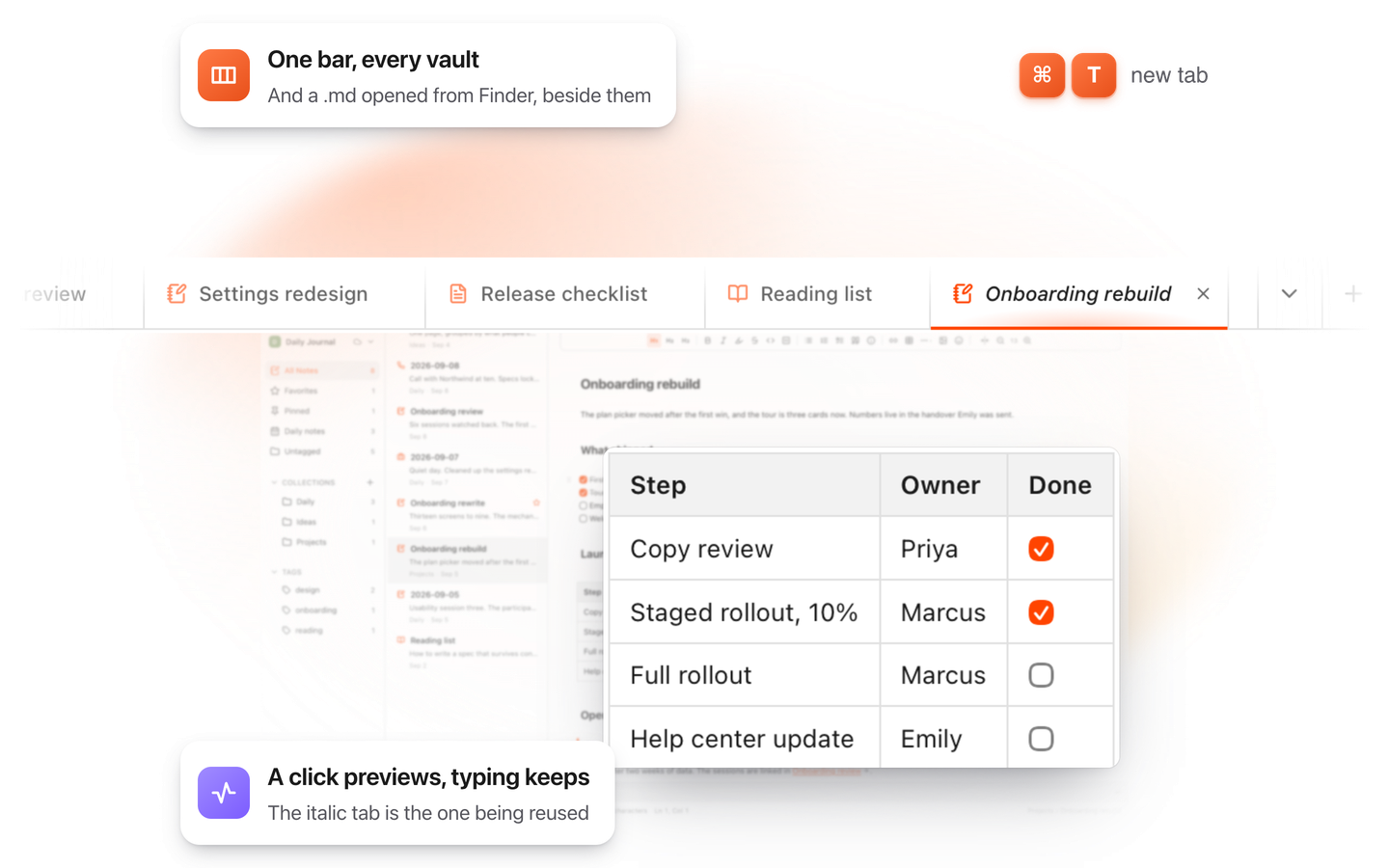
- Preview tabs, so clicking through a folder reuses one tab instead of leaving a trail.
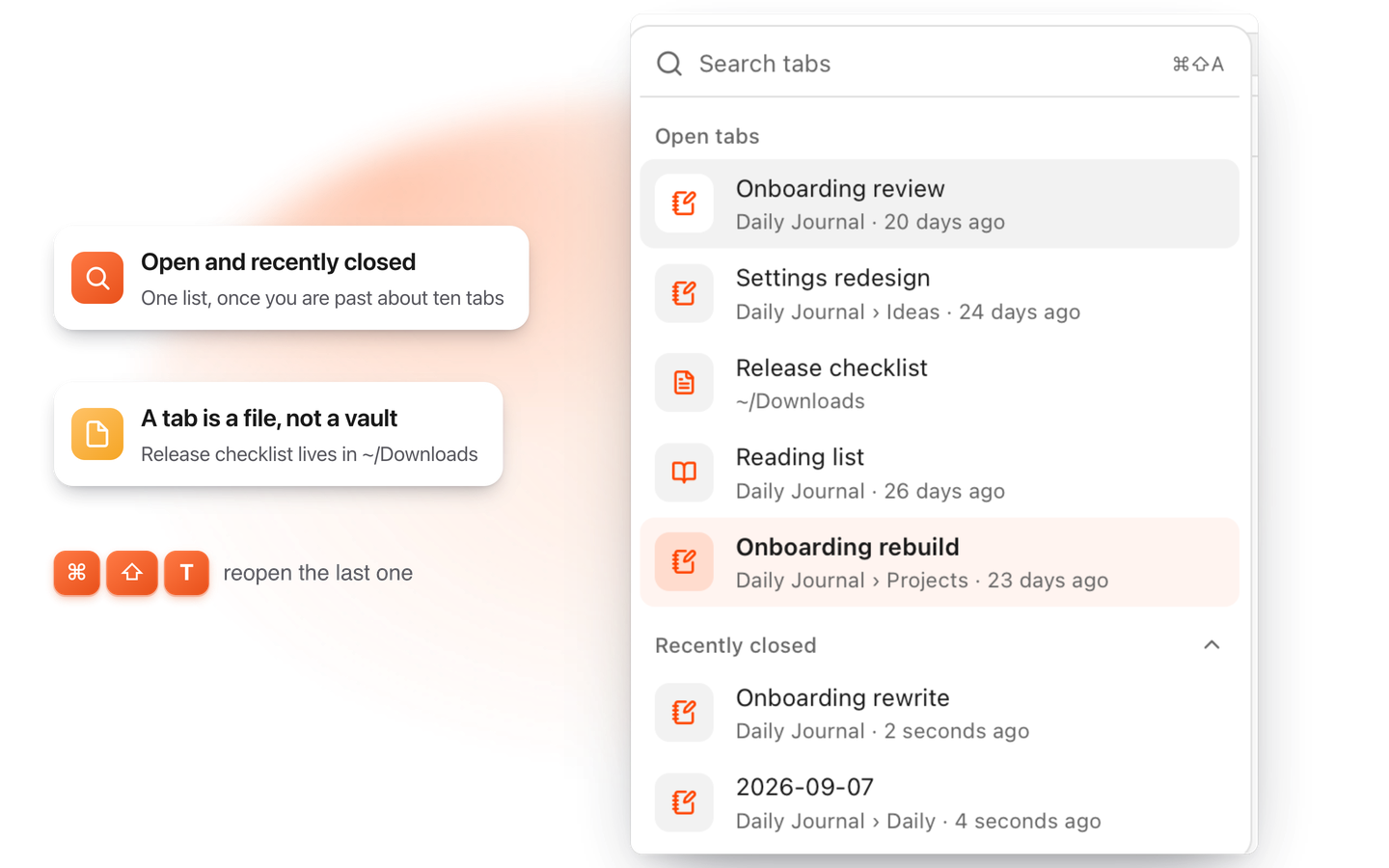
- Command T for a new note, drag to reorder, Command Shift A to search tabs, Command Shift T to reopen a closed one.
- Double-click a .md file in Finder and it opens as a tab, or in its own window: your choice.
- Free, on macOS 13 Ventura and later.
What a tab bar changes about writing
The gap between a good note app and a frustrating one is rarely the editor. It is what happens when you need two files at once.
Writing is comparative work. You draft against notes you took last week. You copy a decision from a meeting note into a spec. You read a README while writing the document that explains it. Every one of those is two or three files held in mind at the same time, and an app that shows you one is quietly making you do the holding.
Tabs are not a feature so much as the removal of a tax. The files stay where you put them, in the order you put them, and moving between them costs a click instead of a search.
How tabs work in TypeFire
- A click previews, typing keeps. Click a note in the list and it opens in a preview tab. Click the next one and it replaces it, so browsing thirty notes leaves one tab rather than thirty. Type in it, or double-click the note, and that tab becomes permanent. Command-click opens a new tab straight away.
- Every vault in one bar. If you keep a work vault and a personal one, notes from both sit side by side. There is no window per vault and no switching back and forth to compare them.
- Files from anywhere on the Mac. Double-click a
.mdfile in Finder and it opens as a tab. It is edited where it lives, in place, and nothing is imported. - Command T opens a new note in a new tab. Drag a tab to reorder. Command Shift T reopens the last one you closed, Command W closes one, and Control Tab moves to the next. The full list is in the app under Help, Shortcuts.
- Tab search, on Command Shift A, lists what is open and what you recently closed, which is faster than reading a row of truncated titles once you are past about ten.
- Right-click a tab for Close, Close other tabs, Close tabs to the right, and Open in a new window. A window that popped out has Move to a tab to bring it back.
- Hover a tab for a card showing which vault and collection the note belongs to, and when it was created and last changed. On a bar of similar filenames this is the difference between finding the right one and opening three.
- They come back. Quit, reopen, and the tabs are where you left them.
The part other editors do not do
Tabs inside one project folder are common. What is rare is a bar that does not care where the file lives.
A working day is not contained by one vault. The note you need is in the personal vault, the document you are answering is in Downloads, the reference is a README in a repository you cloned last month. In an app whose tabs belong to a vault, two of those three cannot be tabs at all. They become a second window, or a copy pasted into a note, or a file you open, read and lose.
In TypeFire they are three tabs in the same bar, because a tab holds a file, not a vault membership. That also means nothing is imported: every file stays at its own path on disk, as plain Markdown, readable by whatever you open it with next.
Tabs in Markdown editors on Mac, compared
| App | Tabs | Files outside the vault | Several vaults at once | Price |
|---|---|---|---|---|
| TypeFire | Yes, with preview tabs | Yes, any .md on the Mac | Yes, one shared bar | Free |
| Obsidian | Yes, inside a vault | No | A second window per vault | Free for personal use |
| VS Code | Yes, the editor model | Yes, within the open folder | n.a. | Free |
| Typora | One window per document | Yes | n.a. | $14.99 once |
| Bear | One note at a time, panels | No, its own database | n.a. | $2.99 a month or $29.99 a year |
| iA Writer | One window per document | Yes | n.a. | $49.99 once |
Prices checked 28 September 2026 on each vendor's own page: Typora $14.99, iA Writer $49.99 one time, Bear $2.99 a month or $29.99 a year. Obsidian's vault-per-window behavior is its own documented behavior, discussed here.
Two honest notes on that table. VS Code's tabs are excellent and if you already live there, its Markdown preview may be all you need; what it does not give you is a notes app around them, with backlinks, a graph and daily notes. Obsidian's tabs are good inside a vault, and Obsidian remains a fine app; the limit is the vault boundary rather than the implementation.
Where tabs meet the rest of the Mac
A tab bar is most useful when files can get into it easily, so 5.3 also changed how Markdown files arrive.
From Finder. Double-click a .md file and it opens as a tab. Settings, then Markdown, has Open Markdown files (As a tab or In its own window) and the switch that makes TypeFire the default app for Markdown files on your Mac. Since 6, ⌘O and File, Open follow the same setting.
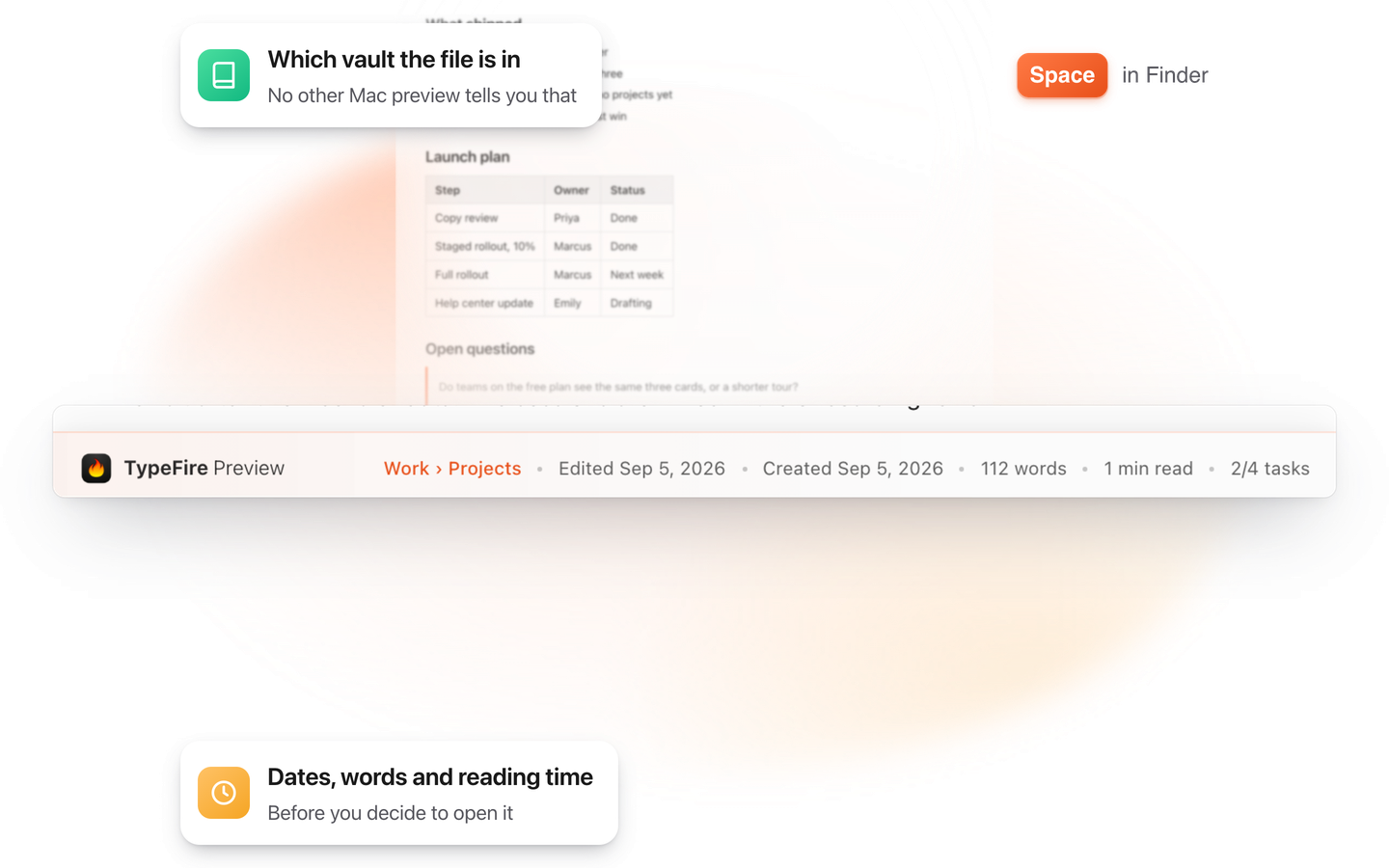
From the spacebar. Select a Markdown file in Finder and press Space, and the Quick Look preview renders it: headings, tables, task lists, code and the pictures beside it, with a frosted bar along the bottom telling you which vault and collection the note belongs to and how long it takes to read. It is the fastest way to decide whether a file is the one you wanted before it becomes a tab at all. Markdown Quick Look for Mac covers it in full.
From anywhere you are typing. The global overlay searches your notes from inside any app, and quick capture writes a new one without leaving what you were doing.
Focus mode keeps the bar
Focus mode dims the app down to the words. In 5.3 the tab bar stays, because a distraction-free mode that also hides your place in a stack of open documents is not focus, it is disorientation. If you would rather it went, there is a toggle.
Getting it
Tabs are part of TypeFire Notes, which is free. So is the Markdown editor, the vault, wikilinks and backlinks, the graph, daily notes, Quick Look, search by meaning, and as many vaults as you like. The app is also a text expander and a clipboard manager, both of which are free too, and TypeFire Pro is $18 once if you later want notes sync between your own Macs and note version history.
macOS 13 Ventura or later, one download for Apple silicon and Intel.
Download TypeFire for Mac or read about the Markdown editor itself, the Notes feature in full, or how TypeFire runs alongside Obsidian.
Loved by people who type all day.
Unprompted reactions from users, in their own words.
Used by people at
Company names are places where our users work. They do not imply endorsement or affiliation.