AI Prompt Examples: 80 Prompts That Work, Sorted by Job
Prompt examples that work the same way every time, sorted by the job you're doing. Start with the twelve below, then jump to the full sets for email, writing and editing, summarizing and code review.
Most prompts that disappoint have the same problem. They say what to do and stop there, so the model decides everything else: the length, the shape, the tone and whether to fill gaps with guesses. Prompts that work say all four.
The four parts of a prompt that works
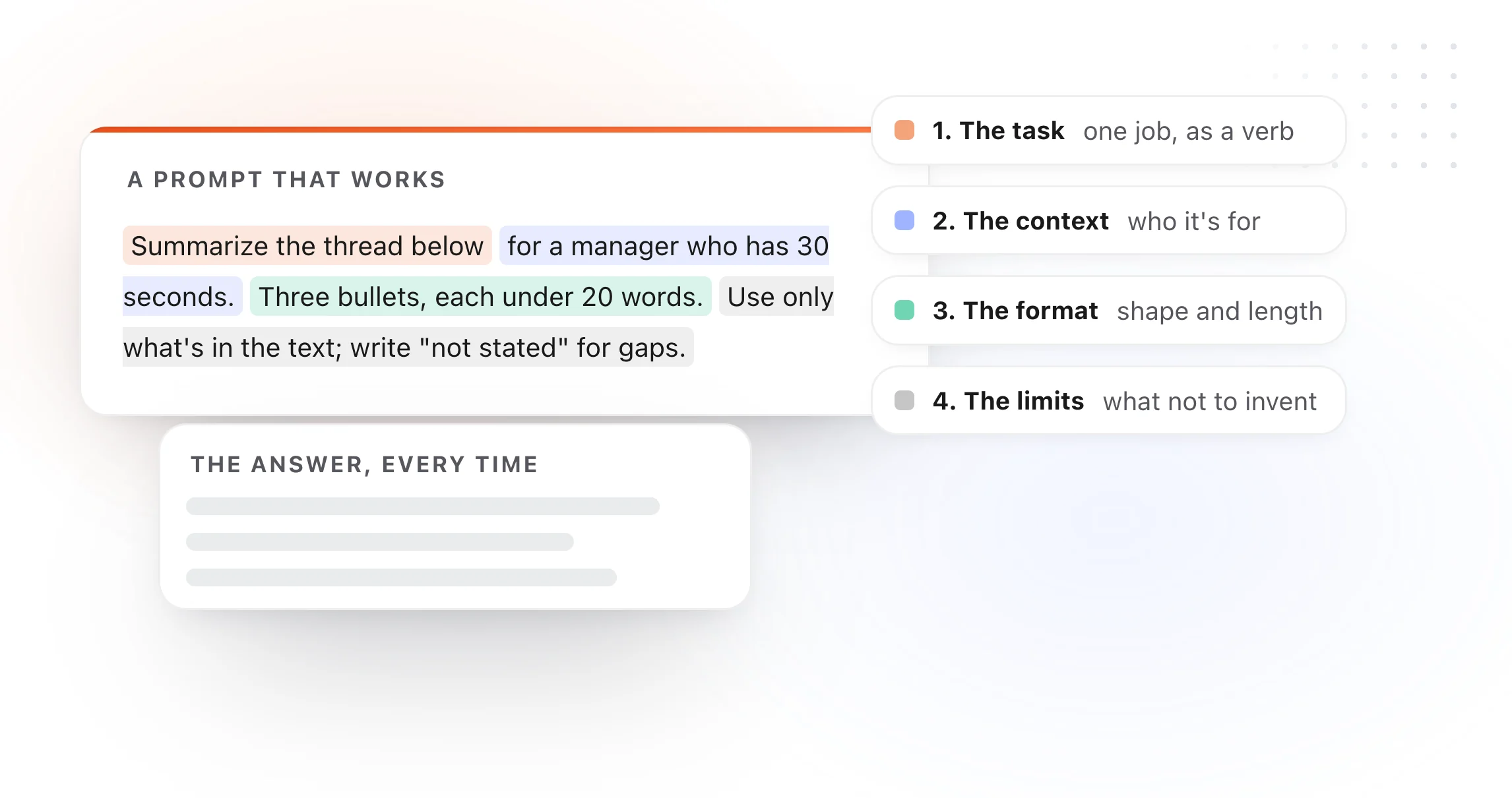
- The task. One job, stated as a verb: summarize, rewrite, list, compare, reply.
- The context. Who it's for and what it's part of: "for a manager who has 30 seconds", "a reply to a customer who's upset".
- The format. The shape of the answer: three bullets, a table, one sentence, under 100 words.
- The limits. What must not change and what not to invent: "keep my facts", "use only the text below", "put [brackets] where you need something from me".
Every example below has all four, which is why you can paste your text under any of them and get a predictable answer.
12 prompts to start with
1. Summarize in three bullets
Summarize the text below in exactly three bullets, each under 20 words, most important first. Use only what's in the text.

[paste text]
2. Reply to an email in three sentences
Write a reply to the email below in no more than three sentences. Answer what was asked, confirm any next step, and close. Plain, friendly tone. Use only facts from the email; put [brackets] where you need something from me.

[paste the email]
3. Cut it by a third
Shorten the text below by about a third. Keep every fact, request and example, and keep my voice. Return only the shorter text.

[paste text]
4. Fix grammar and nothing else
Correct spelling, grammar and punctuation in the text below. Change nothing else. Use American English. Return only the corrected text.

[paste text]
5. Explain it simply
Explain the text below to someone with no background in [topic], in one short paragraph. Define any term they'd need. Don't add facts that aren't in the text.

[paste text]
6. Catch me up on a thread
I've missed this thread. In under 100 words, tell me what it's about, where it stands now, and whether anything is waiting on me ([my name]).

[paste thread]
7. Meeting notes to action items
Turn these meeting notes into a list of action items with an owner and a due date each. Write [OWNER?] or [DATE?] where the notes don't say.

[paste notes]
8. Decline politely
Write a short, kind reply that says no to the request below. One sentence of thanks, one clear no, and, only if it fits, one alternative. No made-up excuses.

[paste the request]
9. Five titles
Write five titles for the text below, each under 60 characters, specific and not clickbait. Mark your favorite.

[paste text]
10. The honest reader
Read the text below as [audience]. Tell me where you got confused, where you stopped caring, and the one question you'd still have. Don't rewrite anything.

[paste text]
11. Explain this code
Explain what the code below does, step by step, for someone who knows [language] but not this codebase. Then list anything that looks surprising. Don't rewrite it.

[paste code]
12. Turn notes into a plan
Turn the notes below into a plan: the goal in one sentence, the steps in order with an owner each, and the first thing to do tomorrow.

[paste notes]
Prompts by job
| Job | What's in the set | Prompts |
|---|---|---|
| Replies, follow-ups, saying no, asking, cold email, fixing a draft | 20 | |
| Writing and editing | Proofreading, tightening, tone, restructuring, titles, feedback | 20 |
| Summarizing | Quick summaries, threads, meetings, documents, critical reading | 15 |
| Code review | Pull requests, bugs, security, performance, tests | 25 |
Keep your prompts where you type
A prompt you have to look up is a prompt you stop using. TypeFire keeps them one keystroke away on a Mac and in Chrome:
- As snippets, free. Save a prompt as a snippet, then type a short abbreviation in ChatGPT, Claude, Gemini or anywhere else, and the whole prompt drops in.
- As Selection Prompts, with Pro. Highlight text in any Mac app, press a shortcut, and the prompt runs on it. It uses your own API key, or a model on your Mac through Apple Intelligence, Ollama or LM Studio, so the text can stay on your machine. See how it works.
- In the browser. The Chrome extension keeps the same prompts a few keystrokes away on any site.

Prompt examples that work the same way every time, sorted by the job you're doing. Start with the twelve below, then jump to the full sets for email, writing and editing, summarizing and code review.
Most prompts that disappoint have the same problem. They say what to do and stop there, so the model decides everything else: the length, the shape, the tone and whether to fill gaps with guesses. Prompts that work say all four.
The four parts of a prompt that works
- The task. One job, stated as a verb: summarize, rewrite, list, compare, reply.
- The context. Who it's for and what it's part of: "for a manager who has 30 seconds", "a reply to a customer who's upset".
- The format. The shape of the answer: three bullets, a table, one sentence, under 100 words.
- The limits. What must not change and what not to invent: "keep my facts", "use only the text below", "put [brackets] where you need something from me".
Every example below has all four, which is why you can paste your text under any of them and get a predictable answer.
12 prompts to start with
1. Summarize in three bullets
Summarize the text below in exactly three bullets, each under 20 words, most important first. Use only what's in the text.

[paste text]
2. Reply to an email in three sentences
Write a reply to the email below in no more than three sentences. Answer what was asked, confirm any next step, and close. Plain, friendly tone. Use only facts from the email; put [brackets] where you need something from me.

[paste the email]
3. Cut it by a third
Shorten the text below by about a third. Keep every fact, request and example, and keep my voice. Return only the shorter text.

[paste text]
4. Fix grammar and nothing else
Correct spelling, grammar and punctuation in the text below. Change nothing else. Use American English. Return only the corrected text.

[paste text]
5. Explain it simply
Explain the text below to someone with no background in [topic], in one short paragraph. Define any term they'd need. Don't add facts that aren't in the text.

[paste text]
6. Catch me up on a thread
I've missed this thread. In under 100 words, tell me what it's about, where it stands now, and whether anything is waiting on me ([my name]).

[paste thread]
7. Meeting notes to action items
Turn these meeting notes into a list of action items with an owner and a due date each. Write [OWNER?] or [DATE?] where the notes don't say.

[paste notes]
8. Decline politely
Write a short, kind reply that says no to the request below. One sentence of thanks, one clear no, and, only if it fits, one alternative. No made-up excuses.

[paste the request]
9. Five titles
Write five titles for the text below, each under 60 characters, specific and not clickbait. Mark your favorite.

[paste text]
10. The honest reader
Read the text below as [audience]. Tell me where you got confused, where you stopped caring, and the one question you'd still have. Don't rewrite anything.

[paste text]
11. Explain this code
Explain what the code below does, step by step, for someone who knows [language] but not this codebase. Then list anything that looks surprising. Don't rewrite it.

[paste code]
12. Turn notes into a plan
Turn the notes below into a plan: the goal in one sentence, the steps in order with an owner each, and the first thing to do tomorrow.

[paste notes]
Prompts by job
| Job | What's in the set | Prompts |
|---|---|---|
| Replies, follow-ups, saying no, asking, cold email, fixing a draft | 20 | |
| Writing and editing | Proofreading, tightening, tone, restructuring, titles, feedback | 20 |
| Summarizing | Quick summaries, threads, meetings, documents, critical reading | 15 |
| Code review | Pull requests, bugs, security, performance, tests | 25 |
Keep your prompts where you type
A prompt you have to look up is a prompt you stop using. TypeFire keeps them one keystroke away on a Mac and in Chrome:
- As snippets, free. Save a prompt as a snippet, then type a short abbreviation in ChatGPT, Claude, Gemini or anywhere else, and the whole prompt drops in.
- As Selection Prompts, with Pro. Highlight text in any Mac app, press a shortcut, and the prompt runs on it. It uses your own API key, or a model on your Mac through Apple Intelligence, Ollama or LM Studio, so the text can stay on your machine. See how it works.
- In the browser. The Chrome extension keeps the same prompts a few keystrokes away on any site.
Loved by people who type all day.
Unprompted reactions from users, in their own words.
Used by people at
Company names are places where our users work. They do not imply endorsement or affiliation.