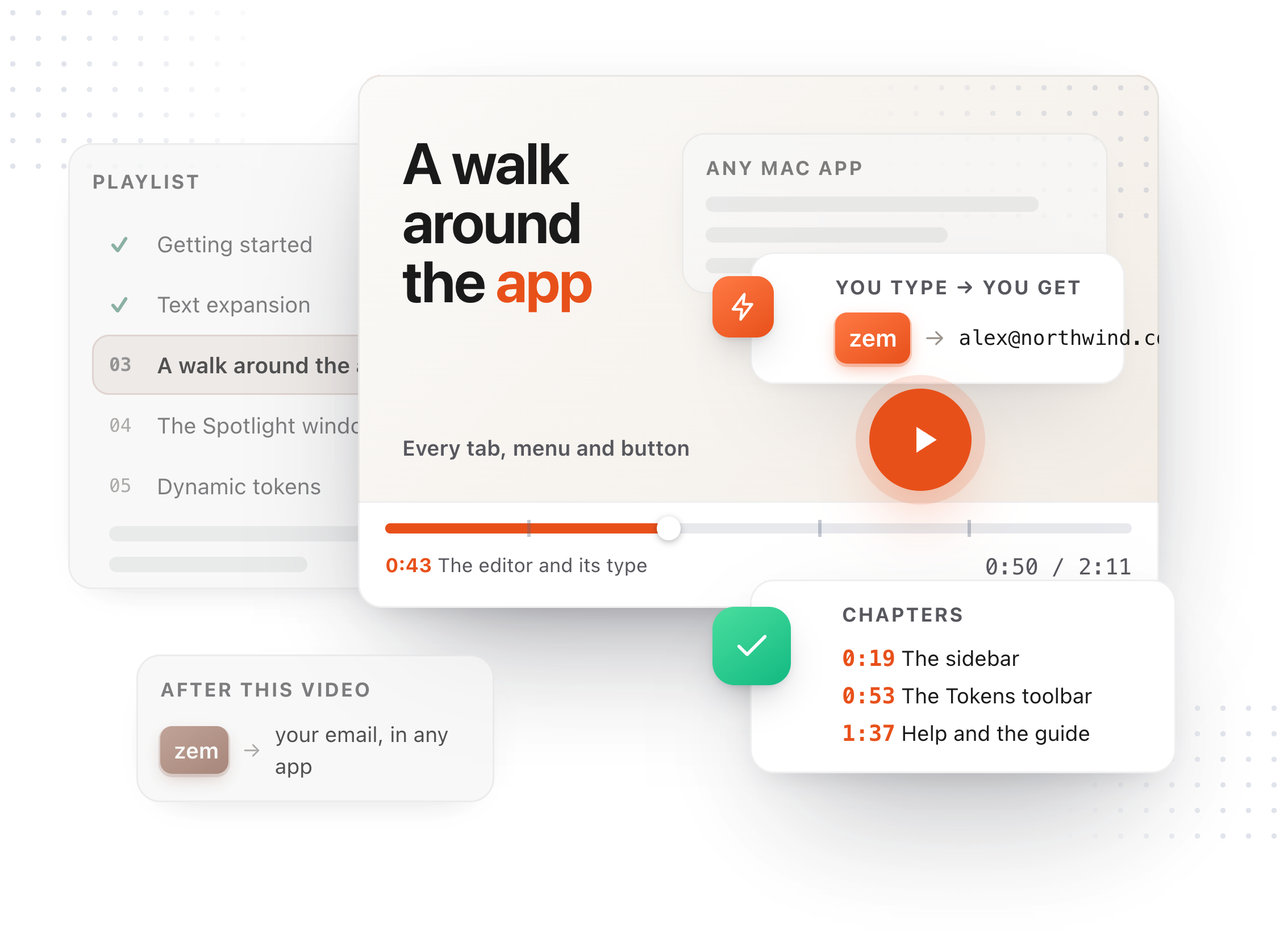
Chapters
Transcript
TypeFire opens on a sign-in. Type your email, and a six digit code is sent to it. There is no password to remember. Type the code from the email, and you are in. Agree to the terms, and Get Started. TypeFire is three things. Snippets are text you type often. Clips is everything you copy. Notes are markdown files in a folder you choose. Clips is on for the trial. If you would rather not keep a clipboard history, switch it off here, or later in Settings. Two folders. Snippets need a new, empty one, since each snippet becomes a file in it. Notes can be a folder you already write in, an Obsidian vault included, or TypeFire makes one for you. Now the thing itself. Type z, e, m in the box. Three letters became your email address. That is a snippet, and it works the same way in every app. Your name, and an abbreviation for a signature. Both become snippets you can type anywhere. Starter snippets, sorted by the kind of work you do. Pick what fits. Everything here can be edited or deleted later. Apple Intelligence is ready on this Mac, free and private, so the AI snippets work with no setup. Other providers live in Settings, and there is a video on those. One permission. Accessibility is how TypeFire sees an abbreviation as you type it in another app. Grant Access opens System Settings. Switch TypeFire on, and the app notices by itself. Everything is set: snippets ready, Clips on, a notes folder. Start using TypeFire. This is the library, with your starters in it. The next video makes a snippet from scratch and uses it.