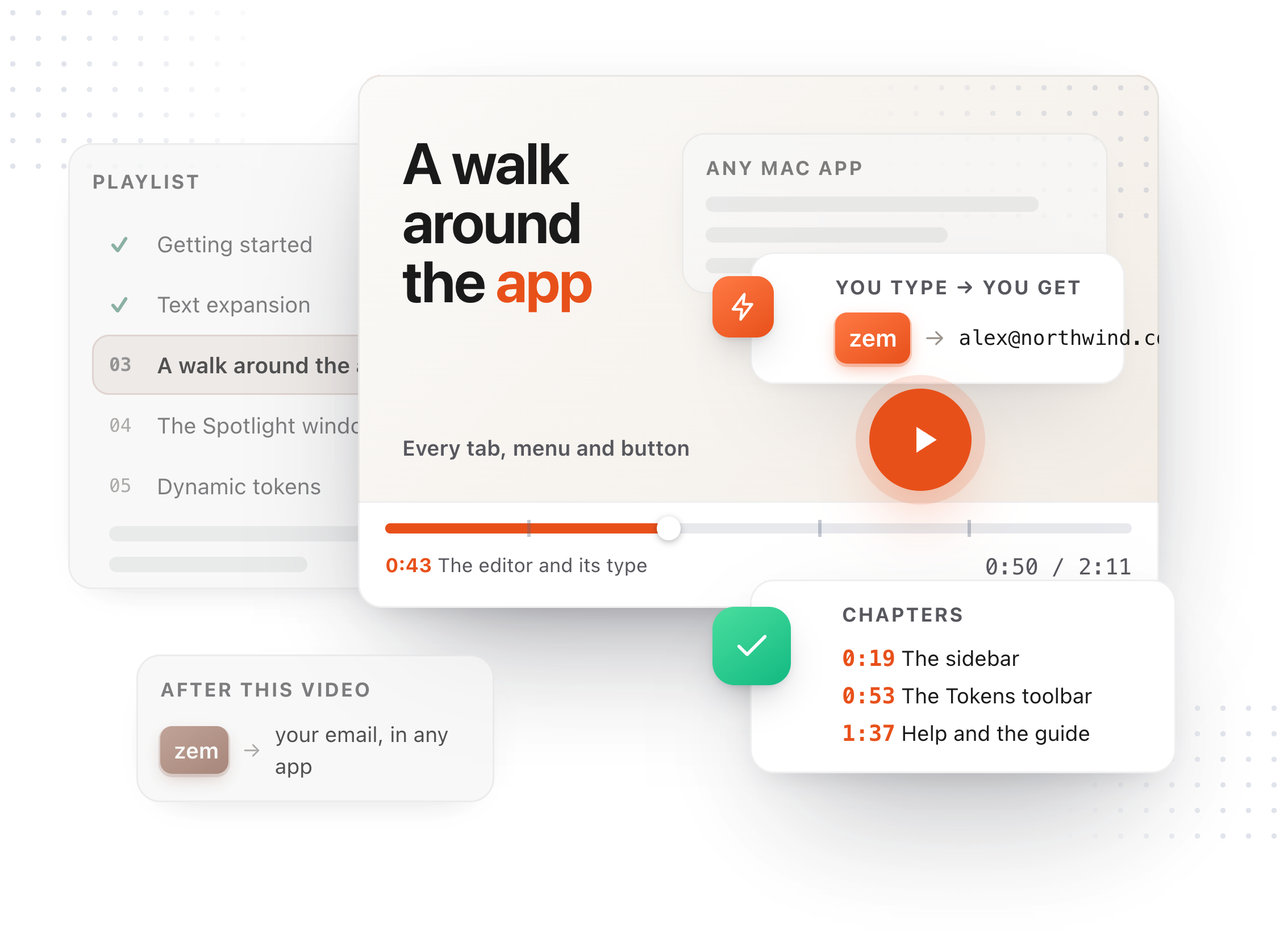
Chapters
Transcript
This is the Clips world: everything you have copied, newest first. Read it as a grid, or as a list, and pick a thumbnail size. On the left, quick lists by kind: pinned, text, images, screenshots, files, colors and links. Below them, the apps your clips came from. Click one and the grid narrows to it. Along the top: group the grid by time or by type, sort it, and filter by type, size, date, or a word inside an image. Click a clip and the inspector opens on the right. Copy puts it on the clipboard. Insert types it into the app you came from, as it is or as plain text. Pin it, and it is never removed. Give it a name, so it is findable by something better than its first line. Tag it. Or set a reminder, and it comes back in an hour. Further down, Save as snippet turns a clip into a snippet with a trigger, and Copy text as changes its case on the way out. For a screenshot, Extract text reads the words in the picture, and from then on the clip is searchable by them, here and in the quick paste window. Delete asks first, or hold the button to skip the question. Retention clears old clips on its own by the rule you set in Settings, and pinned clips are always kept.